
Marking, in one place
Every mock on CATin is scored the CAT way, and every number on the analysis follows these rules.
- +3for a right answer, MCQ or TITA
- −1for a wrong MCQ
- 0for a wrong TITA, or a question you skip
The percentile is an estimated band until 30 students have sat a paper on CATin, read from CAT-level data sets that we have used, reviewed and put up. From then on it is measured from those students' first attempts. The caption under it always says which. How the estimate is built.
How to analyse a CAT mock in CATin: 7 steps
The order that turns one sitting into tomorrow's work. Each step links to its section below.
- Read the score and the percentileStart at the top: your total, the percentile and whether it is measured or estimated, then the section rows, to see which section gave the most and which cost the most.
- Keep the fixes you will act onYour next fixes offers up to three, read from this sitting alone: the topic that cost the most, the wrong answers still to tag, the biggest time sink. Untick any you will not do and press Add to my plan.
- Read the OverviewTopics that cost you marks shows where the negatives went; Where the time went shows minutes sunk into questions you then skipped; Easy, but skipped and Hard, wrong, over 2 min show the cheapest marks to win back and the questions to leave next time.
- Tag every wrong answerTap each row in Wrong answers. It opens the question on Your record; pick Concept gap, Careless slip or Rushed by the clock. The row then shows your reason, and the tag fix counts down.
- Go through Analysis one section at a timePick VARC, then DILR, then QA. Read Looking back, Questions by difficulty, Seconds per question, the passages or sets table and Question selection, to see whether choosing questions or solving them cost you.
- Re-attempt before you read the solutionIn Solutions, turn on Re-attempt for a wrong or skipped question and try it again. Then turn it off and read the worked solution.
- Start your fixesPress Start the first on the folded fixes line. With Pro the fixes are tasks in tomorrow's plan; on the free plan you can still start each one from the analysis.
Above the tabs
The score and your next fixes sit at the top of every view; the three tabs sit under them. Switching tabs leaves these two where they are.
Score
What it shows
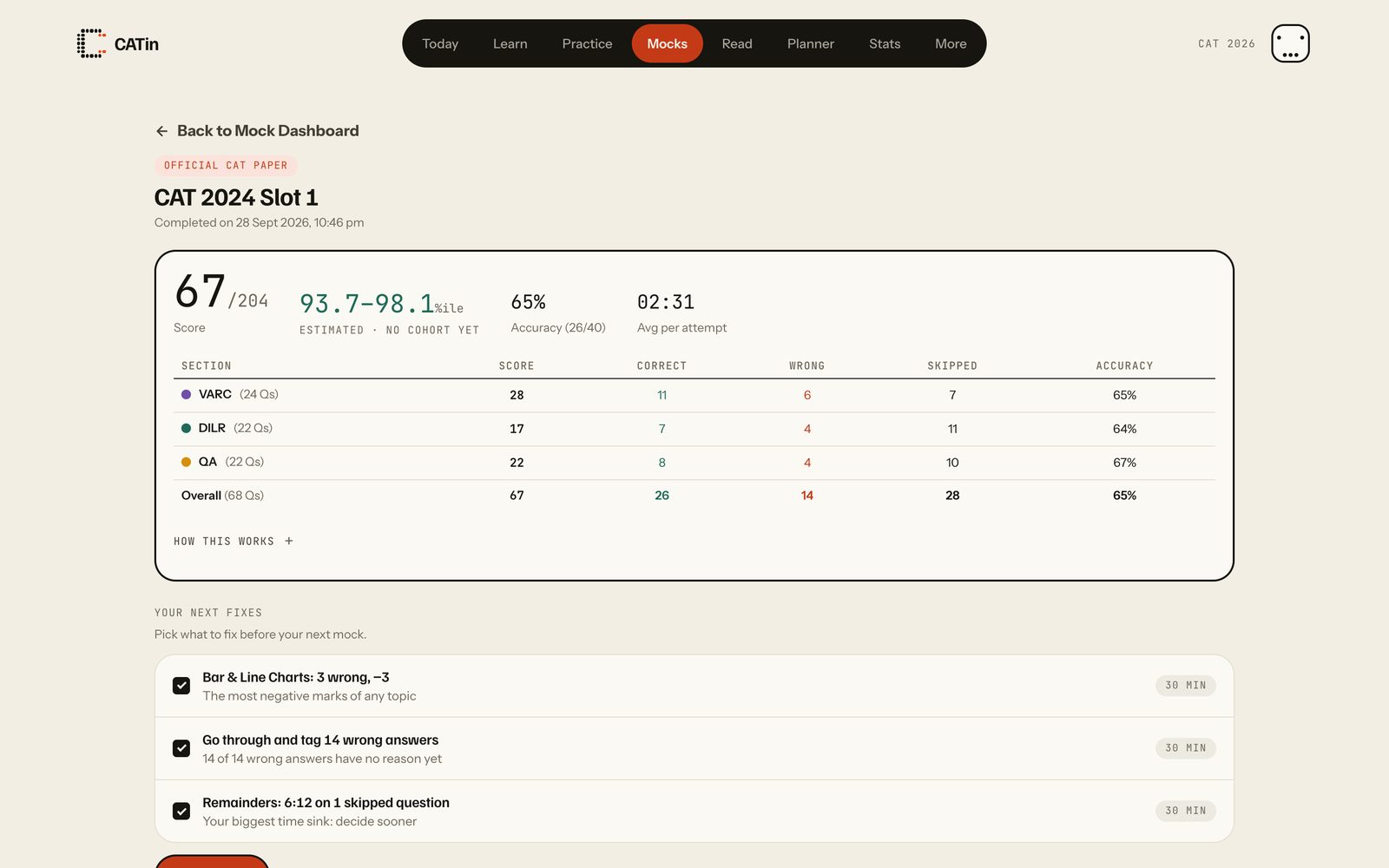
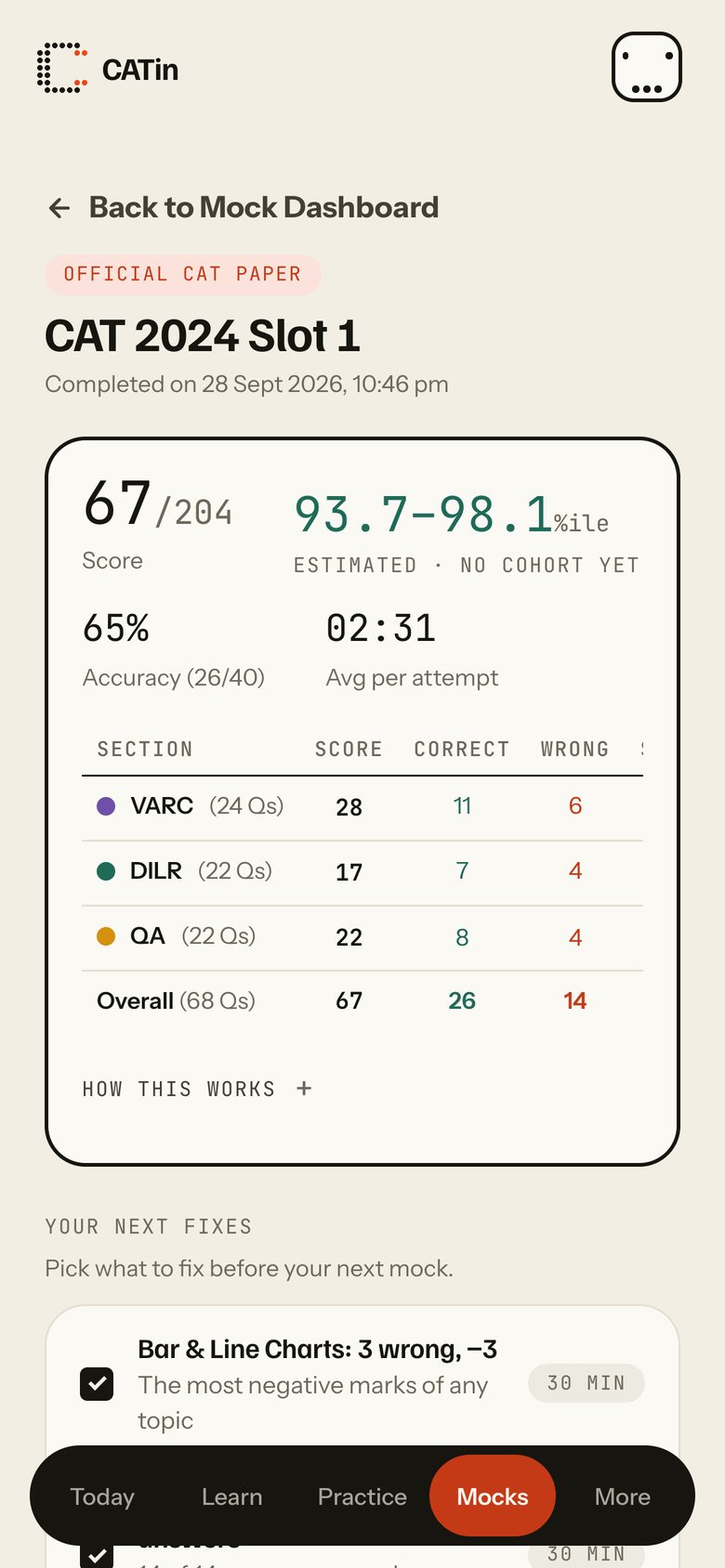
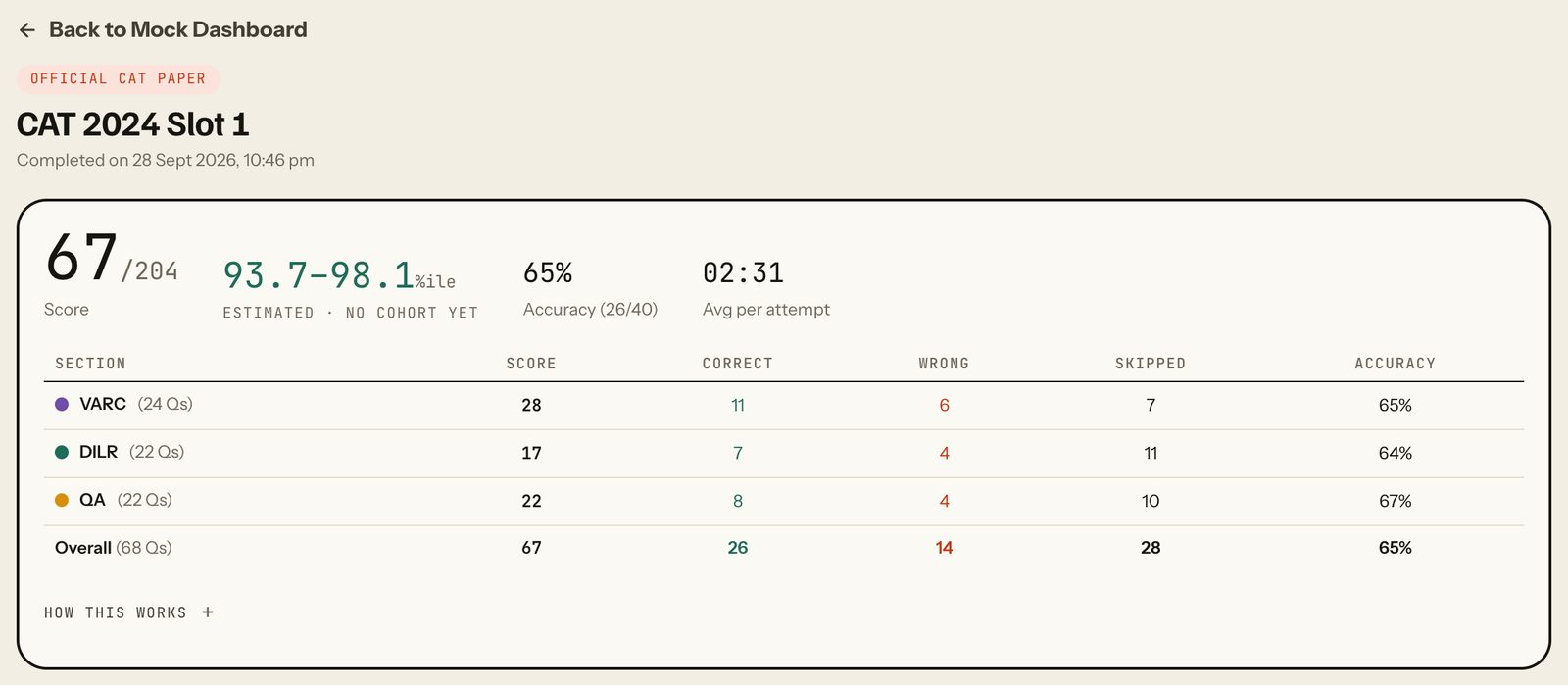
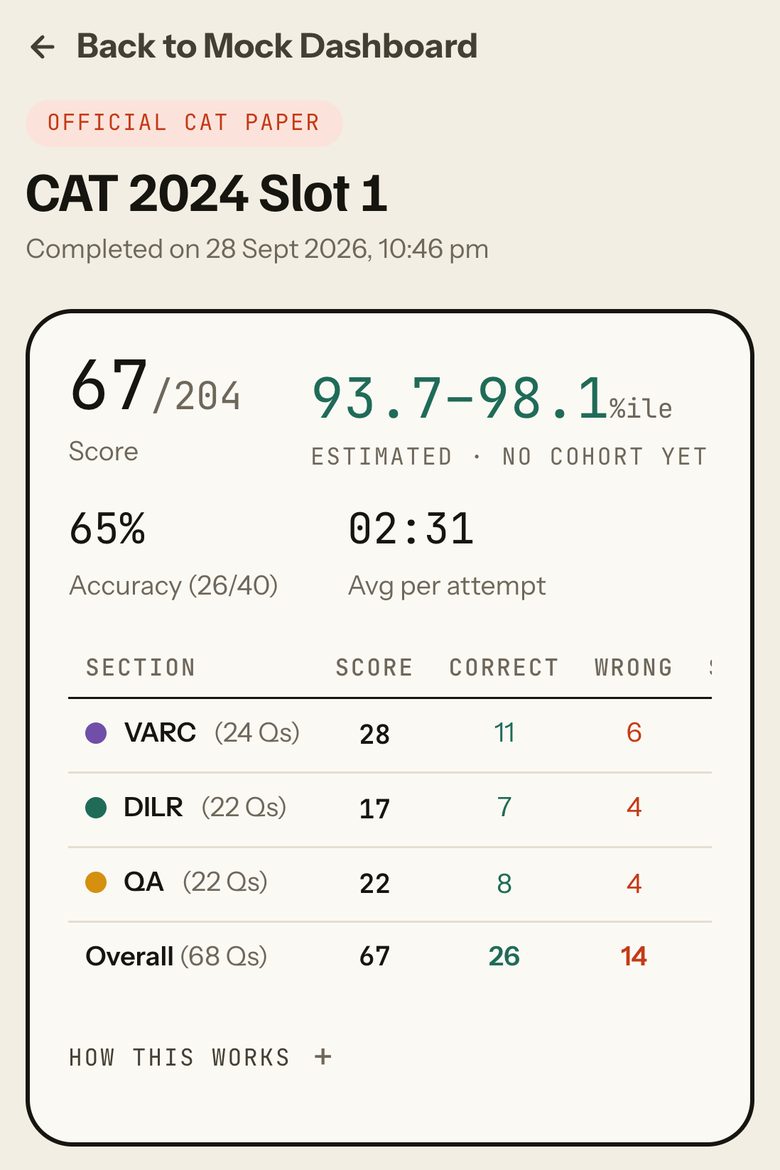
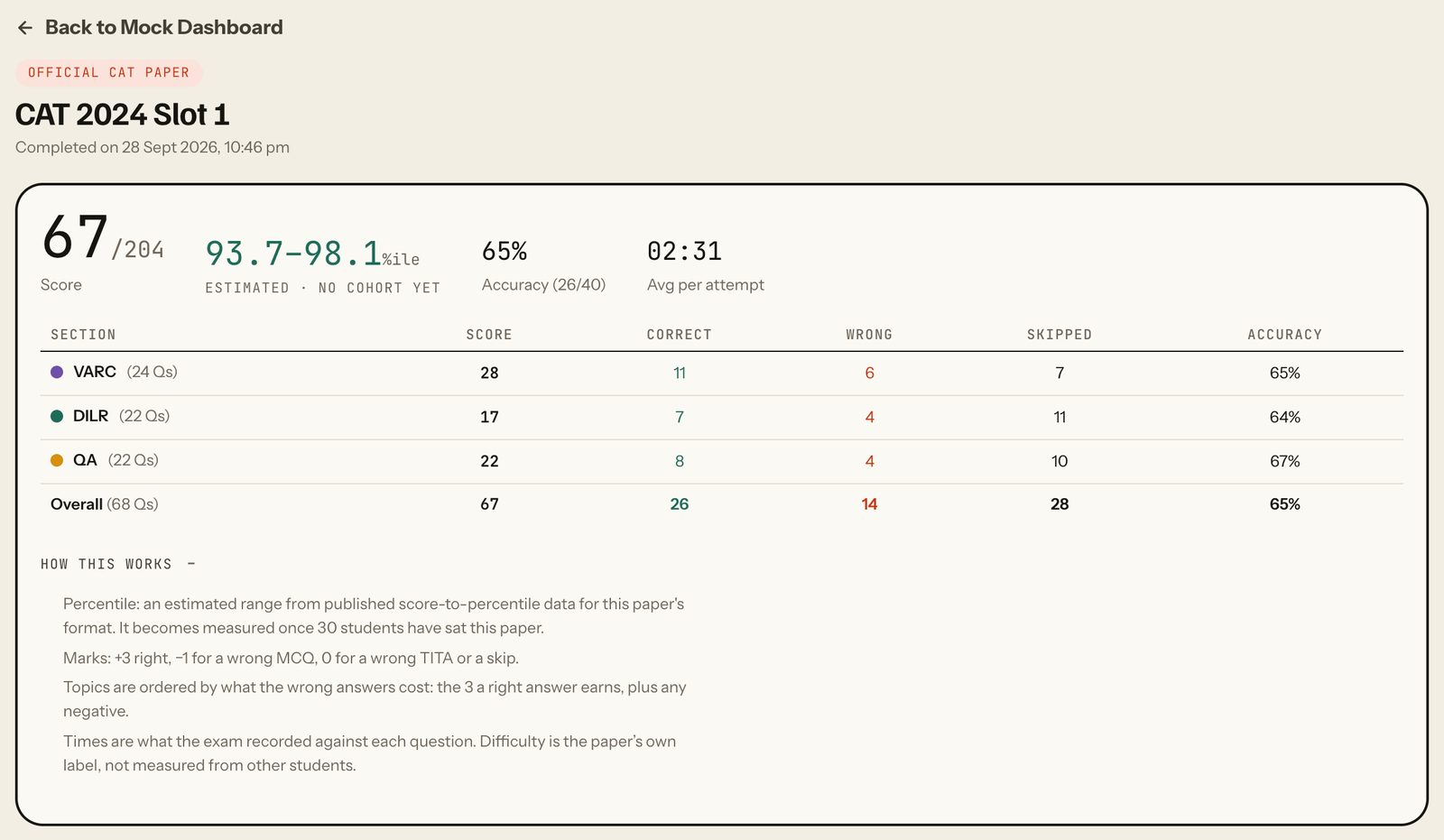
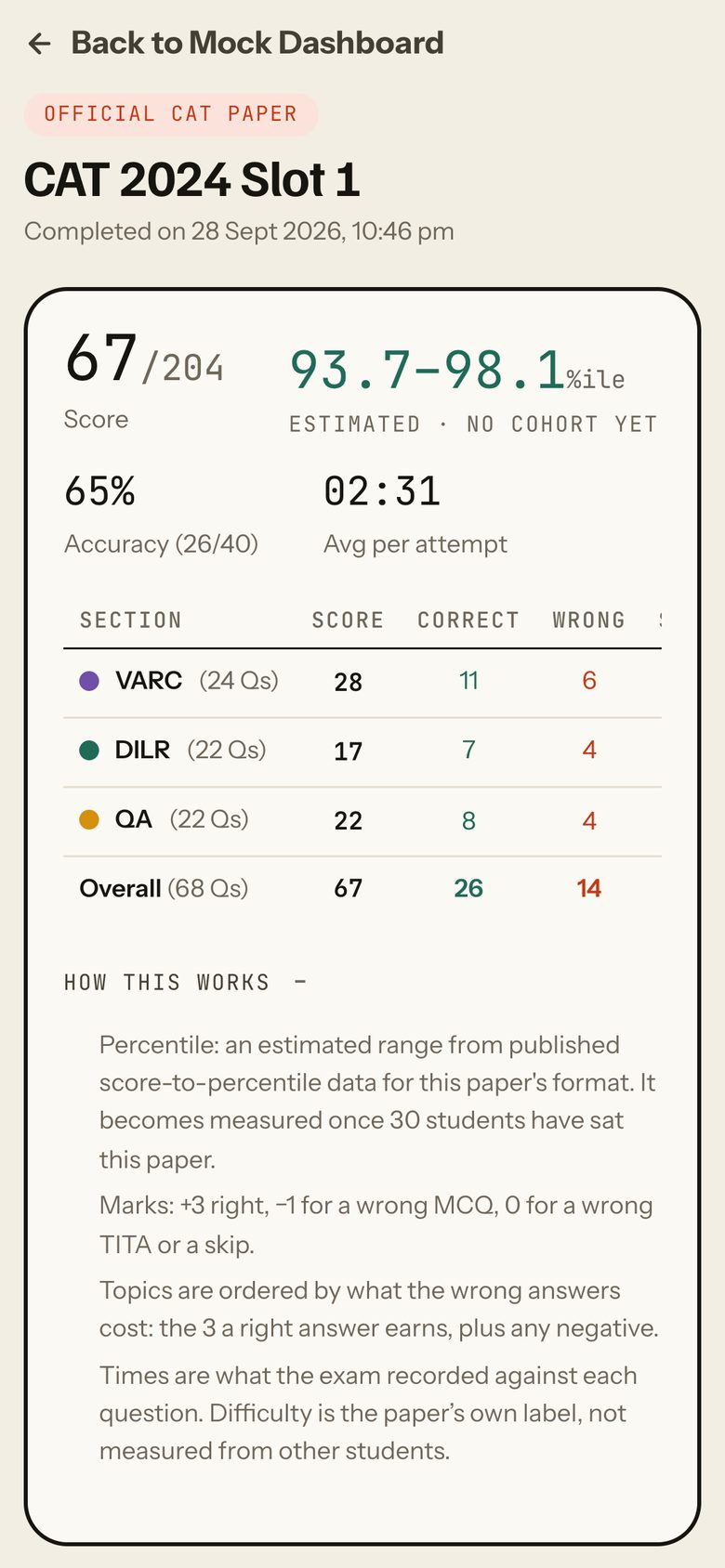
The top of the page: the paper, when you finished it, your total out of the maximum, your percentile, accuracy and average time per attempted question, then one row per section (score, correct, wrong, skipped, accuracy).
- Marks: +3 for a right answer, -1 for a wrong MCQ, 0 for a wrong TITA or a skip.
- Accuracy = correct / attempted (26/40 = 65% in the sample sitting).
- Avg per attempt = time on attempted questions / attempted questions.
- Percentile: measured against the first attempts of CATin students on the paper once 30 have sat it ("from N first attempts"); before that an estimated range from published score-to-percentile data, captioned "Estimated · no cohort yet" (93.7-98.1 in the sample).
- On a retake the header adds "Attempt N of M", a "vs previous attempt" change and a "vs previous" column, and a note that the percentile reads high because the questions were seen before.
How to use it
- Read the total and the percentile first; the caption under the percentile says whether it is measured or estimated.
- Scan the section rows to see which section gave or cost the most.
- Tap "How this works" for how the marks and the percentile are counted.
Taps and where they lead
- Back to Mock DashboardGoes back to the previous screen (the mocks list if there is none).
- How this works +Opens the notes inline: percentile basis, the marking rule, how topics are ordered, where times and difficulty come from. Tap again to close.
FreeThe same for every student, free or Pro.
Other states
What it shows
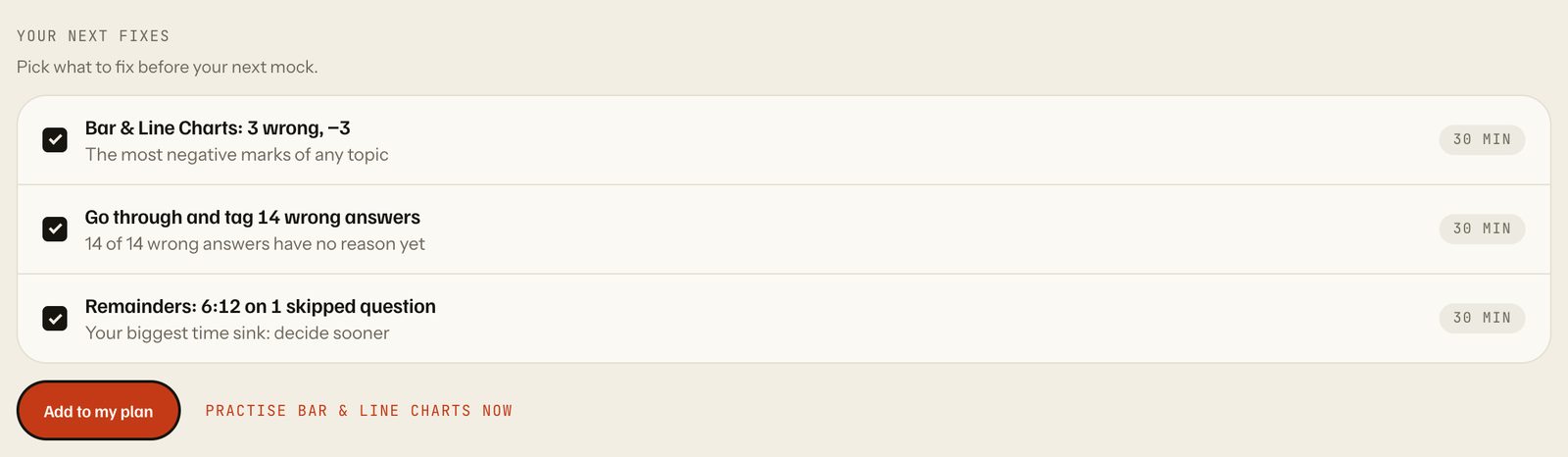
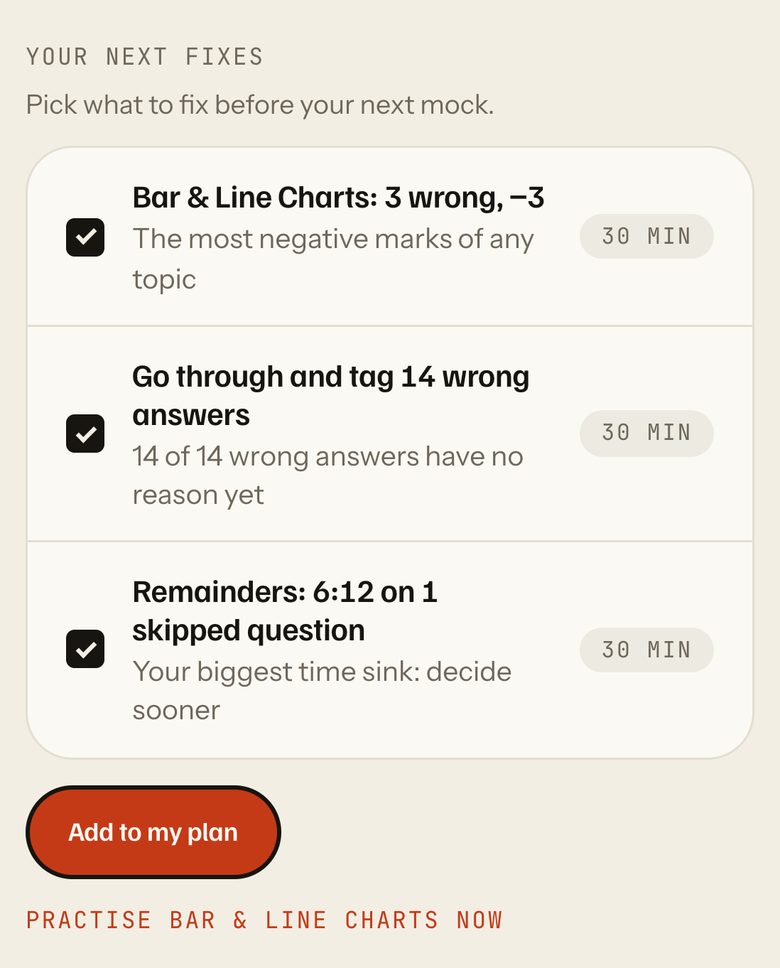
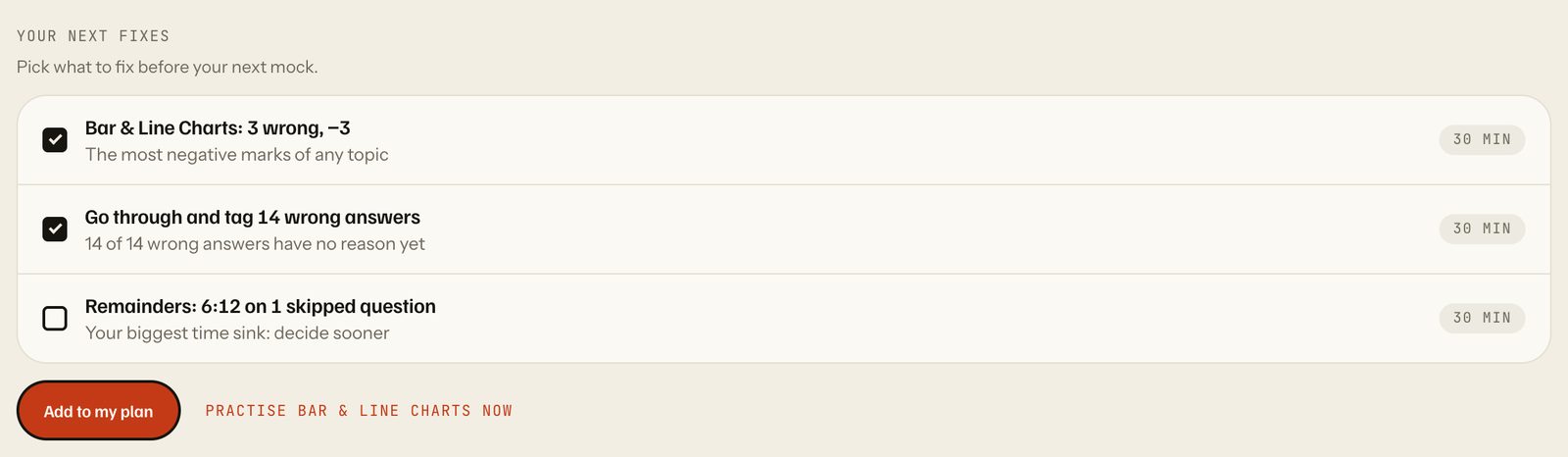
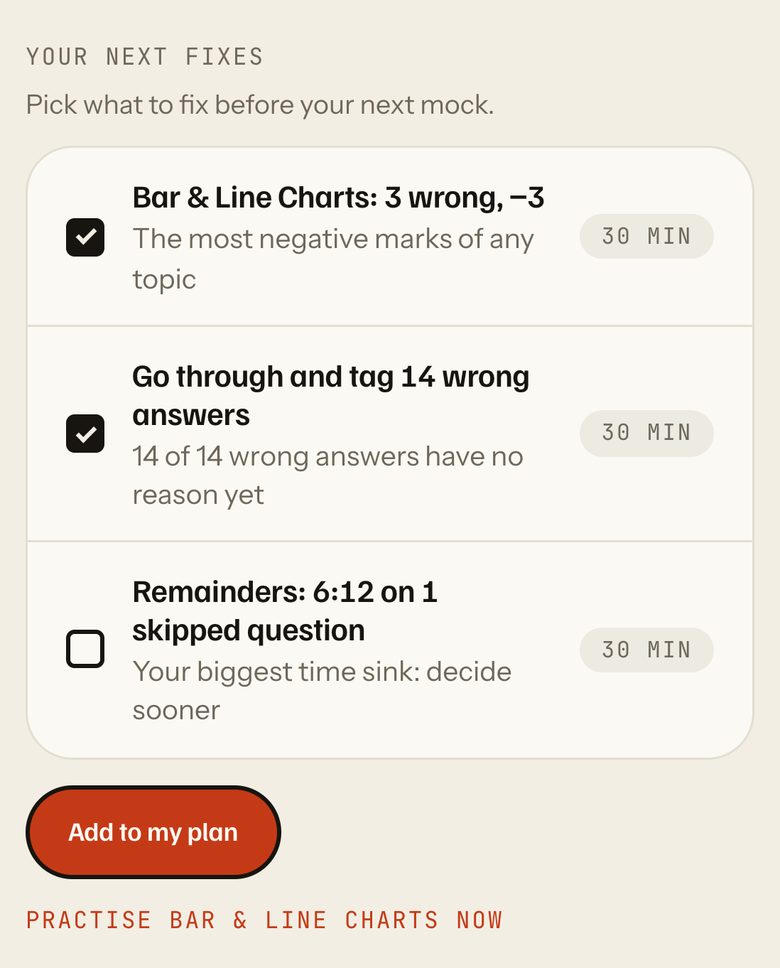
Up to three fixes read from this sitting: the topic that took the most negative marks, the wrong answers you have not tagged yet, and the topic where the most time went on questions you then skipped. Each shows minutes (ten questions at your own median pace, 15-30 min).
How to use it
- Untick any row you do not want.
- Press "Add to my plan".
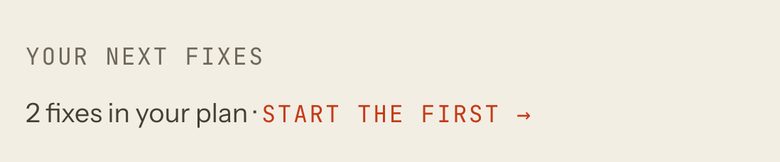
- The card folds to one line; press "Start the first" to begin.
Taps and where they lead
- A fix row (tick box)Ticks or unticks that fix. All three start ticked.
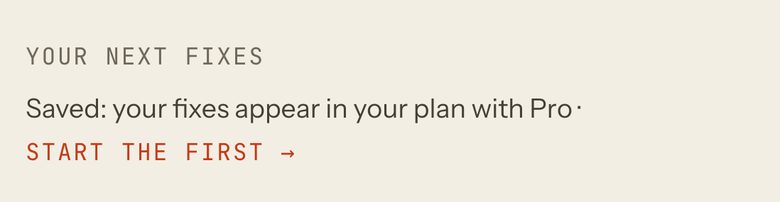
- Add to my planSaves the ticked fixes and folds the card to one line: "N fixes in your plan · Start the first" (Pro) or "Saved: your fixes appear in your plan with Pro · Start the first" (free).
- Practise topic nowOpens a 10-question practice session on that topic.
- Start the first →Topic fix: the practice session for that topic. "Tag N wrong answers" fix: the Solutions tab at the first untagged wrong answer, on "Your record". Time fix: the topic's practice session, or the selection drill for a question with no topic tag.
Partly ProEveryone can choose and start fixes. Only Pro shows them as tasks in the planner; a free student sees "Saved: your fixes appear in your plan with Pro". Practice sessions for a free student draw from the free papers only.
Other states


Overview / Analysis / Solutions
What it shows
The three views of the report. Overview is the whole sitting at a glance, Analysis goes one section at a time, Solutions goes one question at a time.
How to use it
- Tap a tab to switch view; the score and fixes above stay where they are.
- Many rows and charts in Overview and Analysis open the matching question in Solutions.
Taps and where they lead
- OverviewShows the Overview panels (the default view).
- AnalysisShows the Analysis panels for one section (VARC first).
- SolutionsShows question 1 of VARC with its solution.
FreeThe same for every student, free or Pro.

Other states
Overview
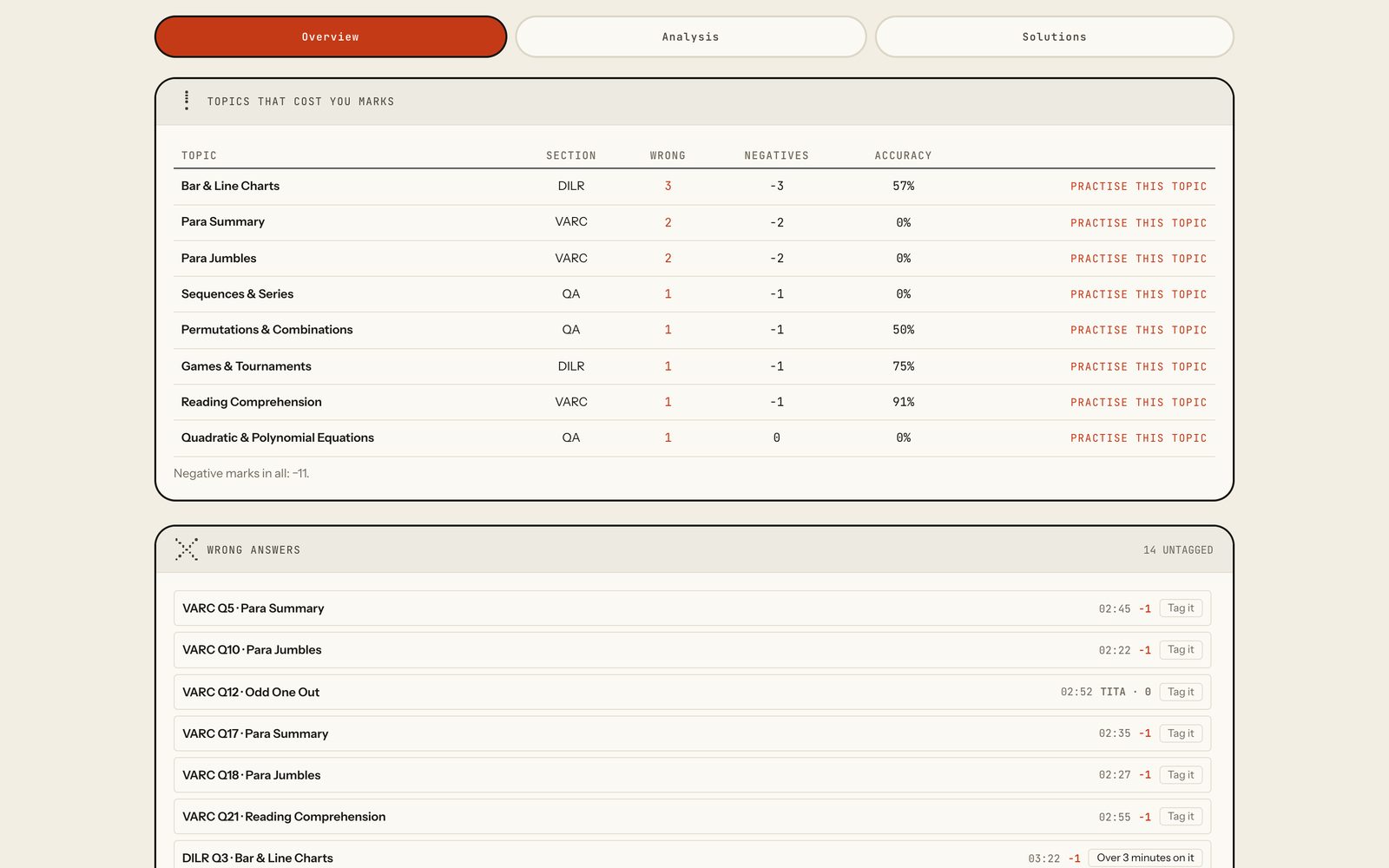
The whole sitting at a glance. Many rows here open the matching question in Solutions.
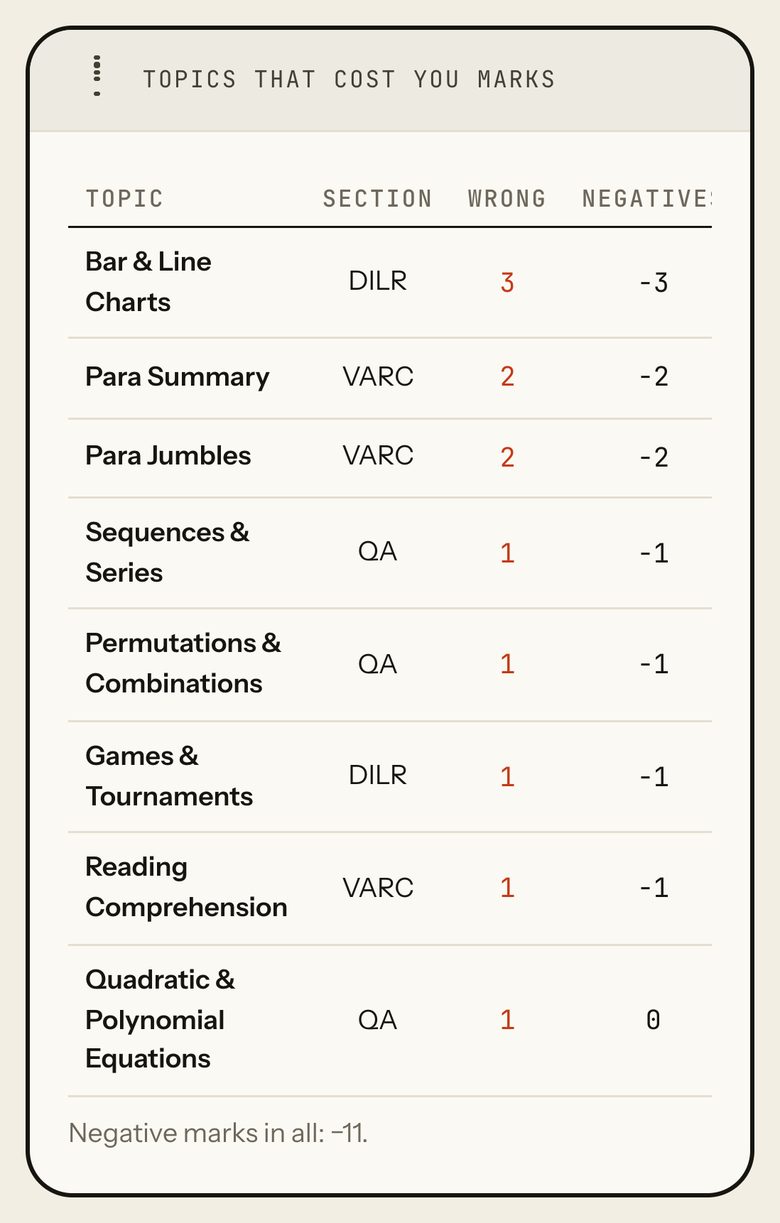
Topics that cost you marks
What it shows
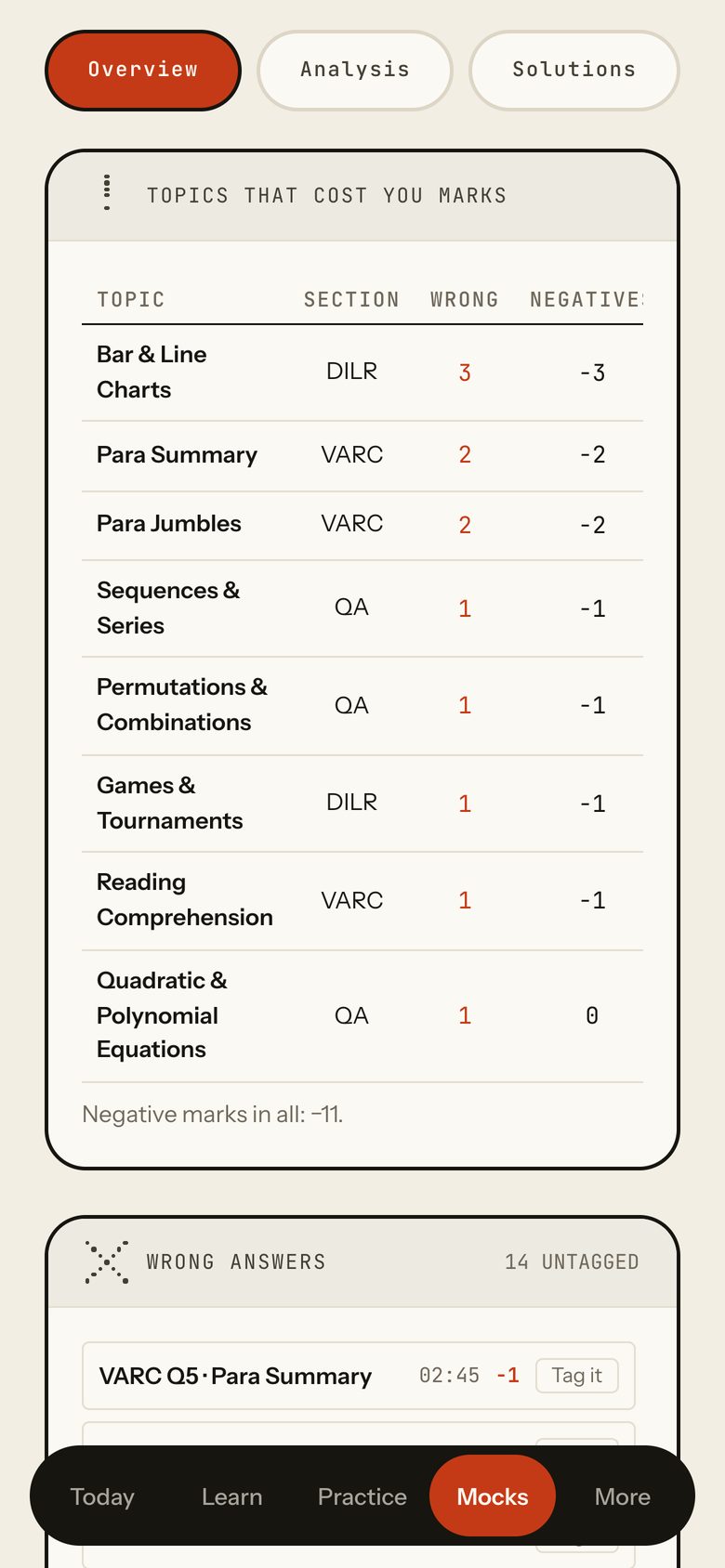
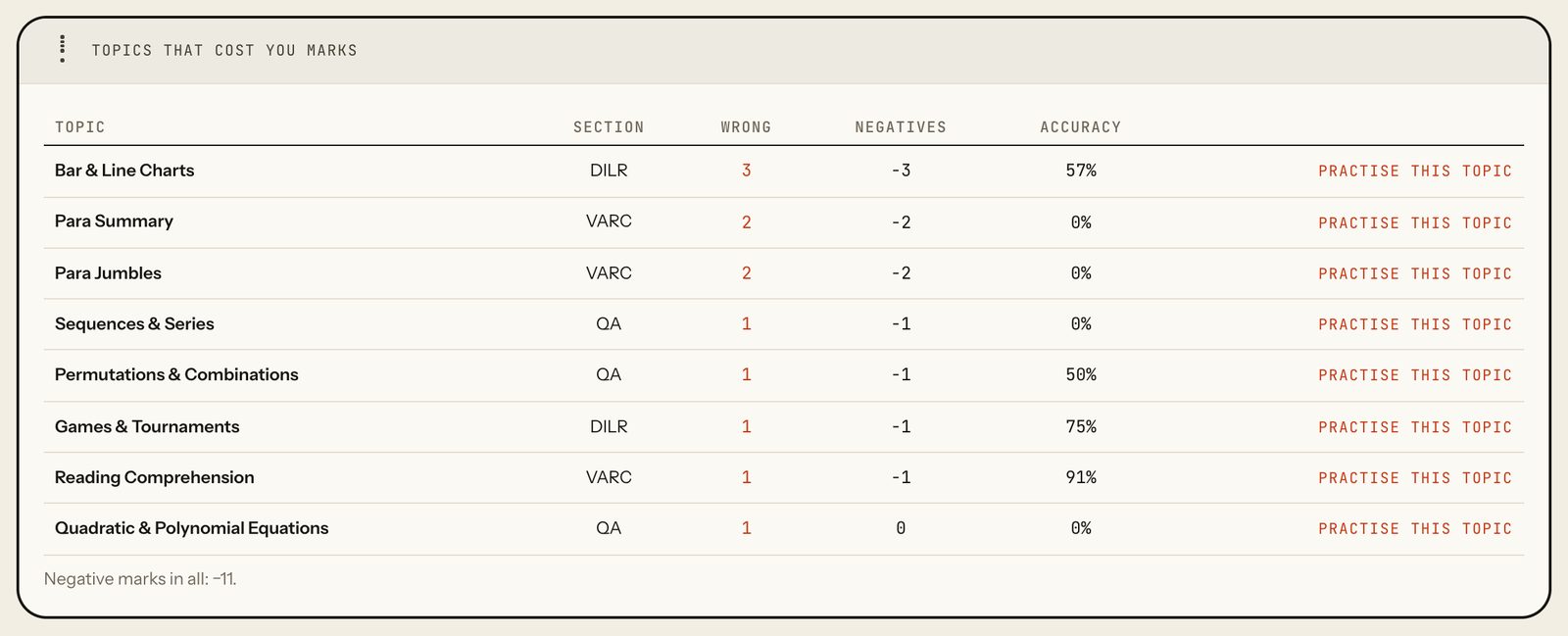
Every topic with a wrong answer, worst first: section, wrong answers, negative marks and accuracy. The line under it totals the negatives (-11 in the sample).
- Ordered by what the wrong answers cost: the 3 a right answer would have earned plus any negative, then by accuracy.
How to use it
- Start at the top row: it cost the most.
- Press "Practise this topic" on that row.
Taps and where they lead
- Practise this topicOpens a 10-question practice session on that topic. A topic with no tag reads "no topic tag" instead.
Partly ProThe panel is free; a free student's practice session draws from the free papers only.
Wrong answers
What it shows
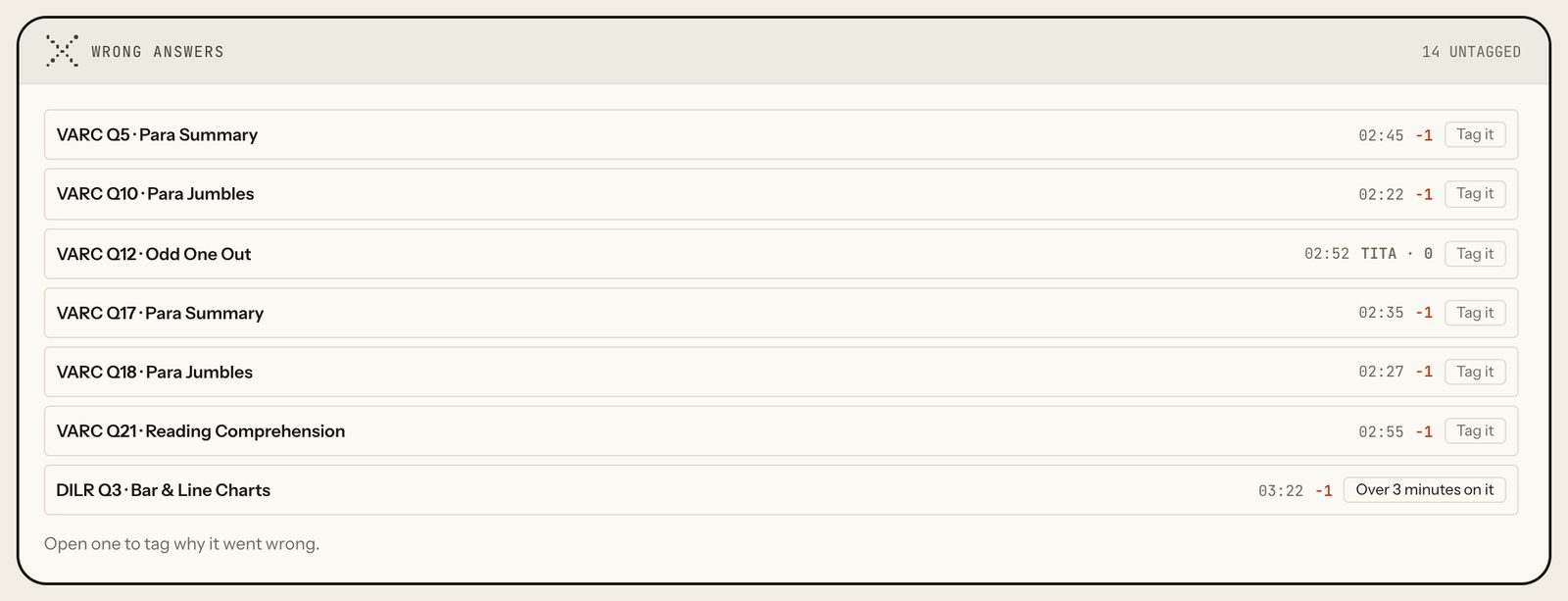
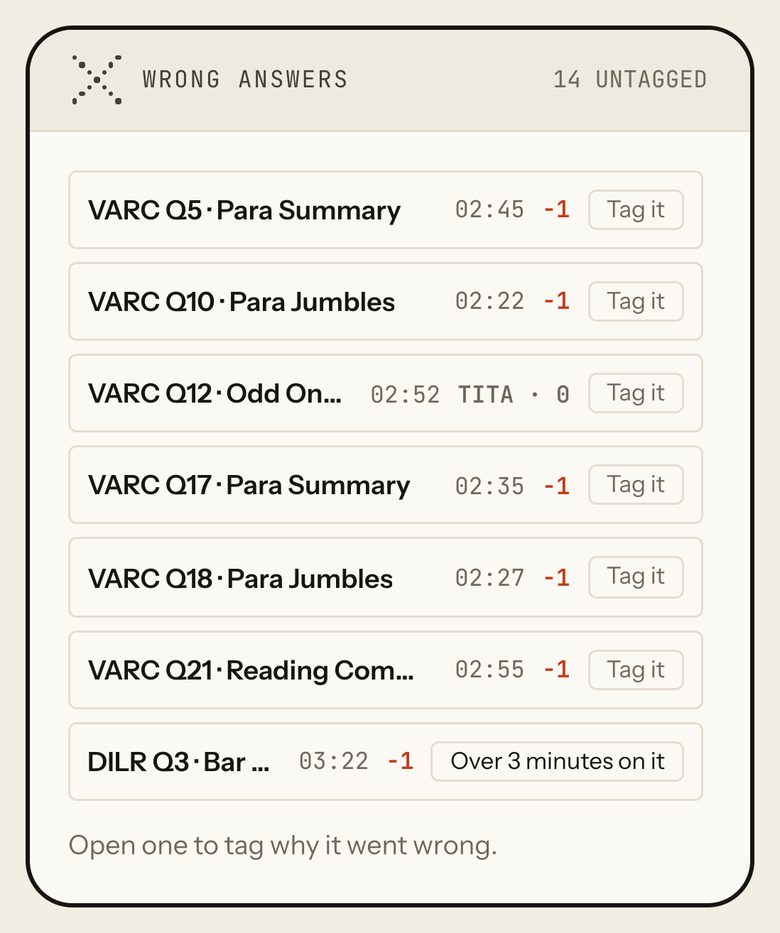
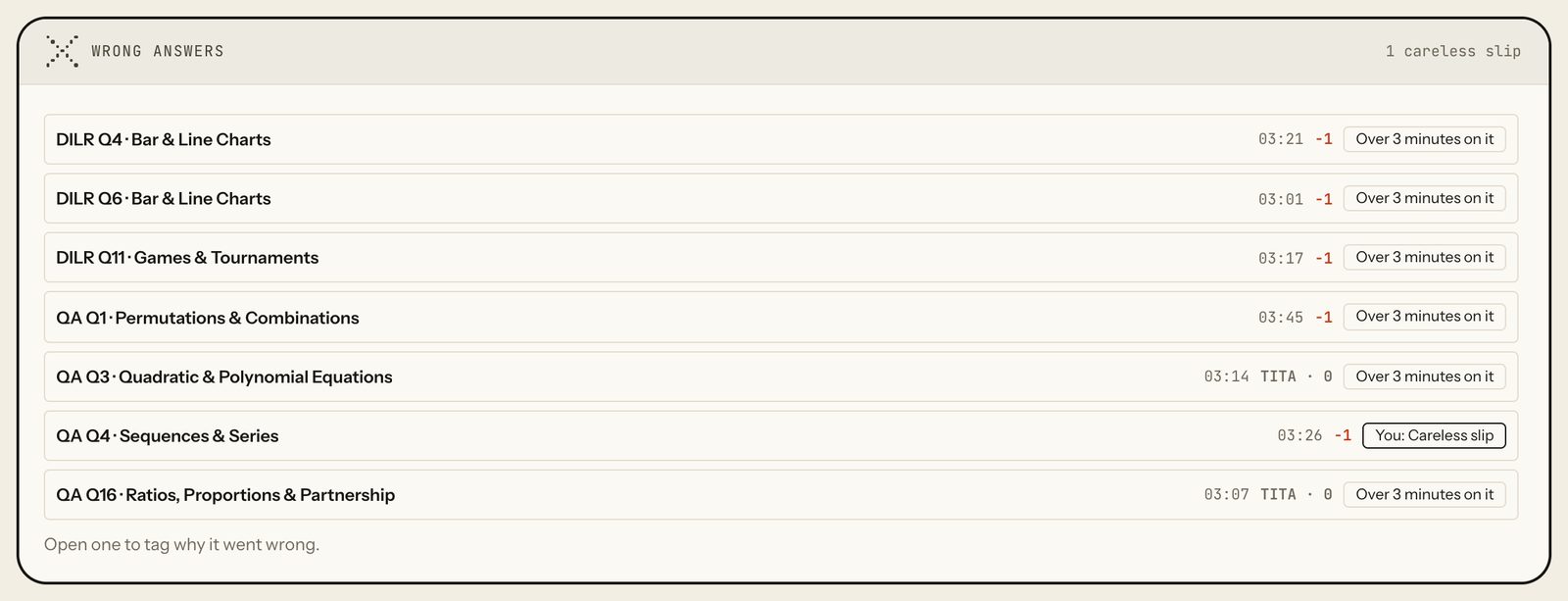
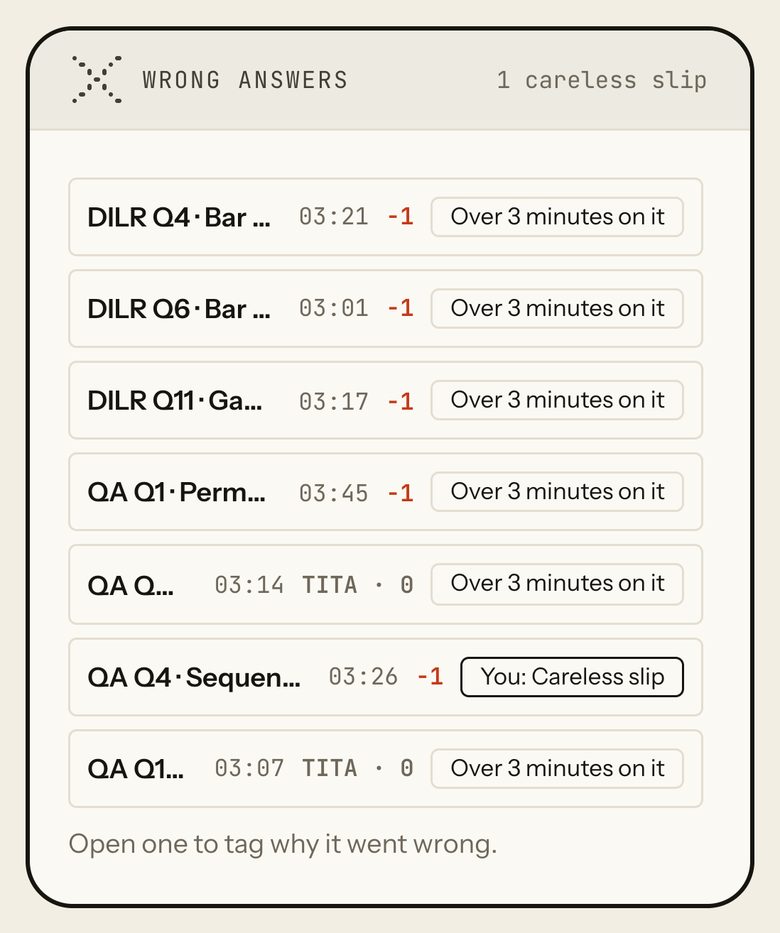
Every wrong answer, with its time, its mark (-1 for an MCQ, "TITA · 0" for a TITA) and a tag. The header counts your tags, or says how many are untagged.
- Tag column: "You: reason" once you tag it; otherwise "Over 3 minutes on it" or "Answered in under 30 s" from the recorded time, or "Tag it".
The list scrolls inside the panel (about seven rows show at once).
How to use it
- Tap a row: it opens that question in Solutions on "Your record".
- Pick why it went wrong.
- Come back: the row now shows "You: reason".
Taps and where they lead
- A rowSwitches to Solutions at that question with "Your record" open.
FreeThe same for every student, free or Pro.
Other states
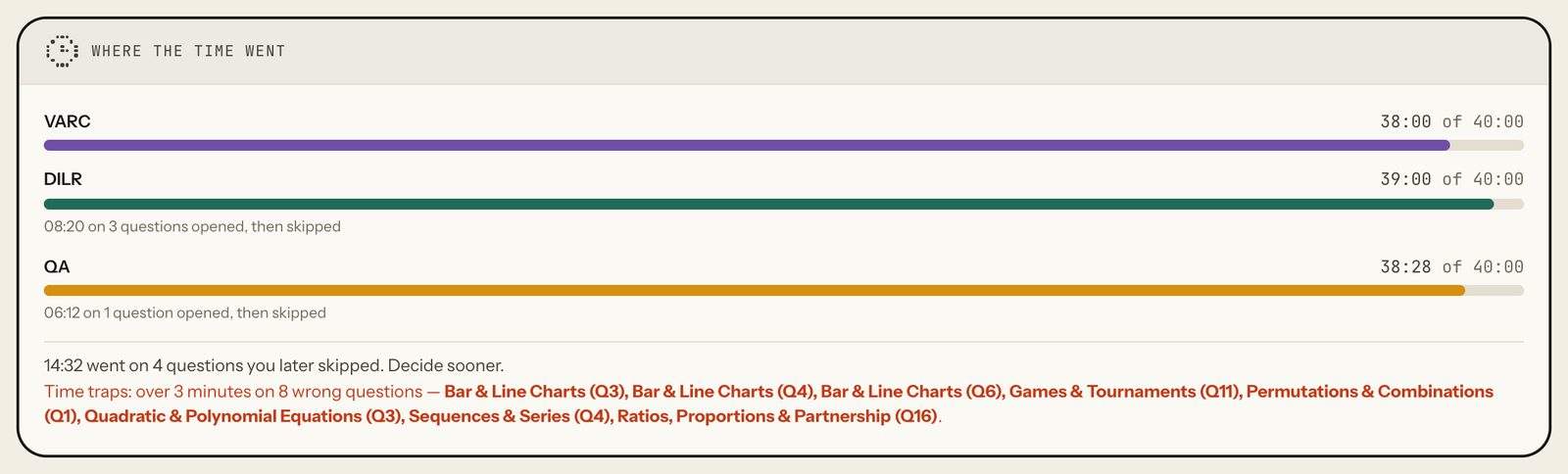
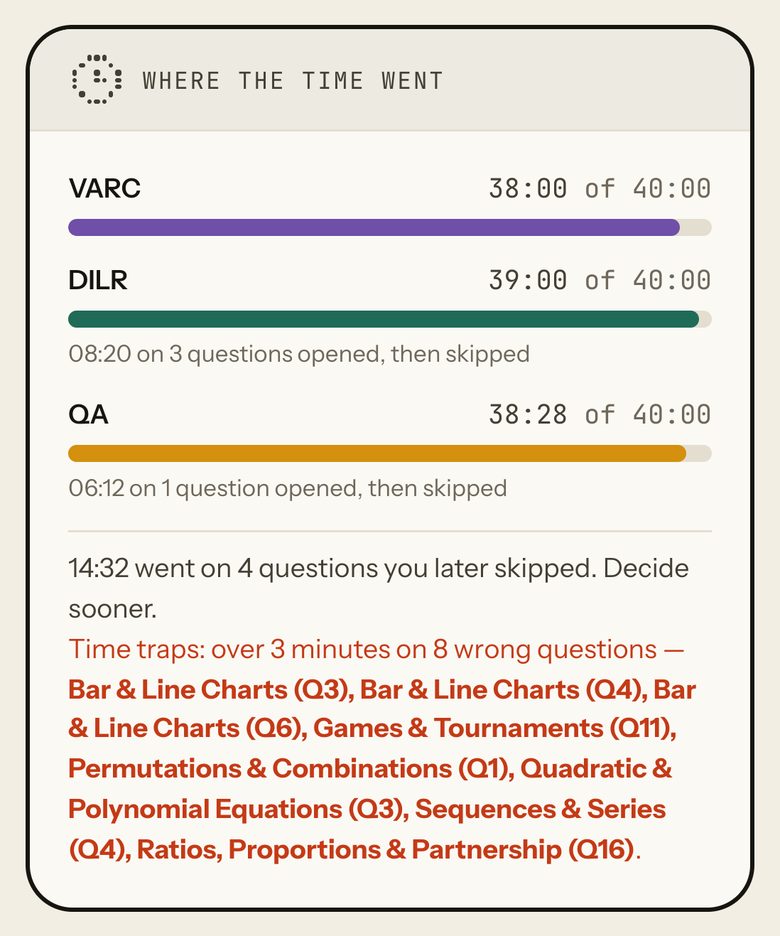
Where the time went
What it shows
Time used in each section against the time allowed, time spent on questions you opened and then skipped, and the "time traps": wrong answers that took over three minutes.
How to use it
- Compare each bar with the full width (the section time).
- Read the time traps by name and question number.
Taps and where they lead
Nothing here to tap: the panel is read-only.
FreeThe same for every student, free or Pro.
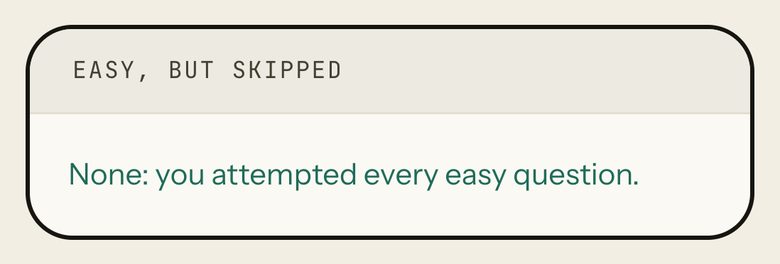
Easy, but skipped
What it shows
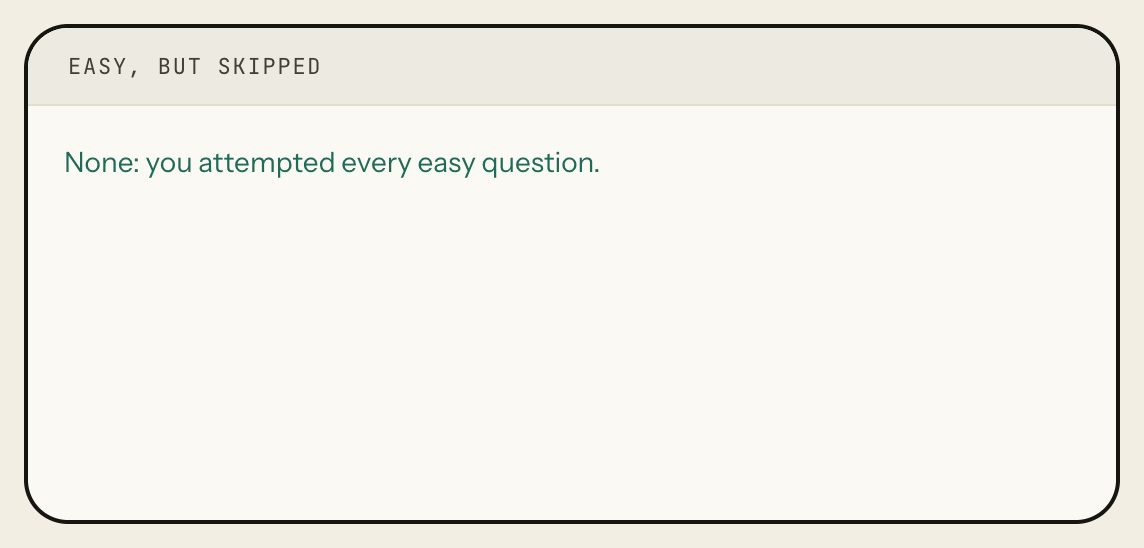
Questions the paper labels easy that you left. In the sample sitting there are none: "None: you attempted every easy question."
How to use it
- Tap a question to open it in Solutions.
Taps and where they lead
- A question rowOpens that question in Solutions (Solution sub-tab).
FreeThe same for every student, free or Pro.
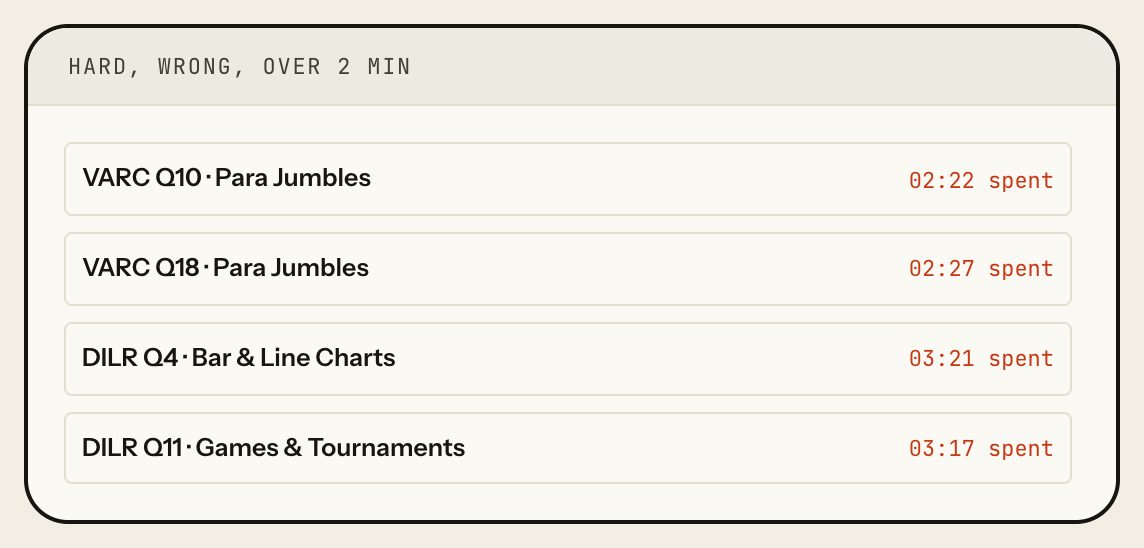
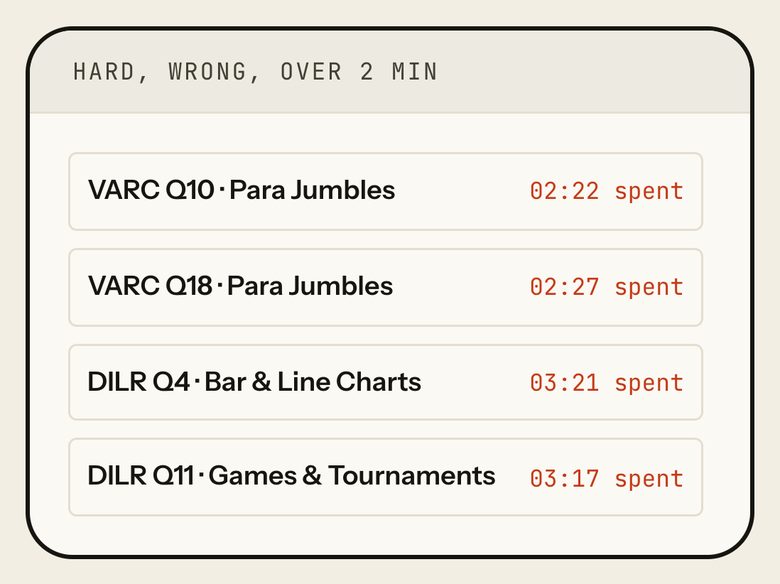
Hard, wrong, over 2 min
What it shows
Hard questions you got wrong after more than about two minutes on them (over 130 seconds): the ones to leave next time.
How to use it
- Tap a question to open it in Solutions.
Taps and where they lead
- A question rowOpens that question in Solutions (Solution sub-tab).
FreeThe same for every student, free or Pro.
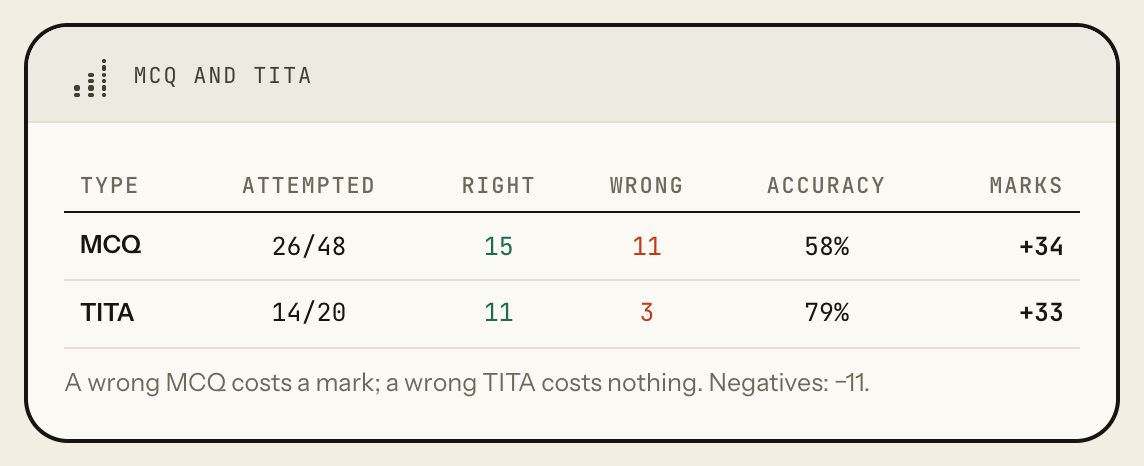
MCQ and TITA
What it shows
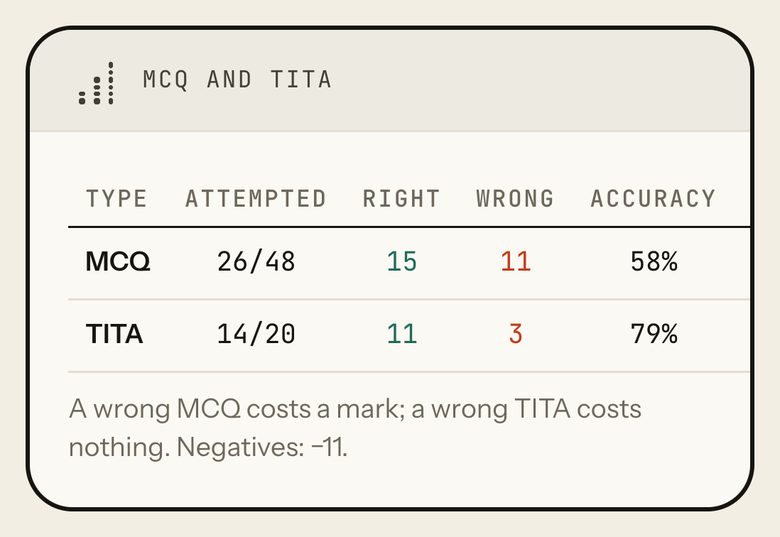
MCQ and TITA questions side by side: attempted out of total, right, wrong, accuracy and net marks, with the MCQ negatives.
- A wrong MCQ costs a mark; a wrong TITA costs nothing.
How to use it
- Compare accuracy across the two types.
- Remember a wrong TITA costs nothing, so a TITA guess is free.
Taps and where they lead
Nothing here to tap: the panel is read-only.
FreeThe same for every student, free or Pro.
Marked for review
What it shows
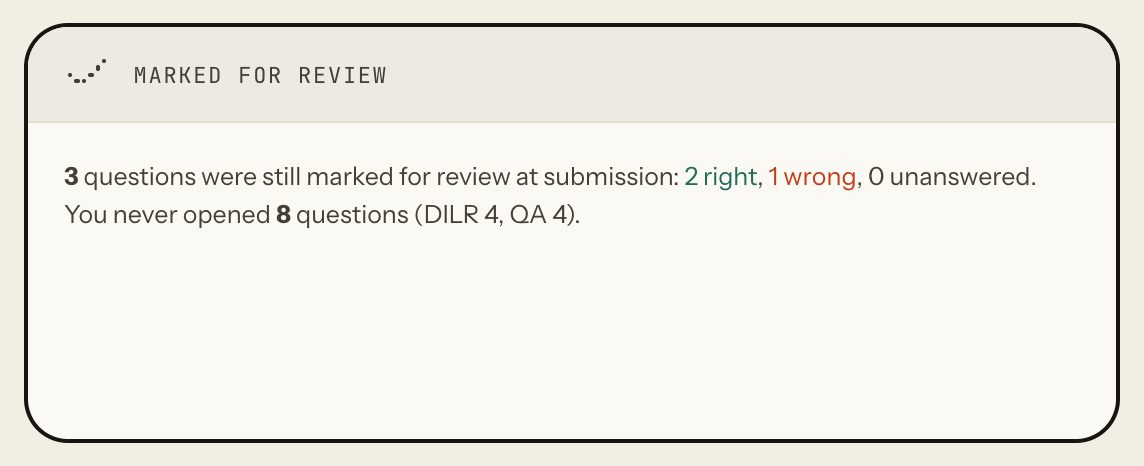
How many questions were still marked for review when you submitted, and how they ended (right, wrong, unanswered), plus how many questions you never opened, by section.
How to use it
- Check the unanswered count: a mark with no answer scores nothing.
Taps and where they lead
Nothing here to tap: the panel is read-only.
FreeThe same for every student, free or Pro.
What each section says
What it shows
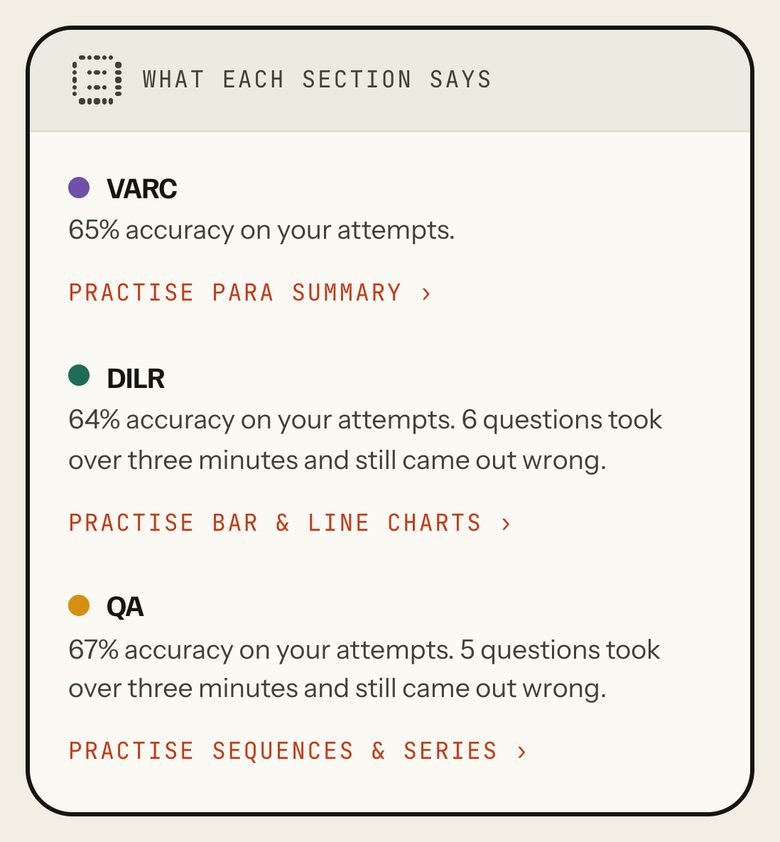
One line per section, computed from this sitting: accuracy on attempts, whether selection or execution is the problem, and how many questions took over three minutes and still came out wrong.
When the server has written an analysis for this attempt, a paragraph labelled "Written by the AI for this attempt" appears above the three lines. Not present in local demo mode.
How to use it
- Read your weakest section's line.
- Press its "Practise topic" link.
Taps and where they lead
- Practise topic ›Opens a practice session on that section's costliest topic.
Partly ProPractice for a free student draws from the free papers only.

Analysis
One section at a time: pick VARC, DILR or QA, and every panel under the picker follows it. Looking back covers the whole paper.
VARC / DILR / QA
What it shows
Picks the section every Analysis panel below describes.
A "College predictor" panel appears here only when the percentile is measured (30+ first attempts on the paper). The sample sitting has an estimated percentile, so it is not shown.
How to use it
- Tap VARC, DILR or QA.
Taps and where they lead
- VARC / DILR / QARedraws the Analysis panels for that section.
FreeThe same for every student, free or Pro.

Other states

Looking back: if you had…
What it shows
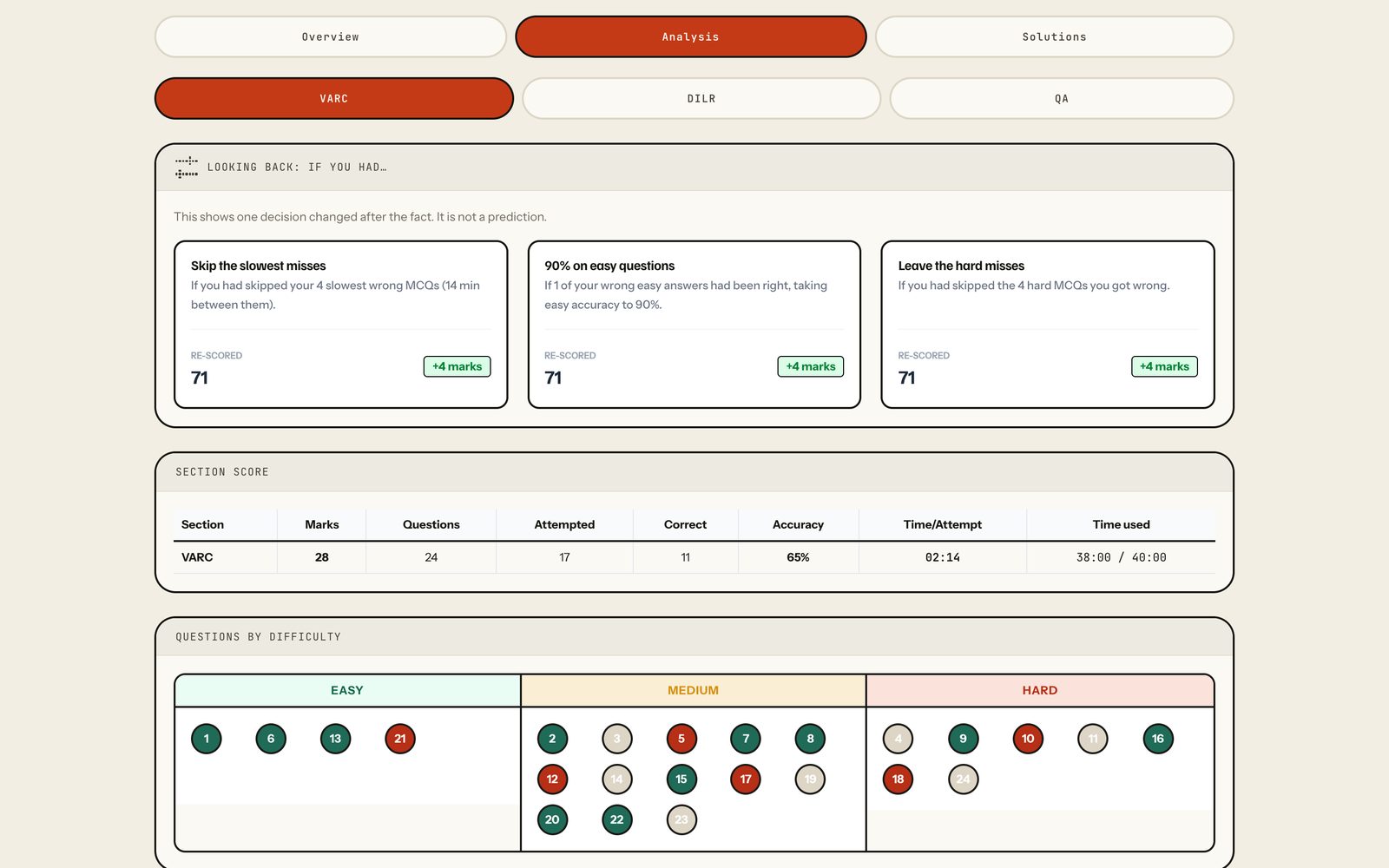
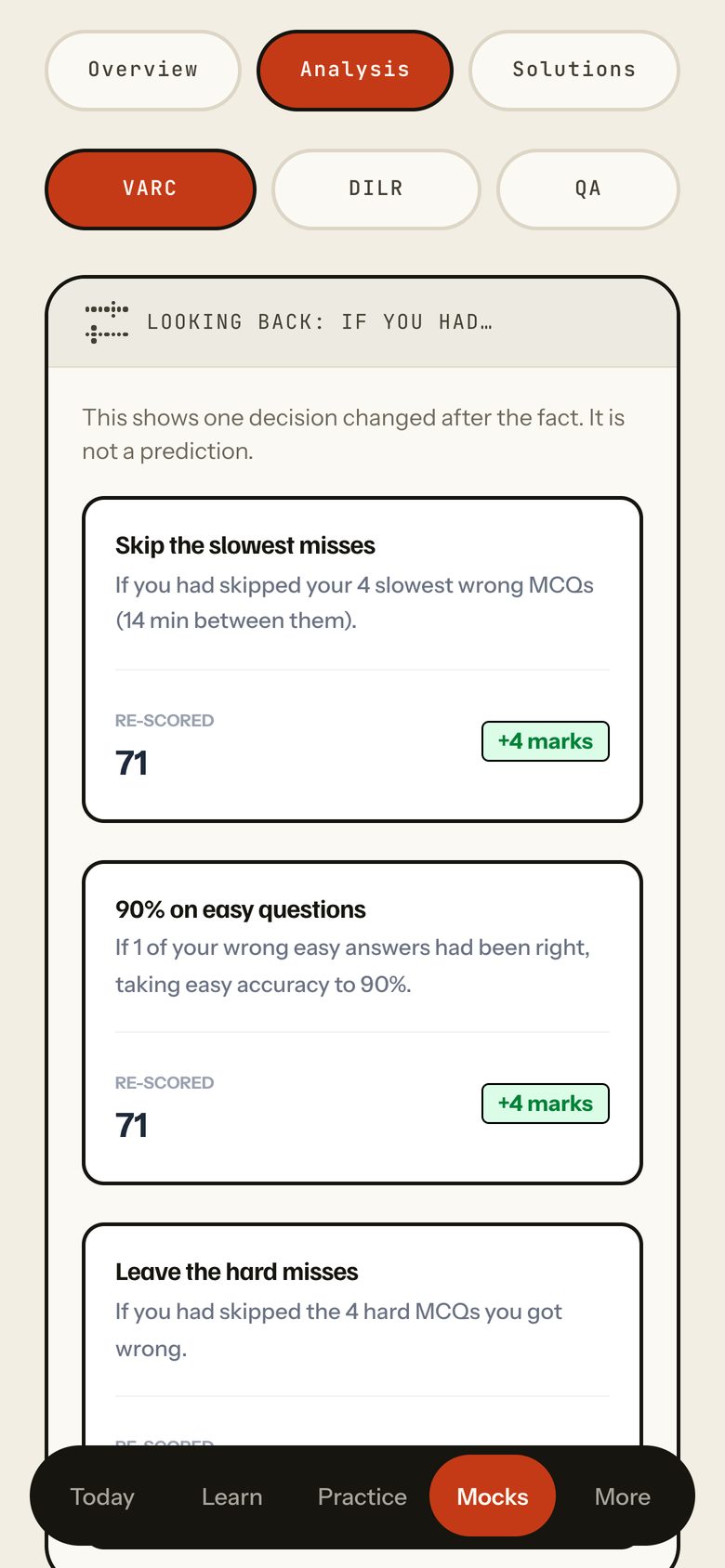
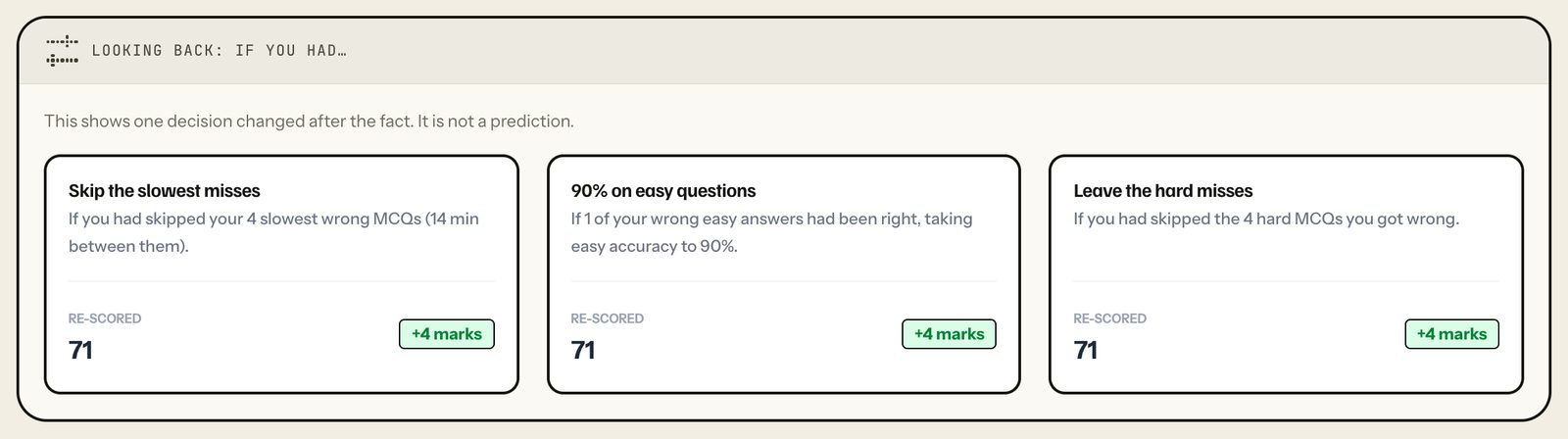
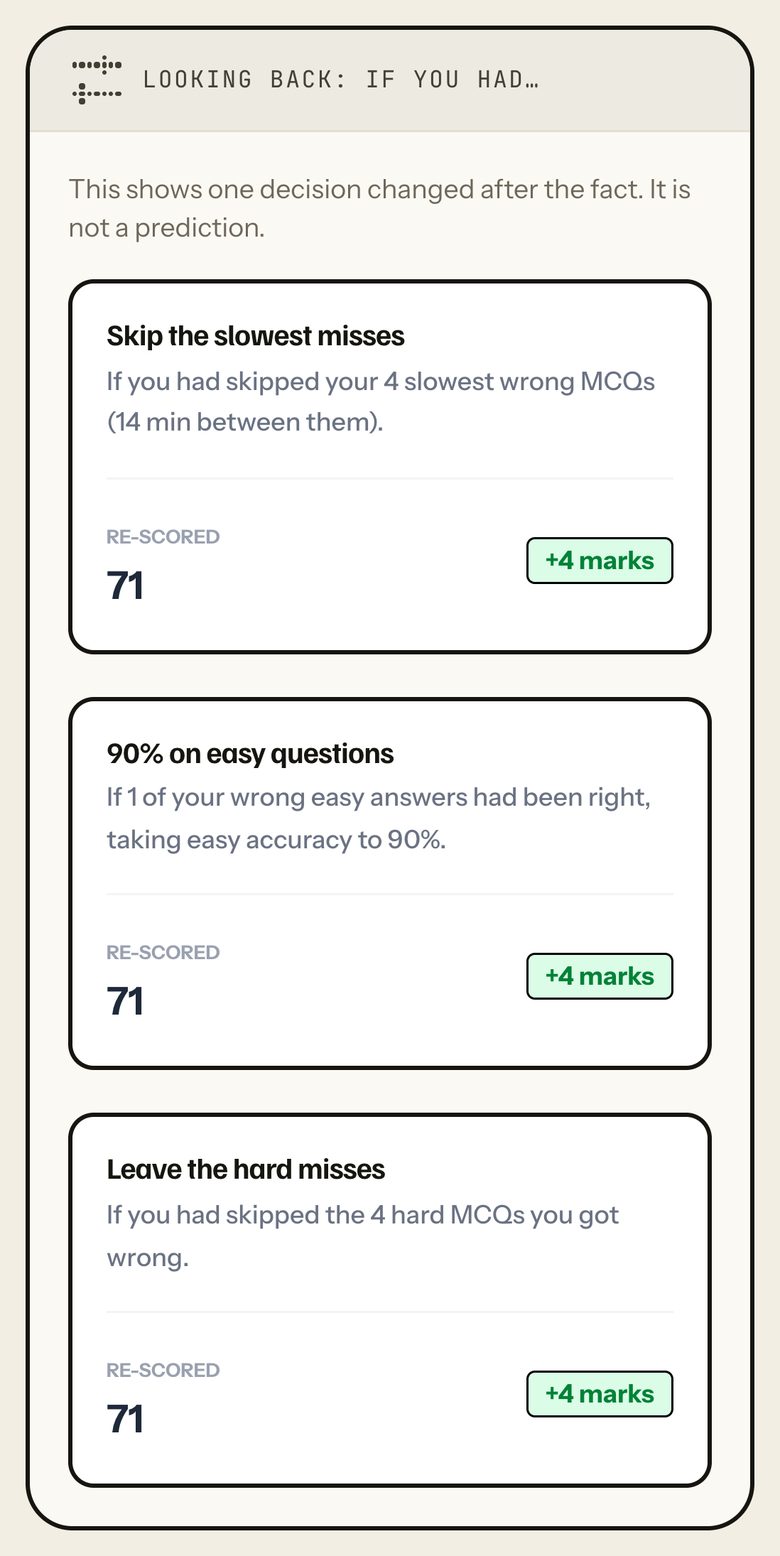
Your score re-counted with one decision changed after the fact, three ways: skipping your slowest wrong MCQs (up to 4), getting easy accuracy to 90%, and leaving the hard MCQs you got wrong. Each card shows the re-scored total and the marks it adds. It covers the whole paper, not just the picked section.
The cards are computed, not interactive: there is no control to change a decision on the page.
How to use it
- Read which change adds the most marks (+4 for each in the sample: 67 to 71).
- Treat it as hindsight, not a forecast: "This shows one decision changed after the fact. It is not a prediction."
Taps and where they lead
Nothing here to tap: the panel is read-only.
FreeThe same for every student, free or Pro.
Section score
What it shows
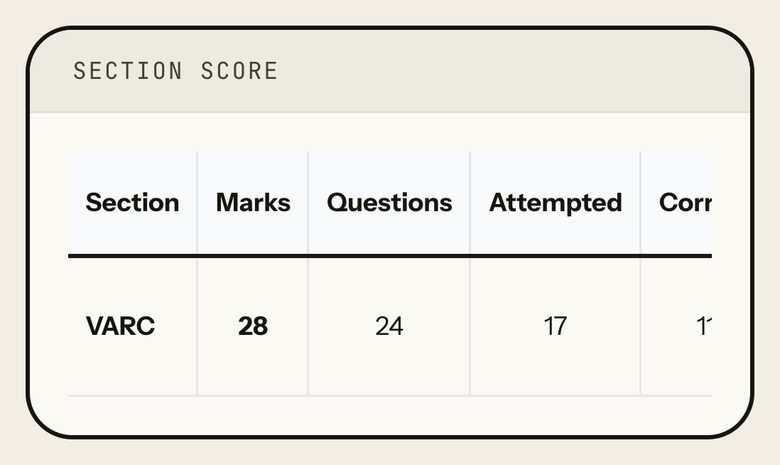
The picked section in one row: marks, questions, attempted, correct, accuracy, time per attempt and time used out of the time allowed.
How to use it
- Compare time used with the 40:00 allowed.
Taps and where they lead
Nothing here to tap: the panel is read-only.
FreeThe same for every student, free or Pro.

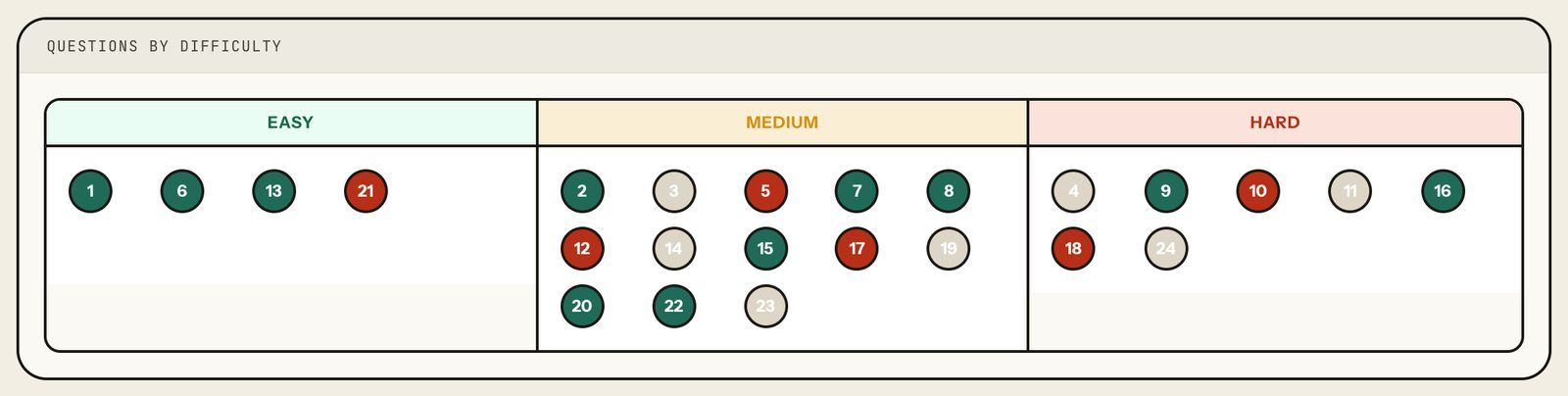
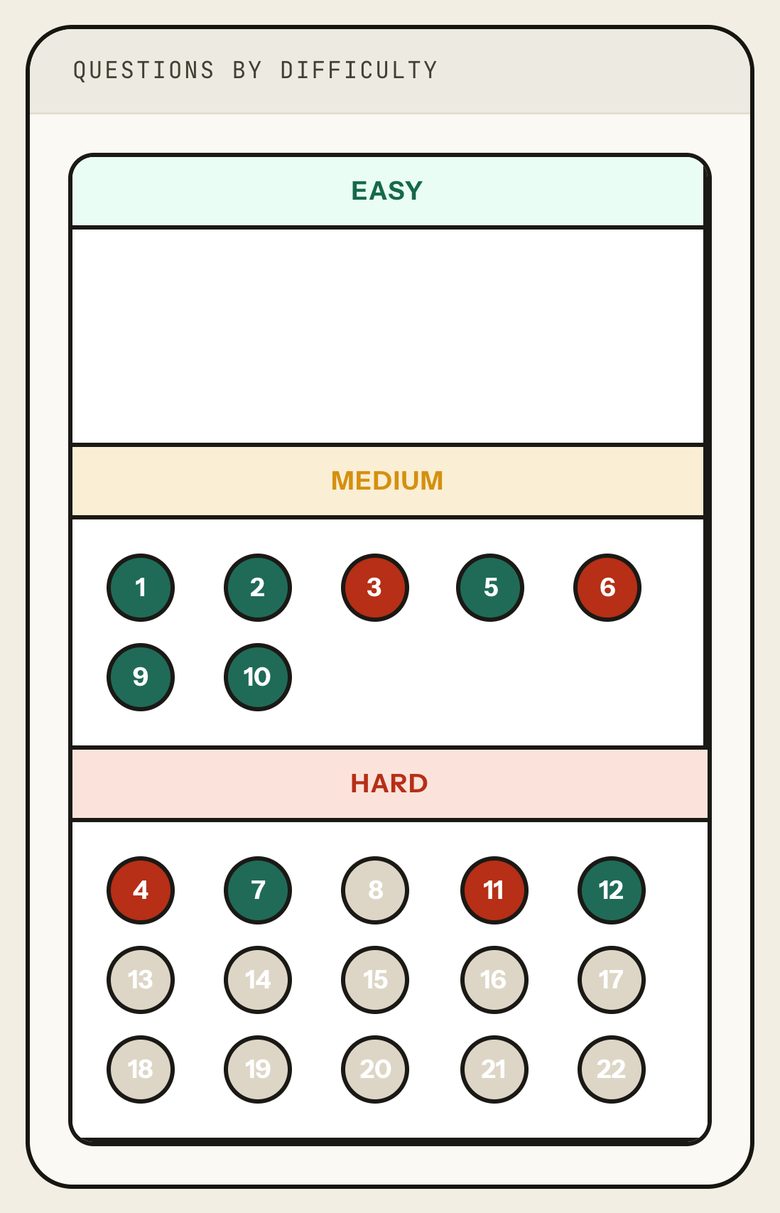
Questions by difficulty
What it shows
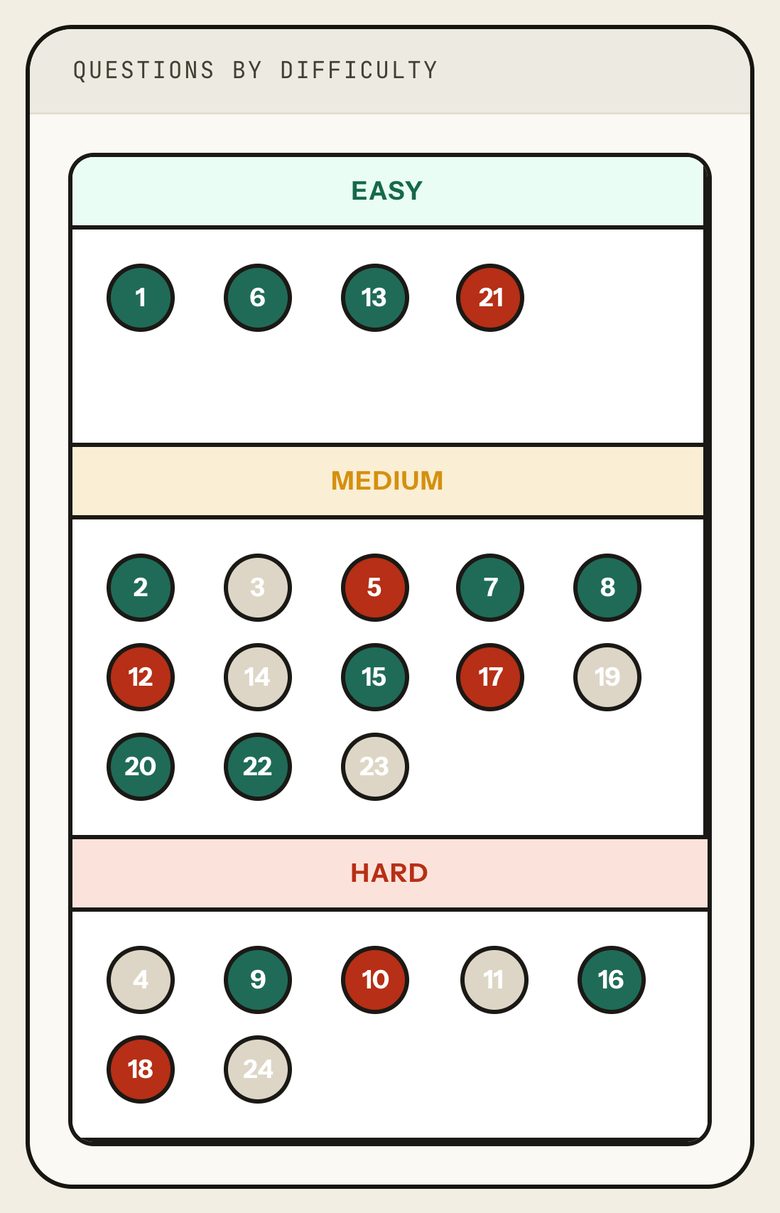
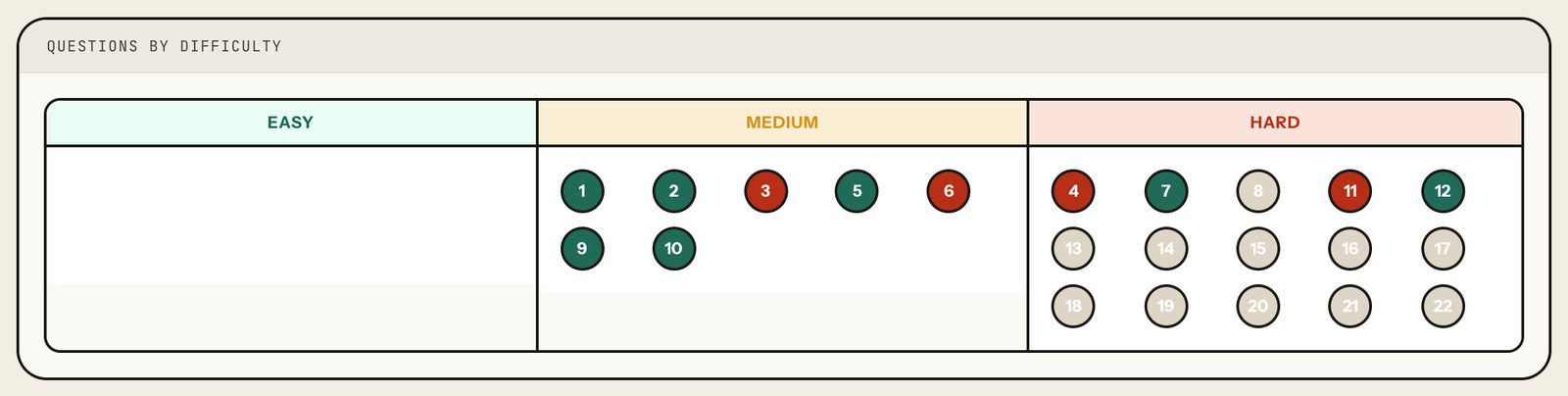
Every question in the section as a numbered dot under Easy, Medium or Hard (the paper's own label): green right, red wrong, grey skipped.
How to use it
- Look for red dots under Easy, and grey ones under Easy or Medium.
- Tap a dot to open the question.
Taps and where they lead
- A numbered dotOpens that question in Solutions (Solution sub-tab).
FreeThe same for every student, free or Pro.
Other states
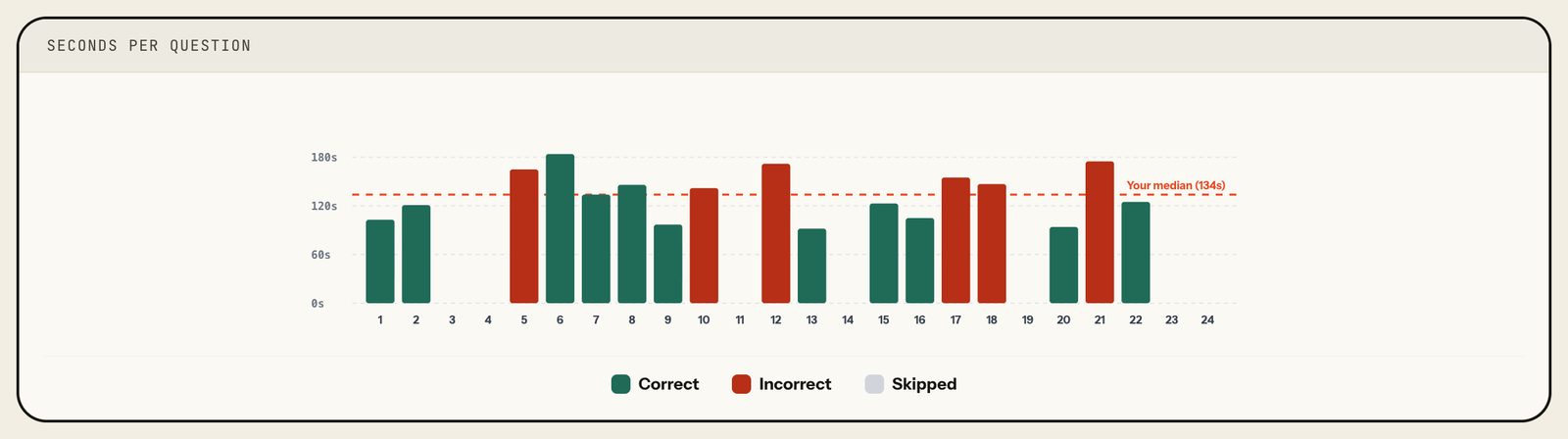
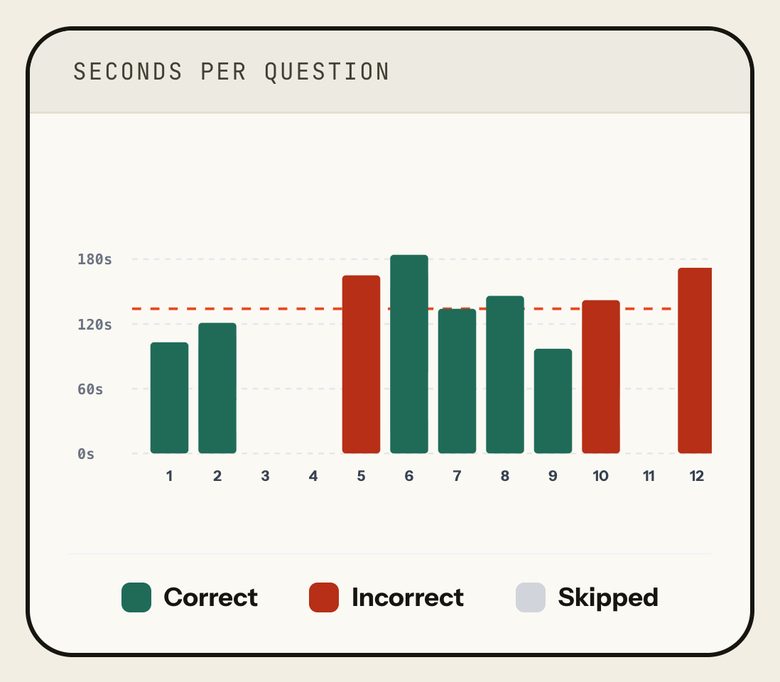
Seconds per question
What it shows
A bar per question showing the seconds you spent on it, coloured by outcome, with a dashed line at your own median for the section (134 s for VARC in the sample).
On a phone the chart scrolls sideways.
How to use it
- Find the tall red bars: long and still wrong.
- Tap a bar to open that question.
Taps and where they lead
- A barOpens that question in Solutions (Solution sub-tab).
FreeThe same for every student, free or Pro.
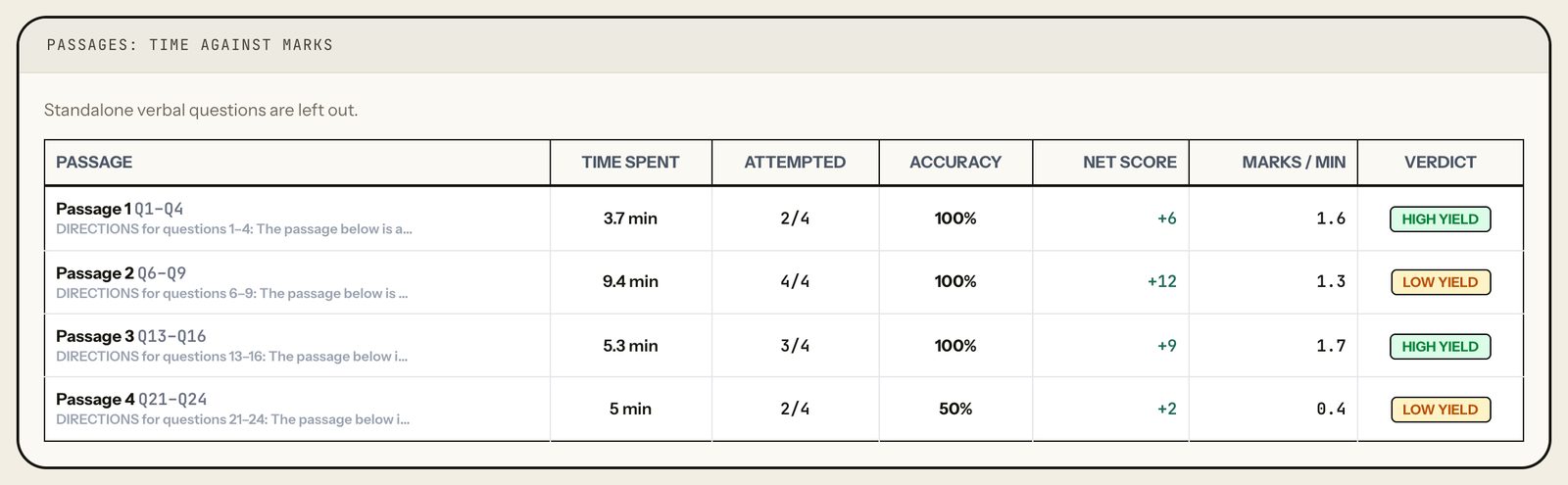
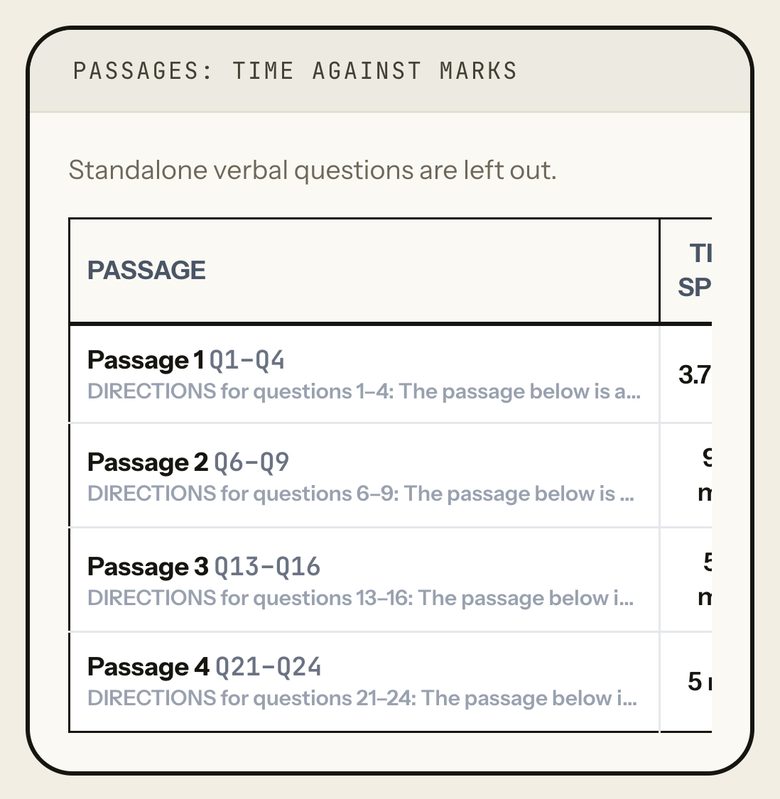
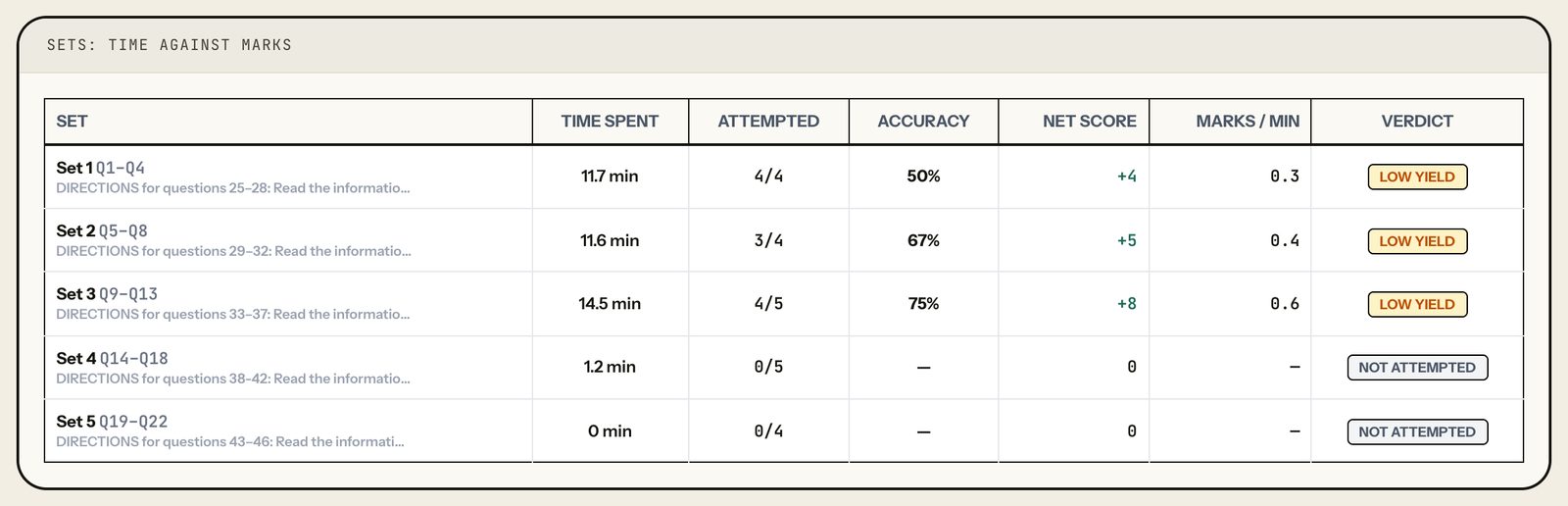
Passages: time against marks
What it shows
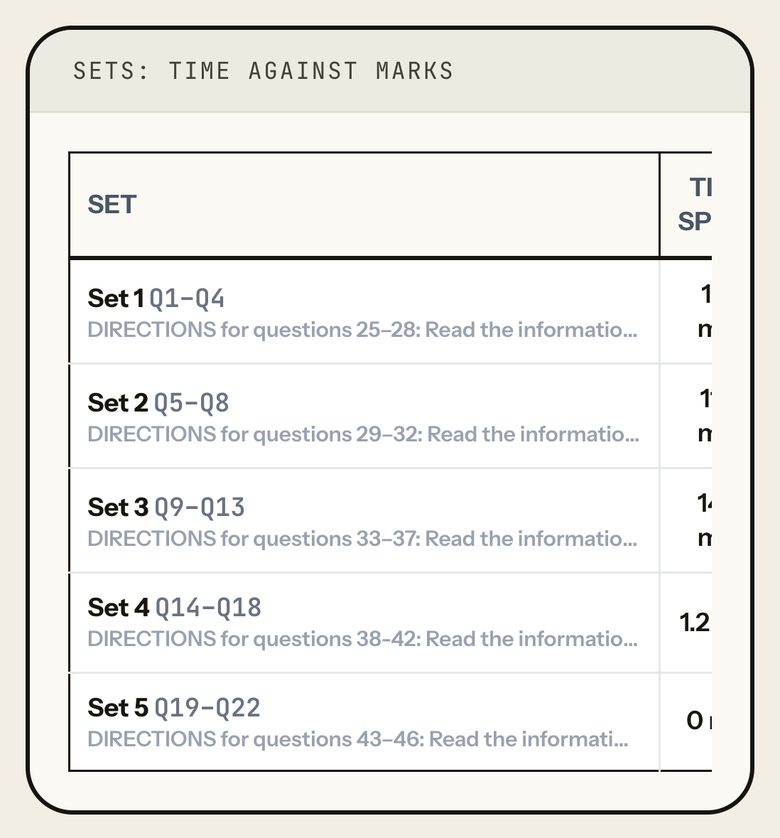
VARC passages, or DILR sets ("Sets: time against marks"): time spent, attempted, accuracy, net score, marks per minute and a verdict (High yield, Low yield, Time sink, Not attempted). Standalone verbal questions are left out. Not shown for QA.
How to use it
- Read the verdict column.
- Compare marks per minute across sets to see which were worth the time.
Taps and where they lead
Nothing here to tap: the panel is read-only.
FreeThe same for every student, free or Pro.
Other states
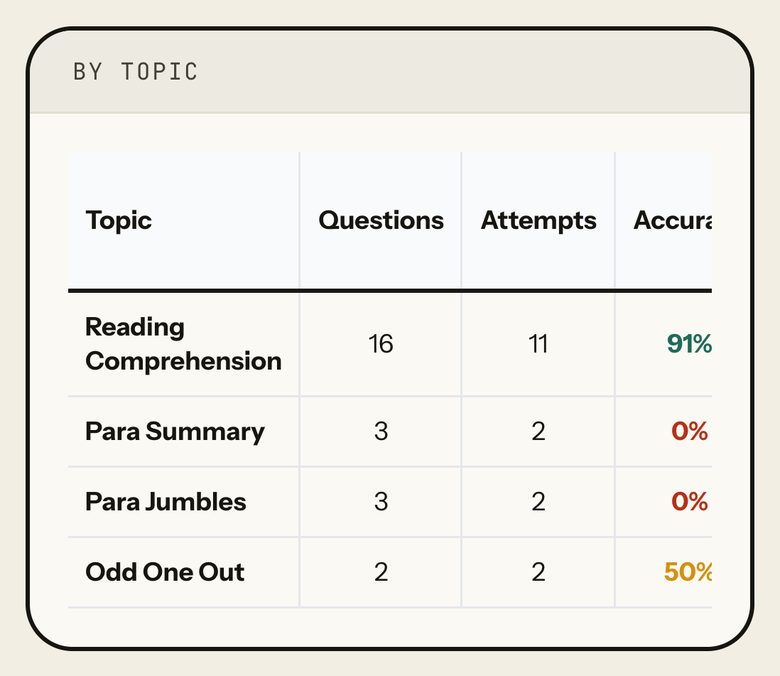
By topic
What it shows
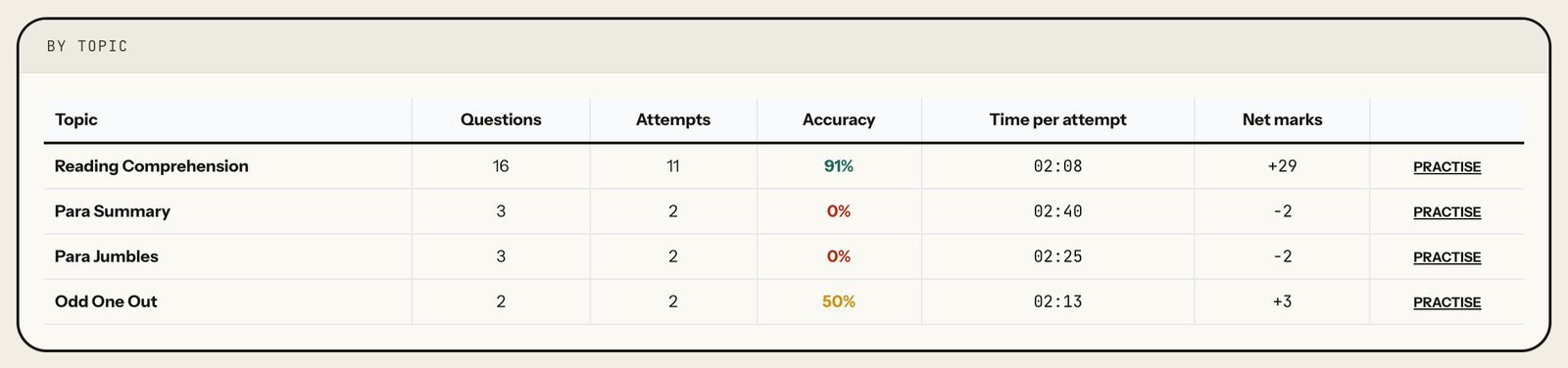
Each topic in the section: questions, attempts, accuracy (green 70%+, amber 40-69%, red below 40%), time per attempt and net marks.
How to use it
- Press "Practise" on a topic with a miss.
Taps and where they lead
- PractiseShown where a topic had a wrong answer. Opens a practice session on it.
Partly ProPractice for a free student draws from the free papers only.
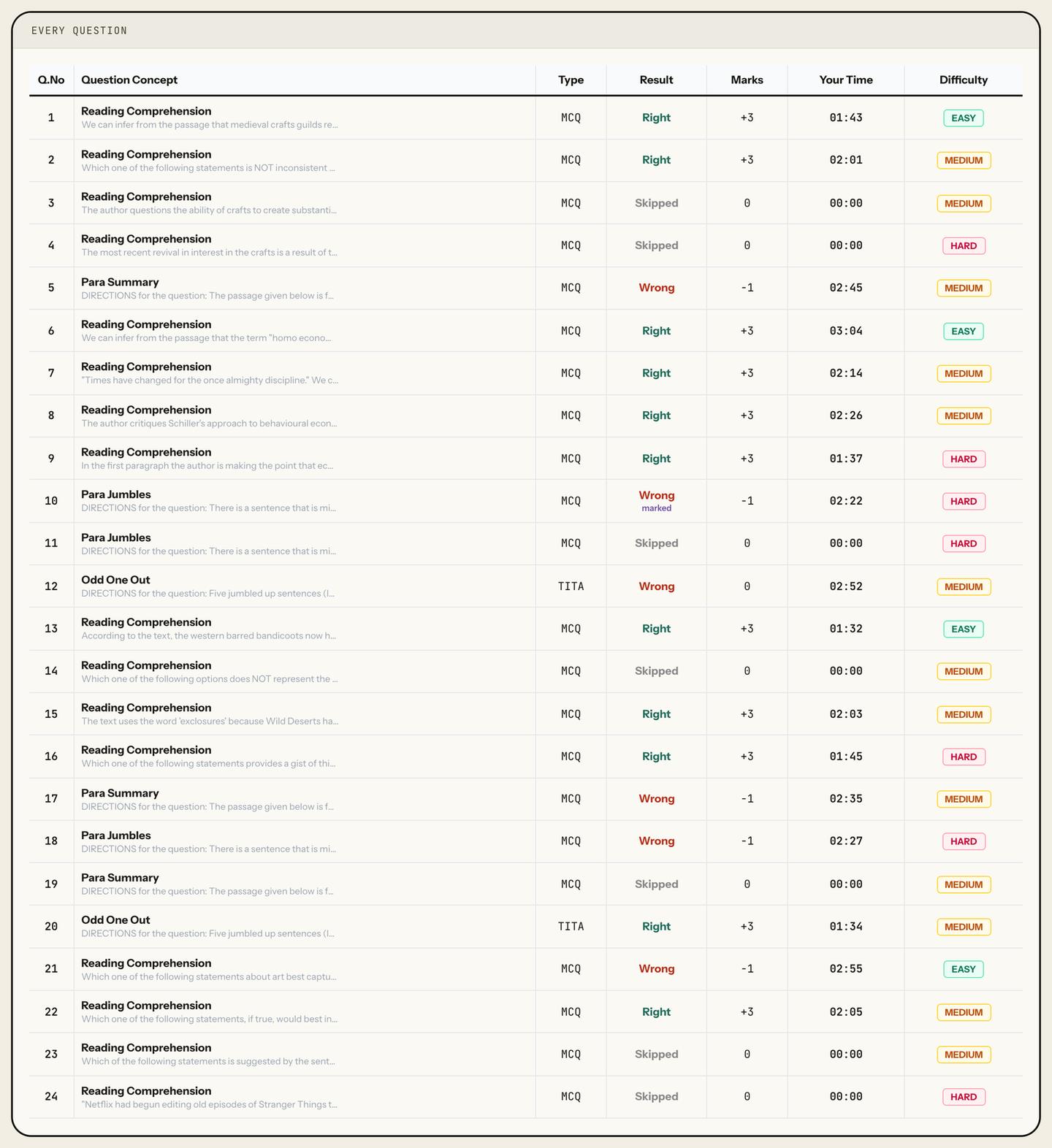
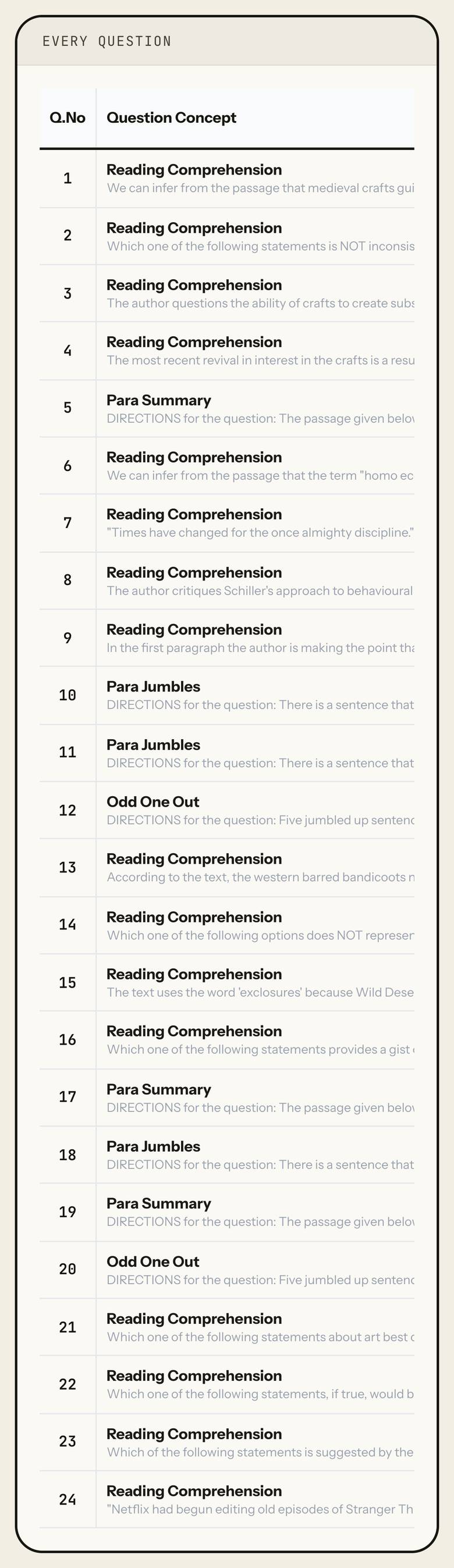
Every question
What it shows
The section question by question: number, topic and the start of the question, type (MCQ/TITA), result (Right, Wrong, Skipped, or Not seen; "marked" if left marked for review), marks, your time and difficulty.
On a phone the table scrolls sideways.
How to use it
- Tap any row to open that question.
Taps and where they lead
- A rowOpens that question in Solutions (Solution sub-tab).
FreeThe same for every student, free or Pro.
Question selection
What it shows
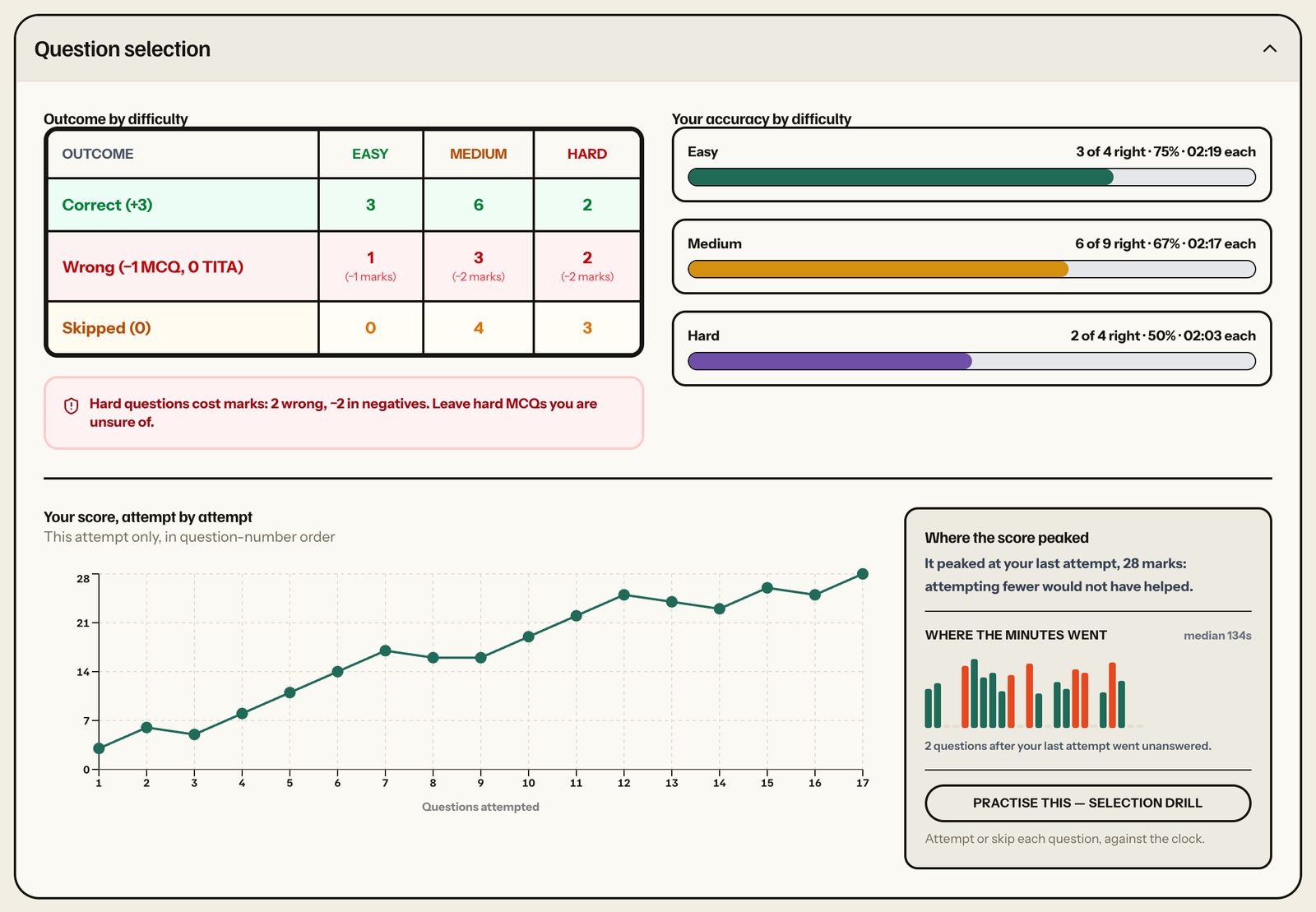
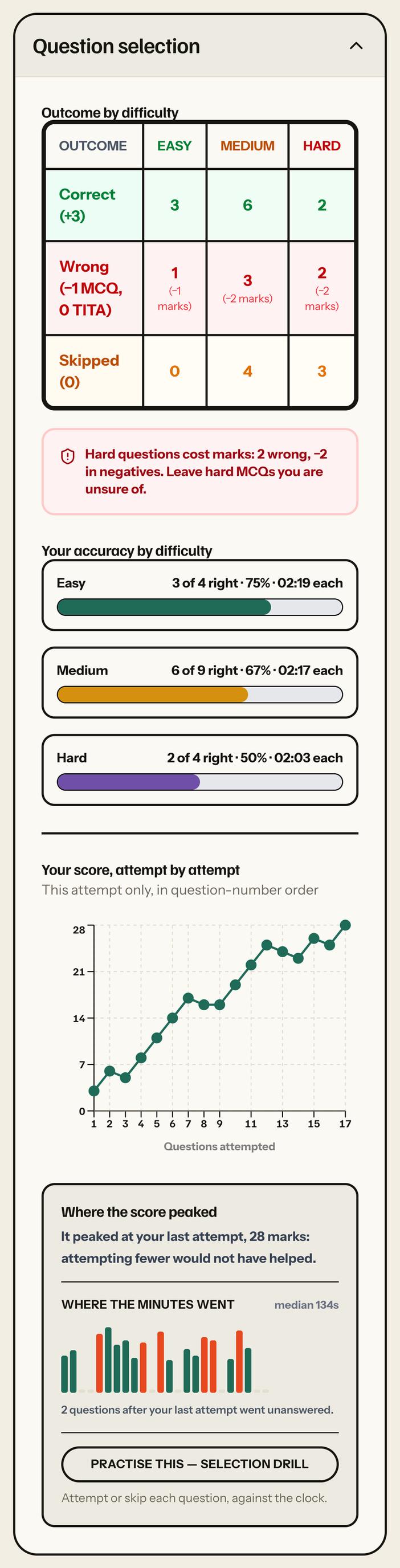
A folding panel. "Outcome by difficulty" counts right (+3), wrong (-1 MCQ, 0 TITA, with the marks lost) and skipped (0) for easy, medium and hard, with nudges. "Your accuracy by difficulty" gives right of attempted, accuracy and time each. "Your score, attempt by attempt" plots the running section score in question-number order. "Where the score peaked" says where it peaked, and "Where the minutes went" shows each question's time in order (outlined bars took twice your median and still came out wrong).
- Correct +3; Wrong -1 for an MCQ, 0 for a TITA; Skipped 0.
How to use it
- Check the wrong row under Hard: those are the marks to stop giving away.
- Read where the running score peaked.
- Press "Practise this — selection drill" to practise attempt-or-skip on this same paper.
Taps and where they lead
- Question selection header (chevron)Folds or unfolds the panel. Open by default.
- Practise this — selection drillOpens the selection drill on this paper: attempt or skip each question against the clock, scored against what you did in the sitting.
FreeThe same for every student, free or Pro.
Other states

Negatives and stamina
What it shows
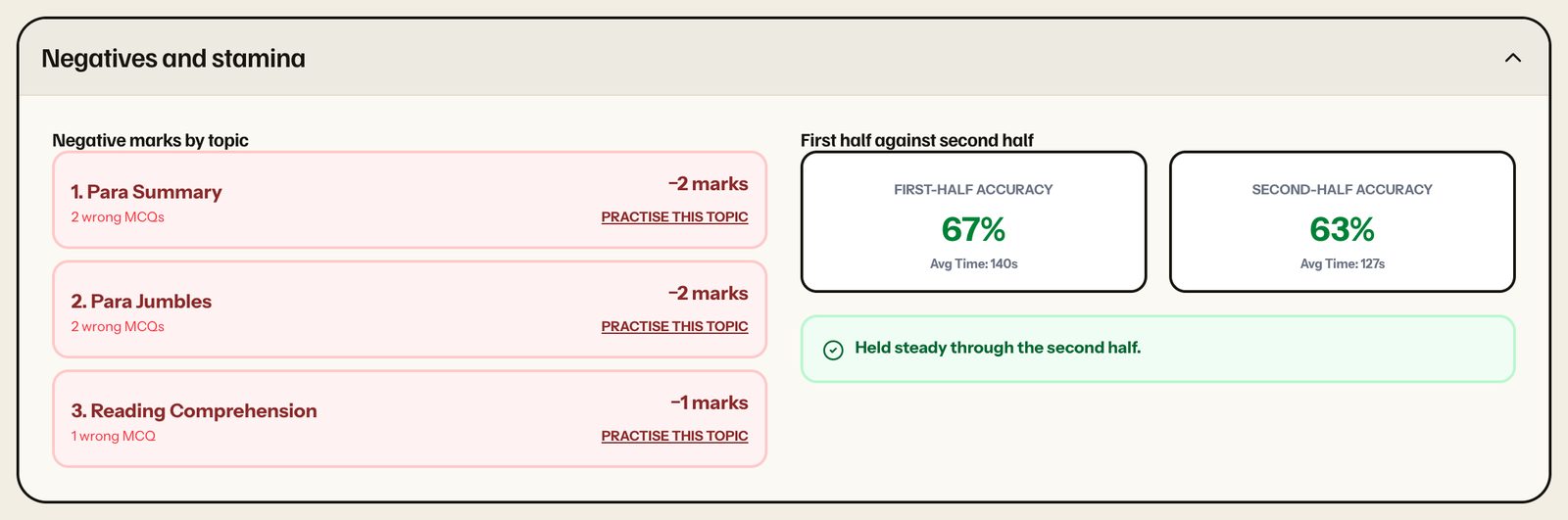
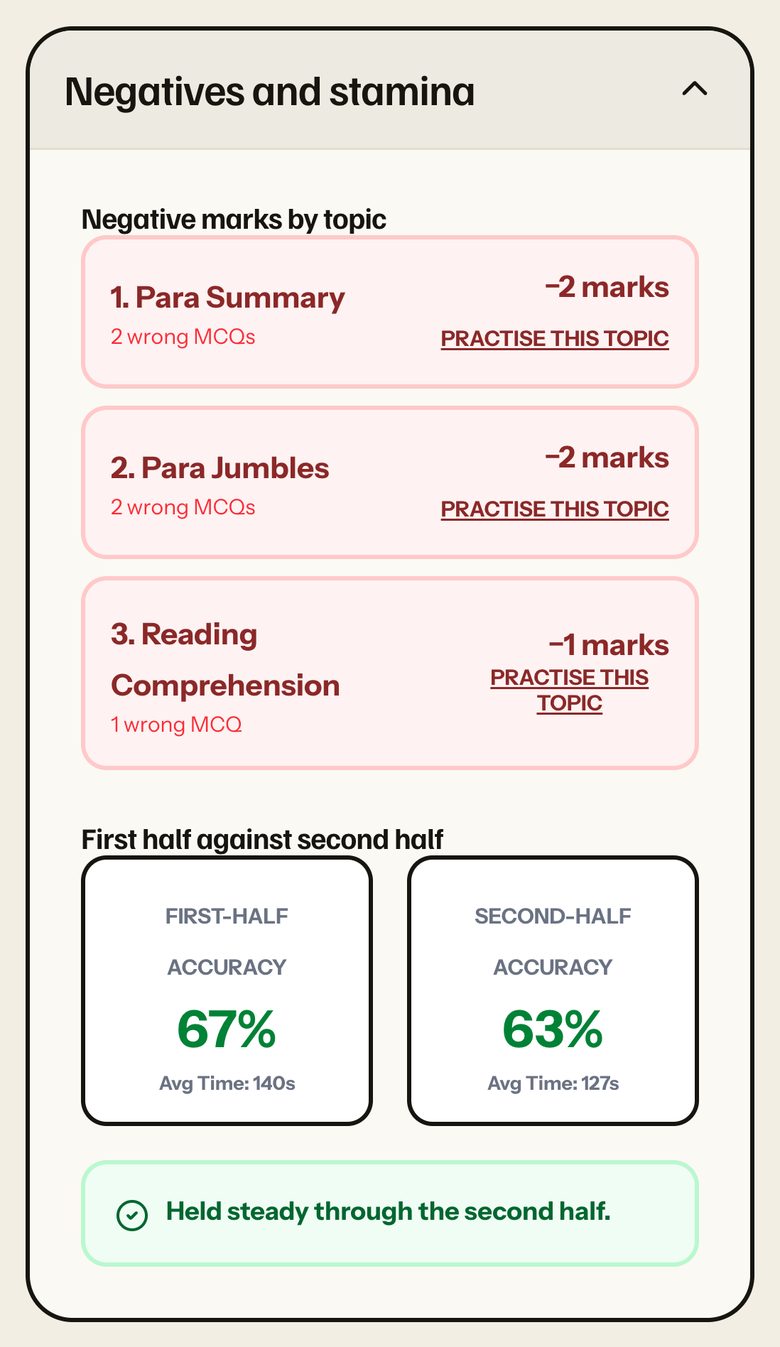
A folding panel. "Negative marks by topic" lists up to three topics that took negative marks in the section, with wrong MCQs and marks lost. "First half against second half" compares accuracy and average time across the two halves by question number.
The sample sitting reads "Held steady through the second half." for VARC.
How to use it
- Practise the top negative topic.
- If it says "Accuracy fell in the second half", press "Check which questions."
Taps and where they lead
- Negatives and stamina header (chevron)Folds or unfolds the panel.
- Practise this topicOpens a practice session on that topic.
- Check which questions.Shown only when second-half accuracy fell; opens the first wrong answer in the second half in Solutions.
Partly ProPractice for a free student draws from the free papers only.
Solutions
One question at a time: the question with your answer, a re-attempt, the worked solution and your record of it.
Q.n (question view)
What it shows
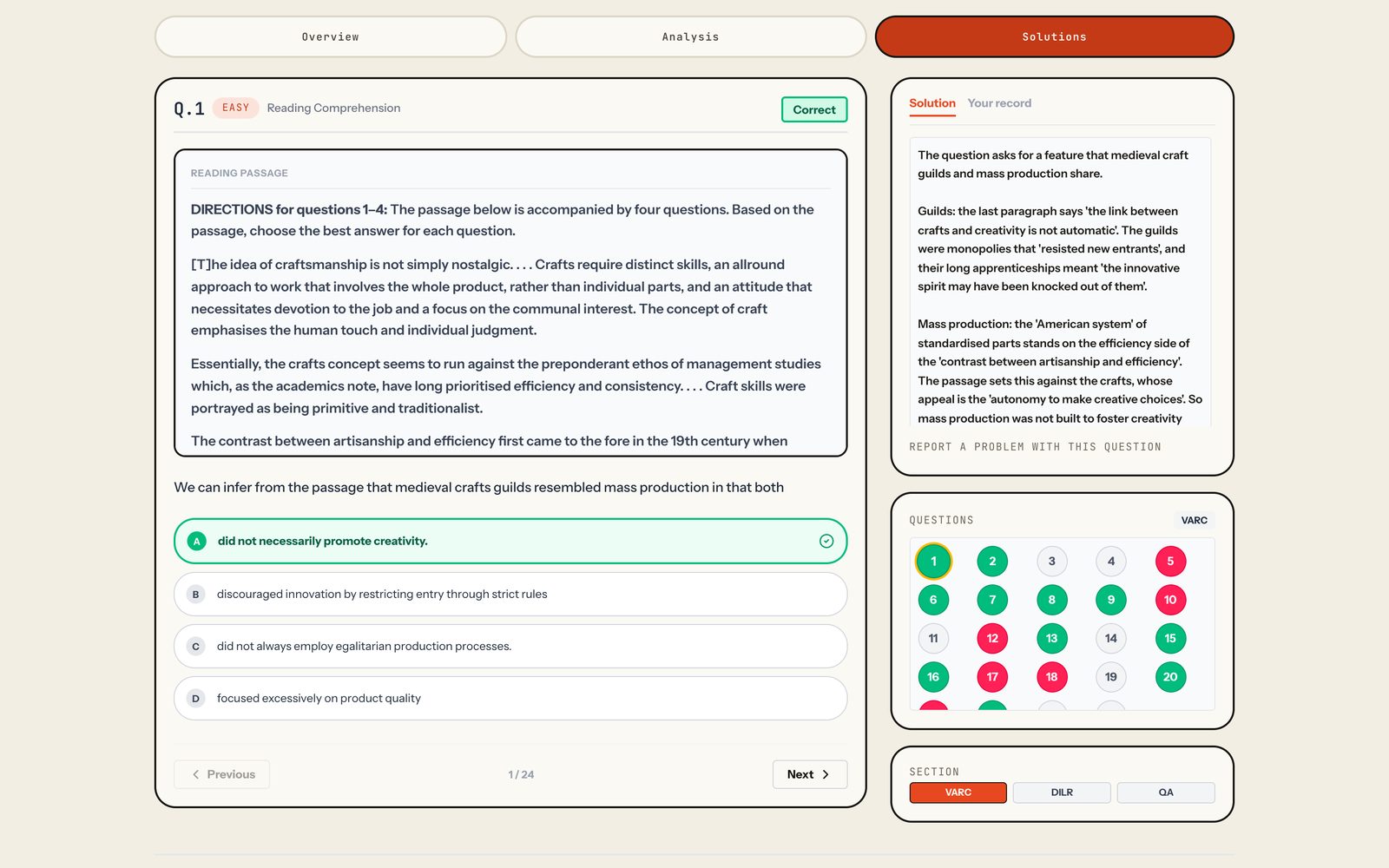
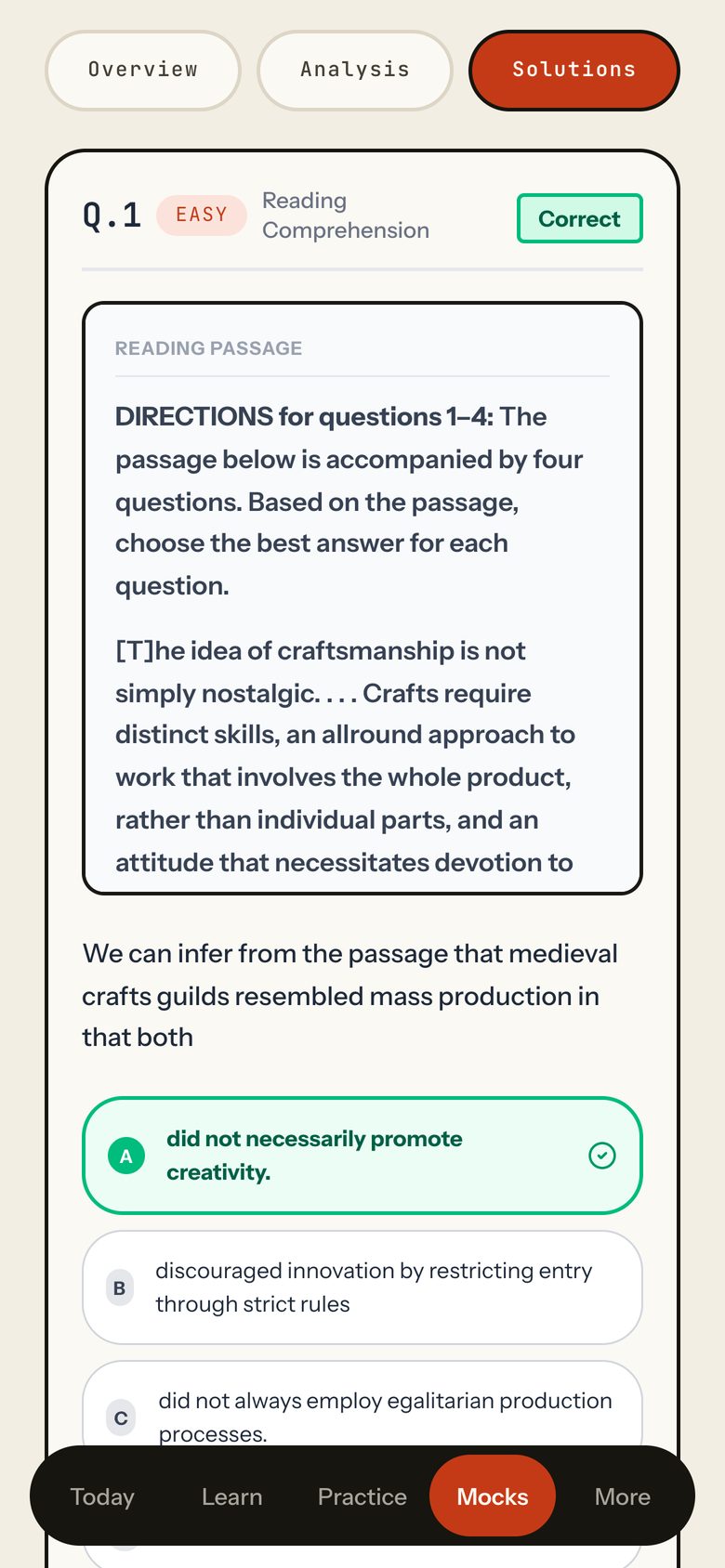
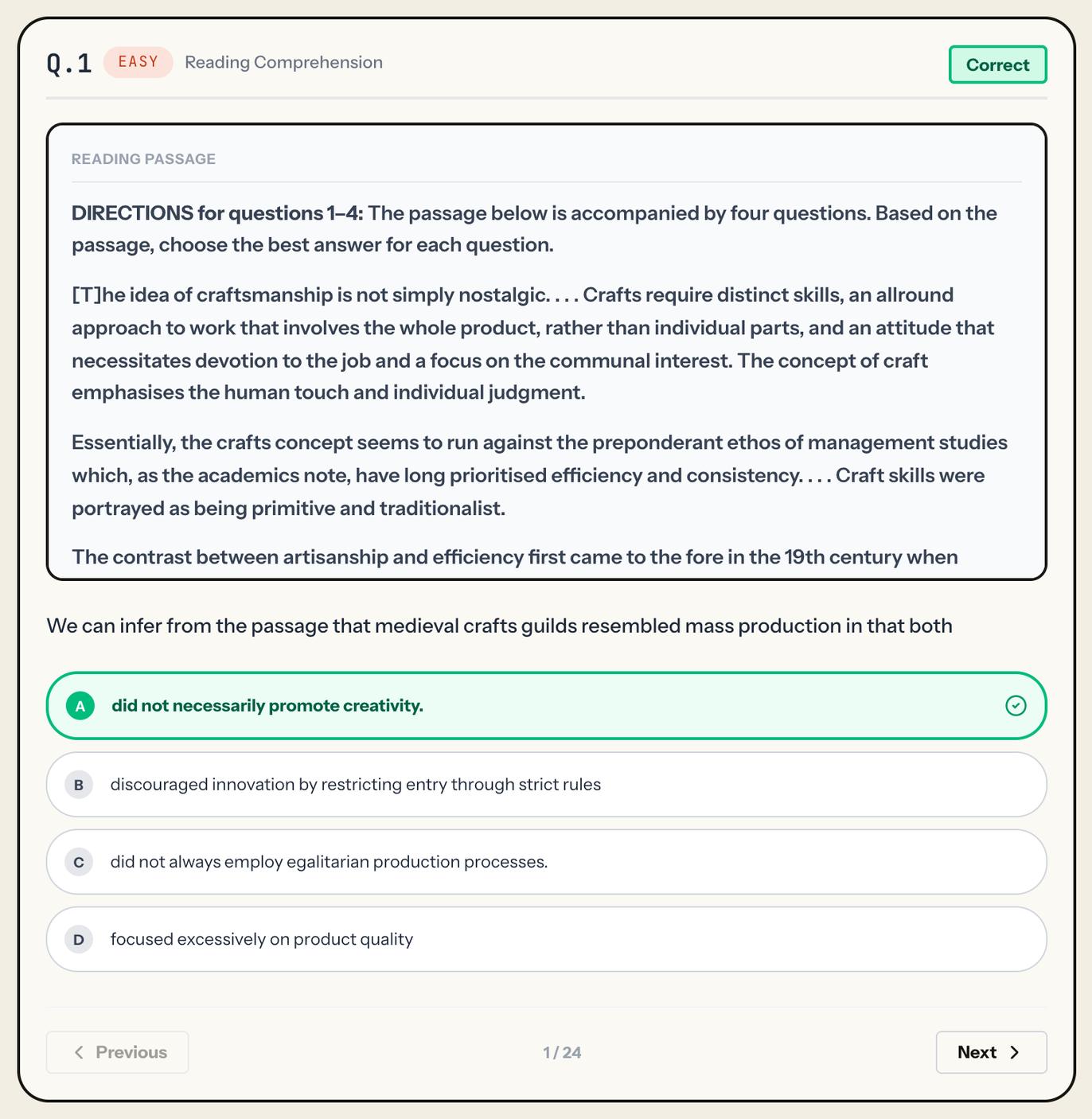
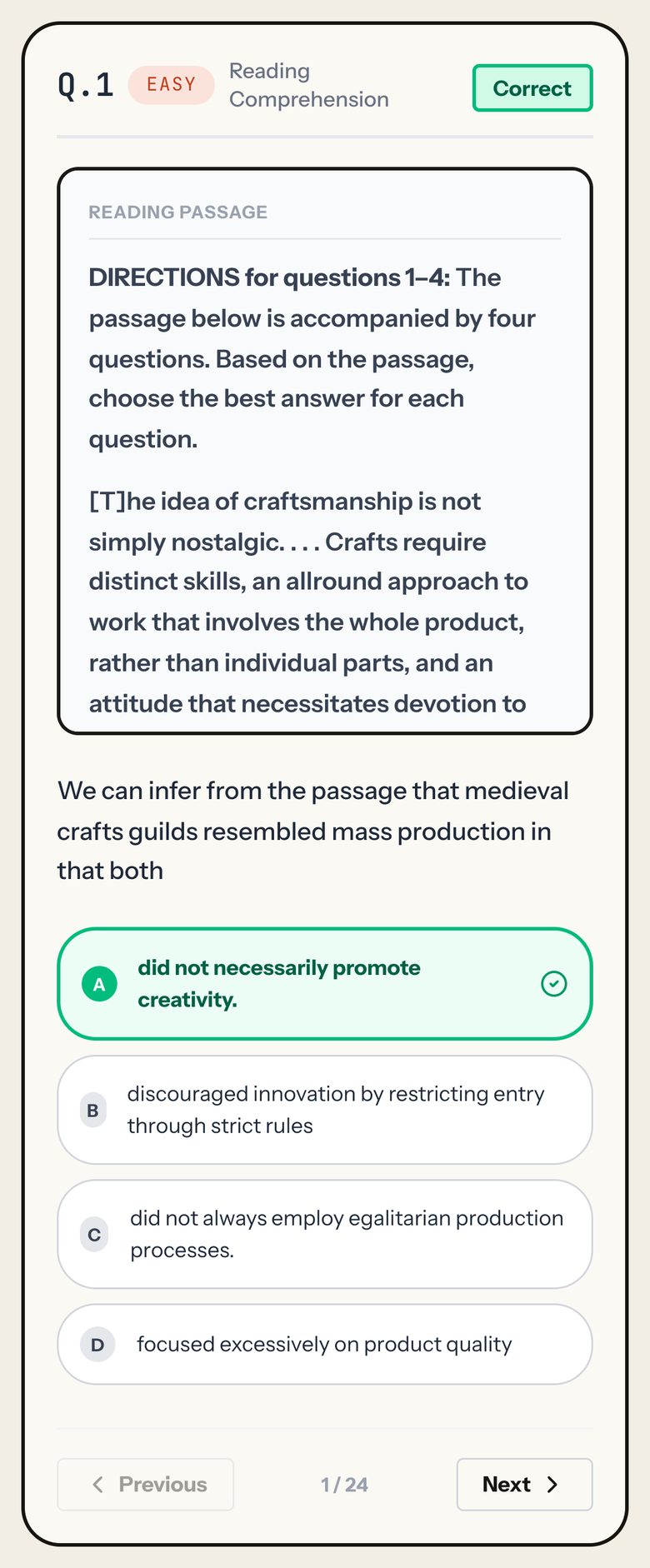
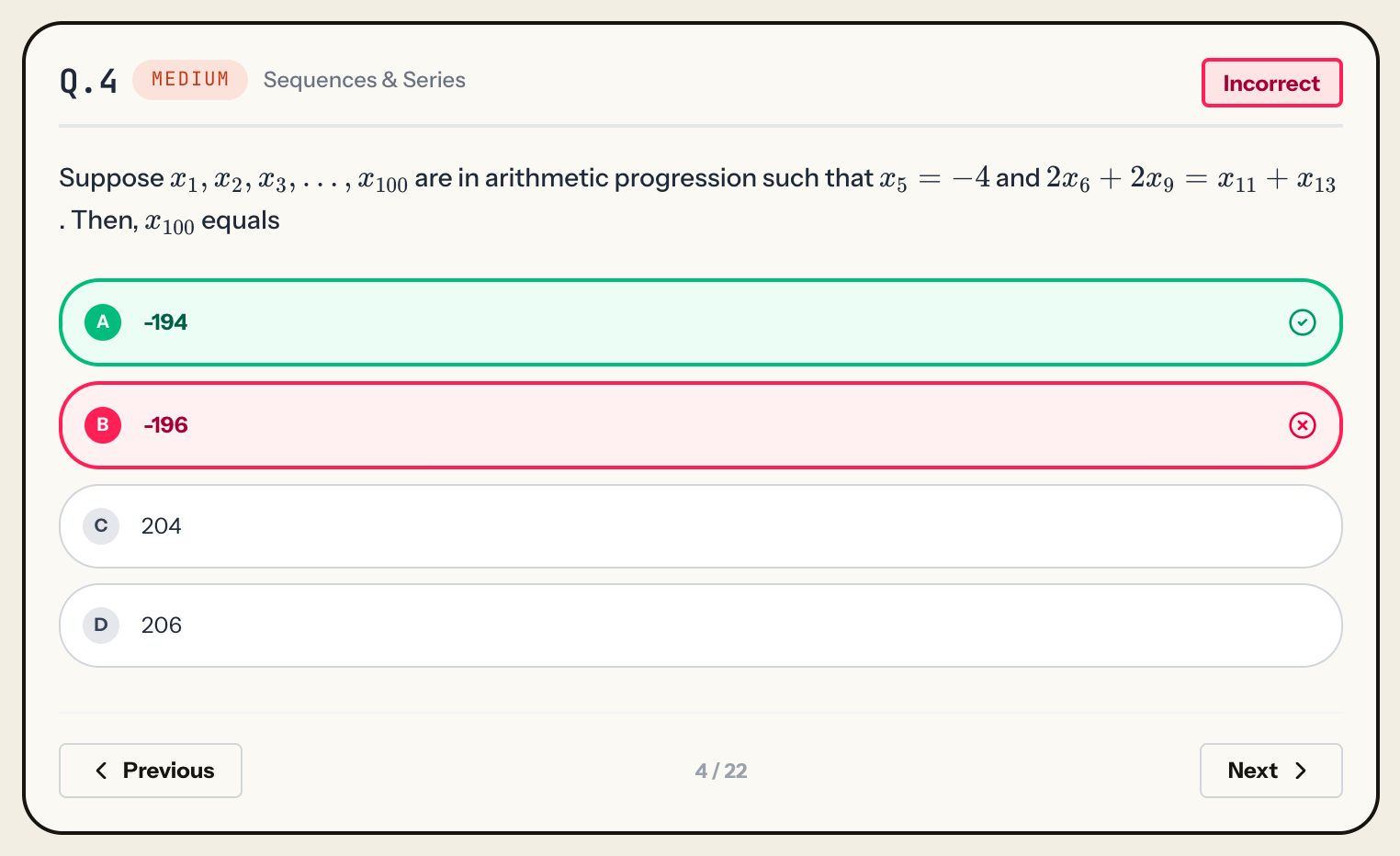
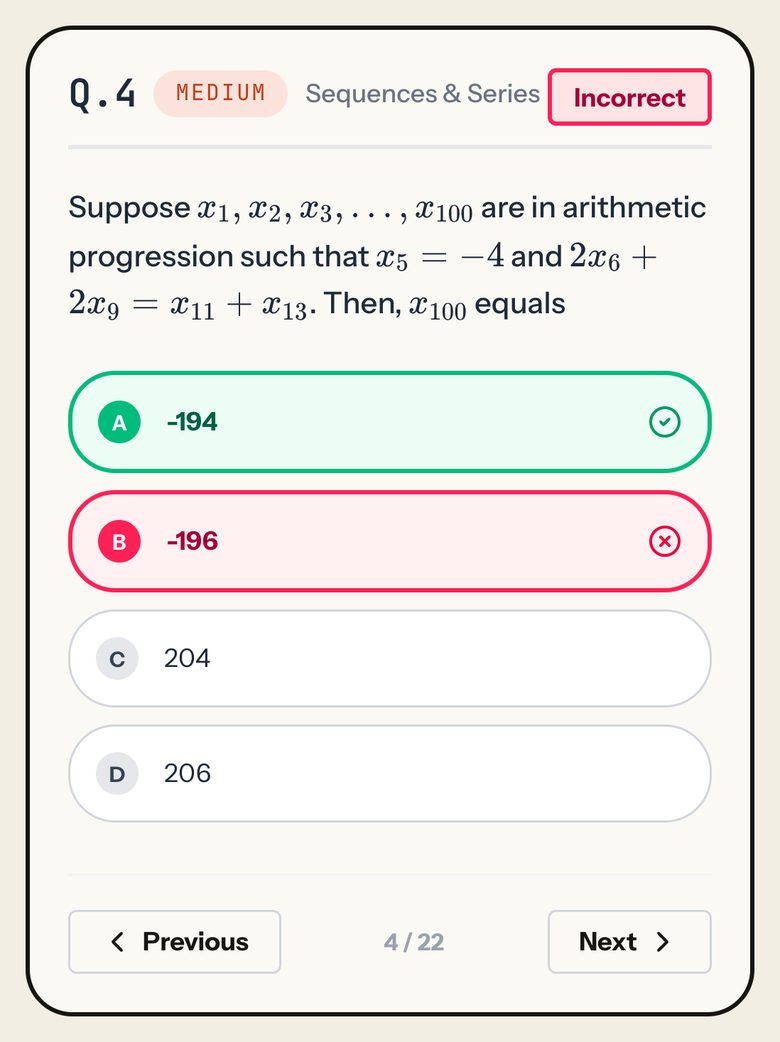
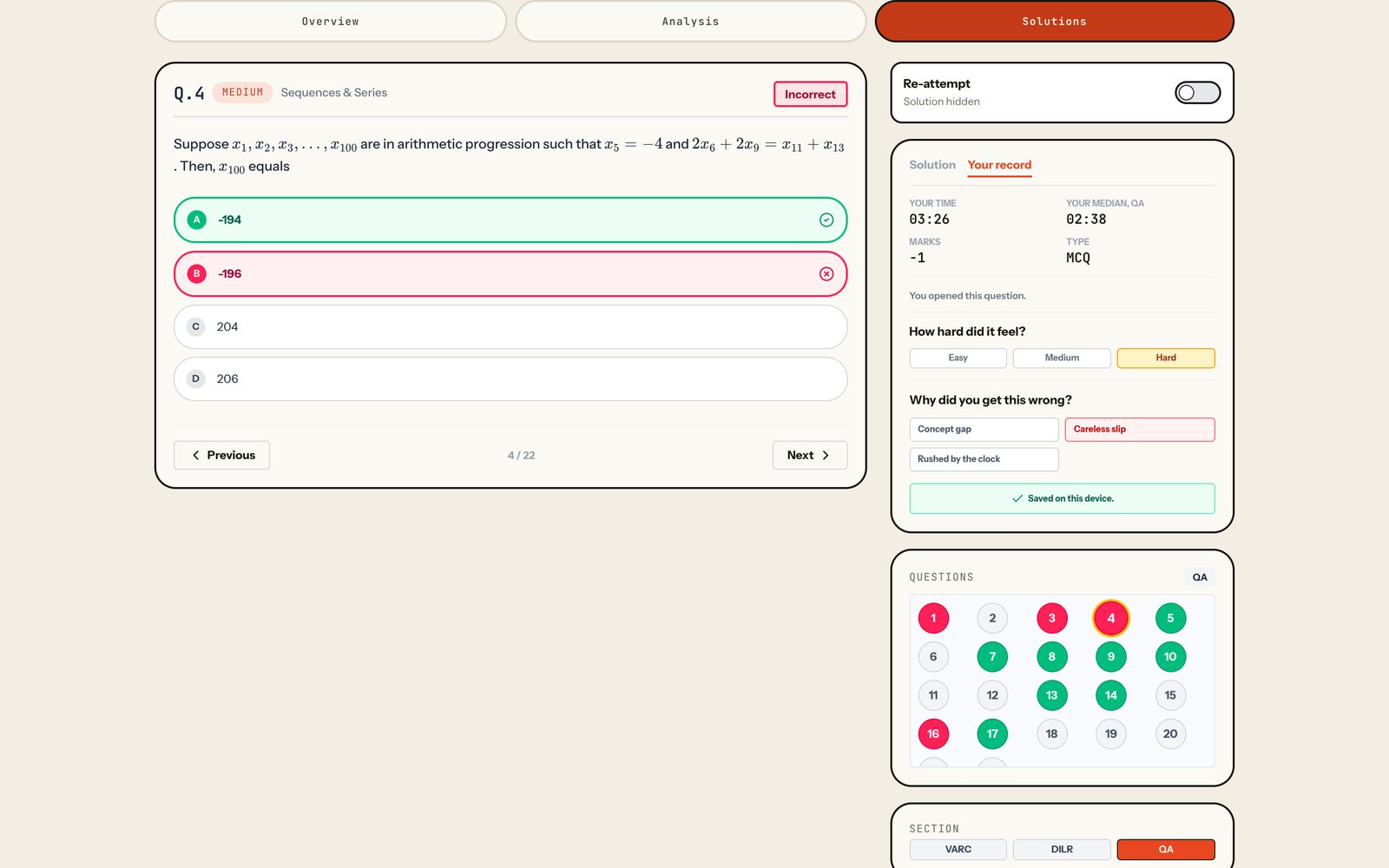
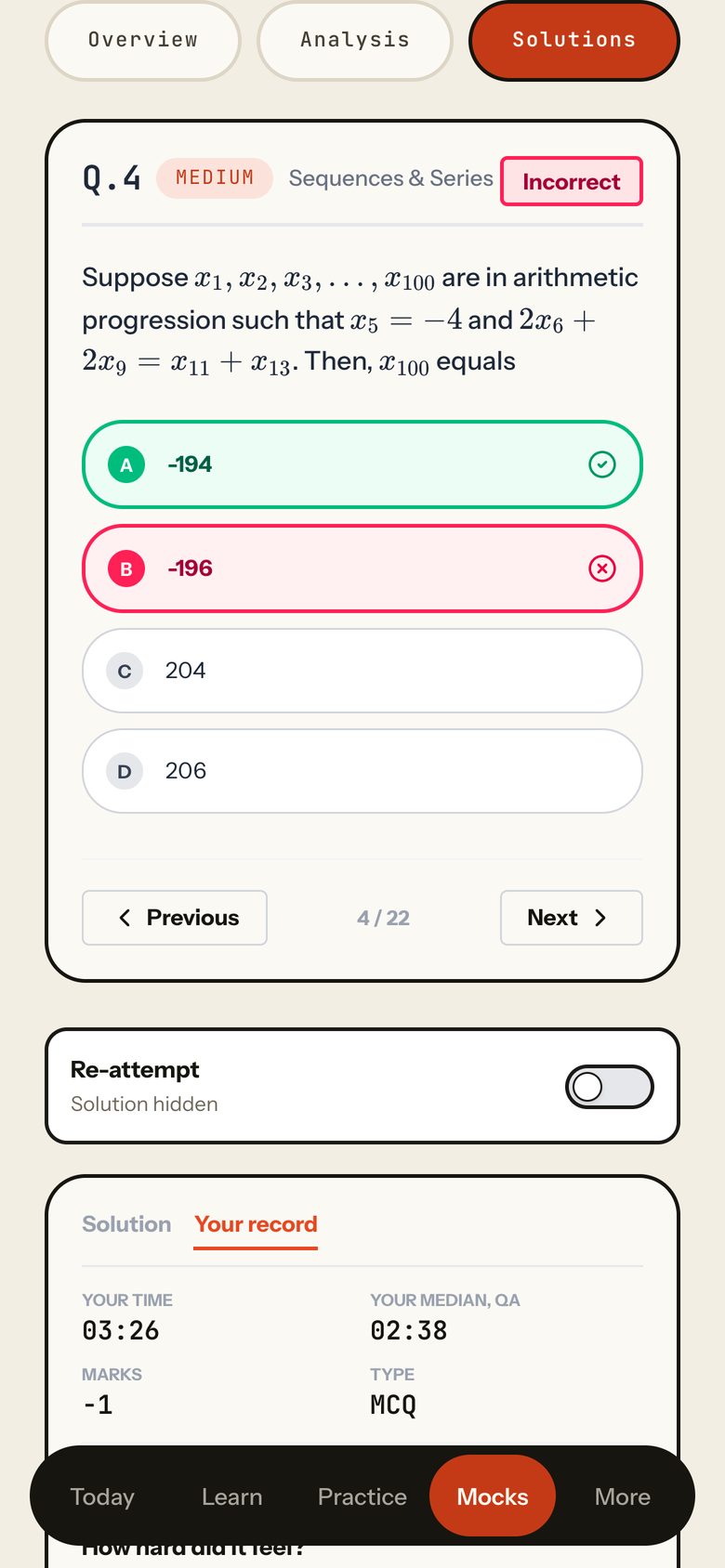
One question: number, difficulty, topic and the result (Correct, Incorrect, Skipped); the passage or set above it where it has one; the question; and the options with the right one in green and your wrong pick in red. A TITA shows "Your Response" and "Correct Answer".
How to use it
- Read the question and compare your pick with the right one.
- Use Previous / Next, or the Questions grid, to move.
Taps and where they lead
- Previous / NextMoves one question within the section (and turns re-attempt off).
FreeThe same for every student, free or Pro.
Other states
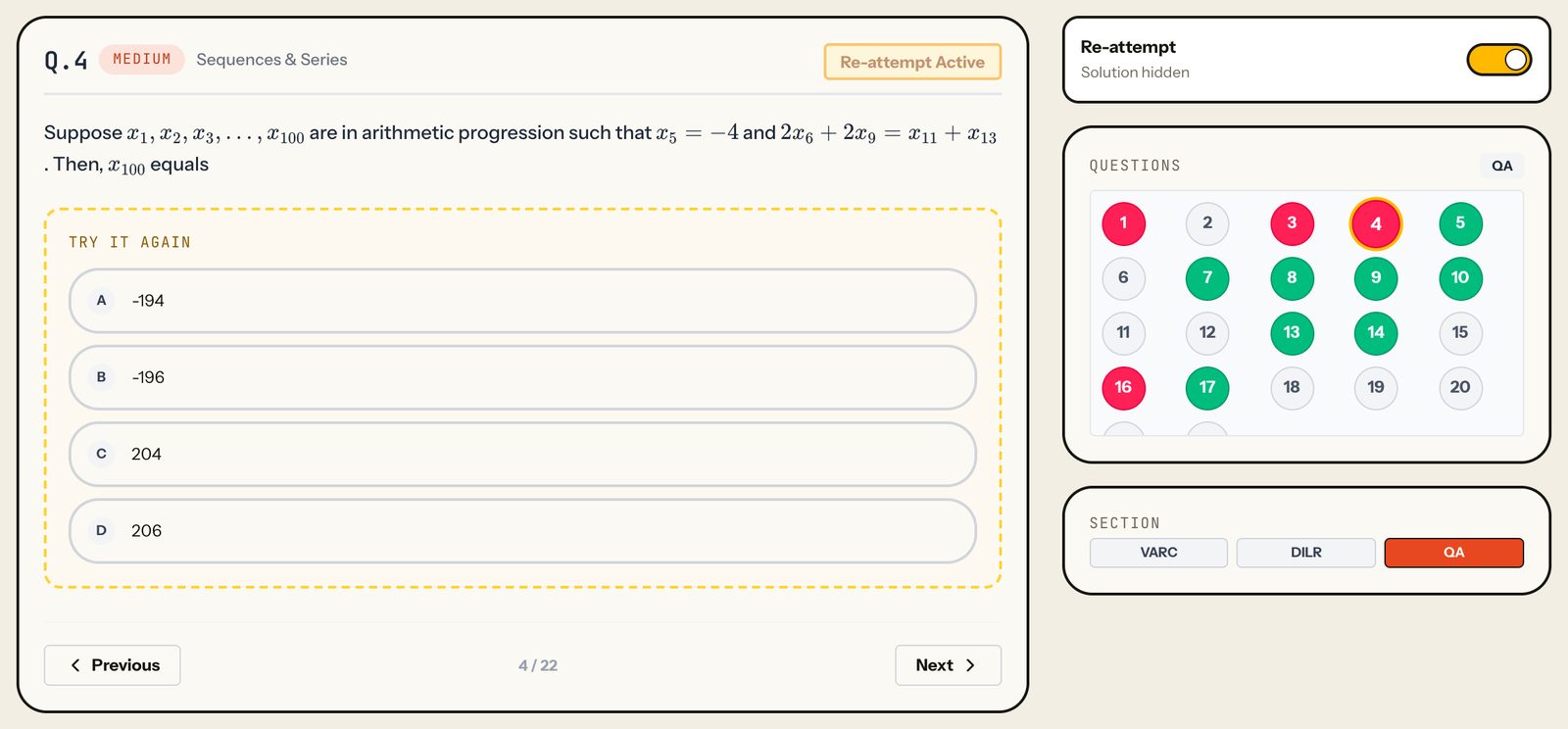
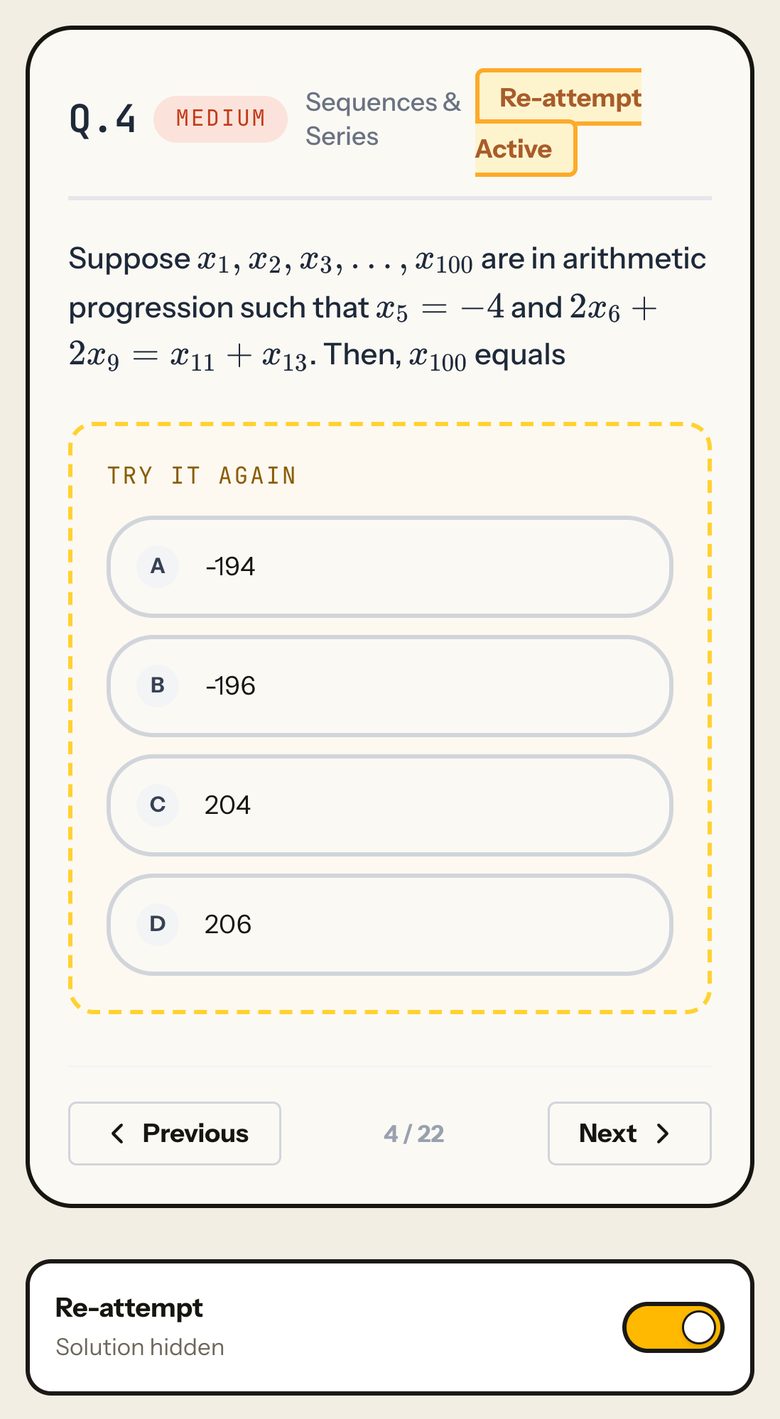
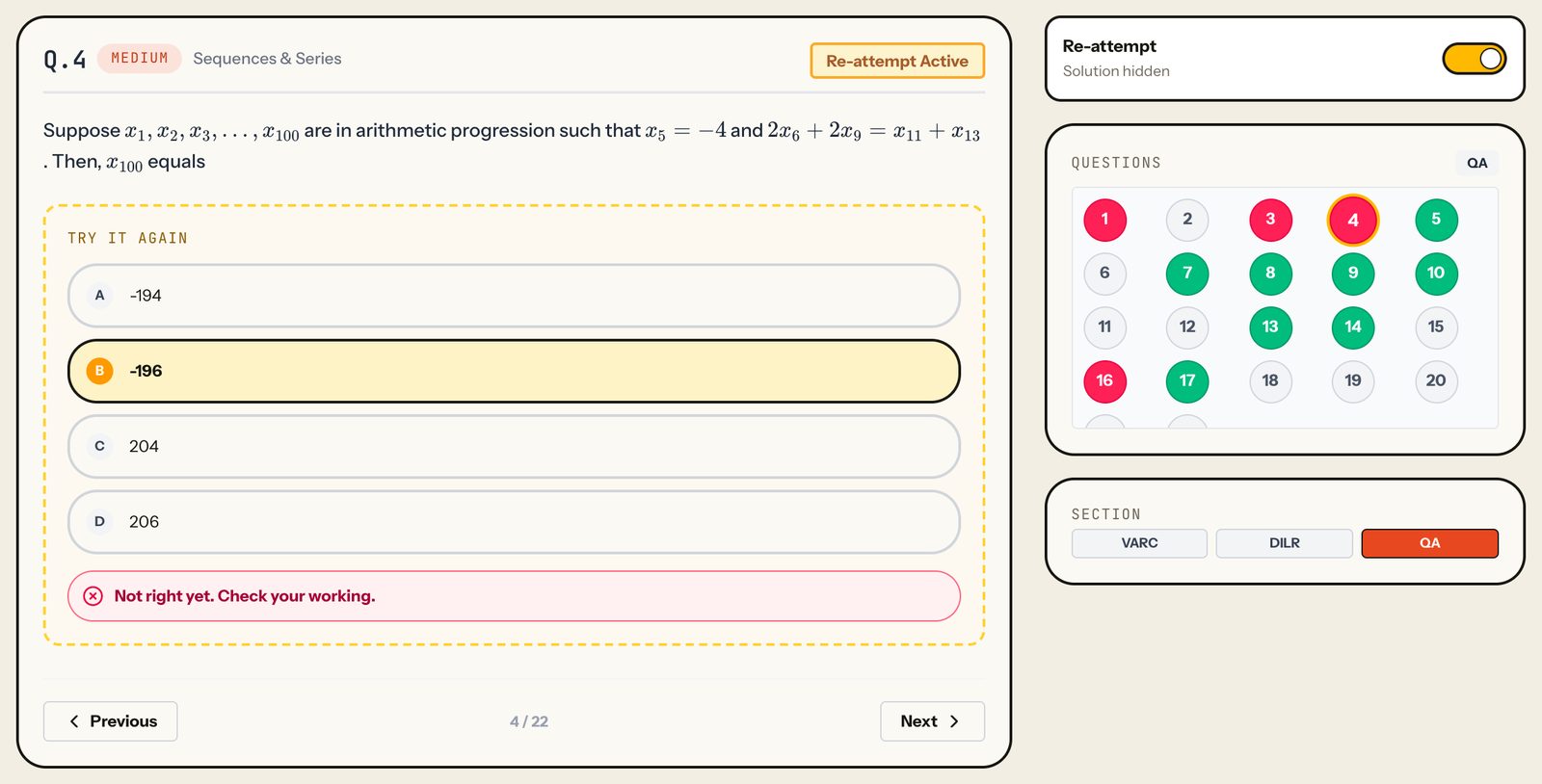
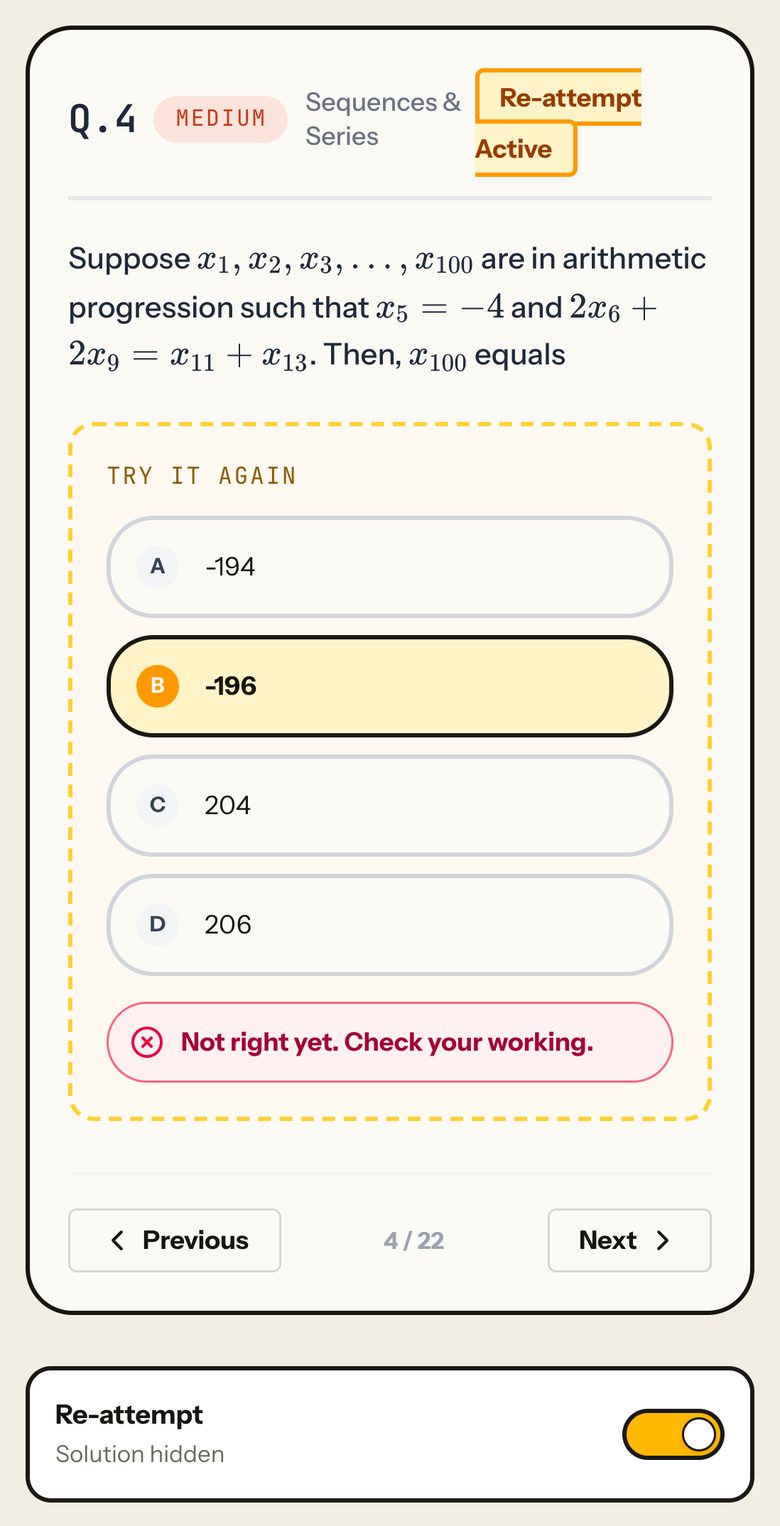
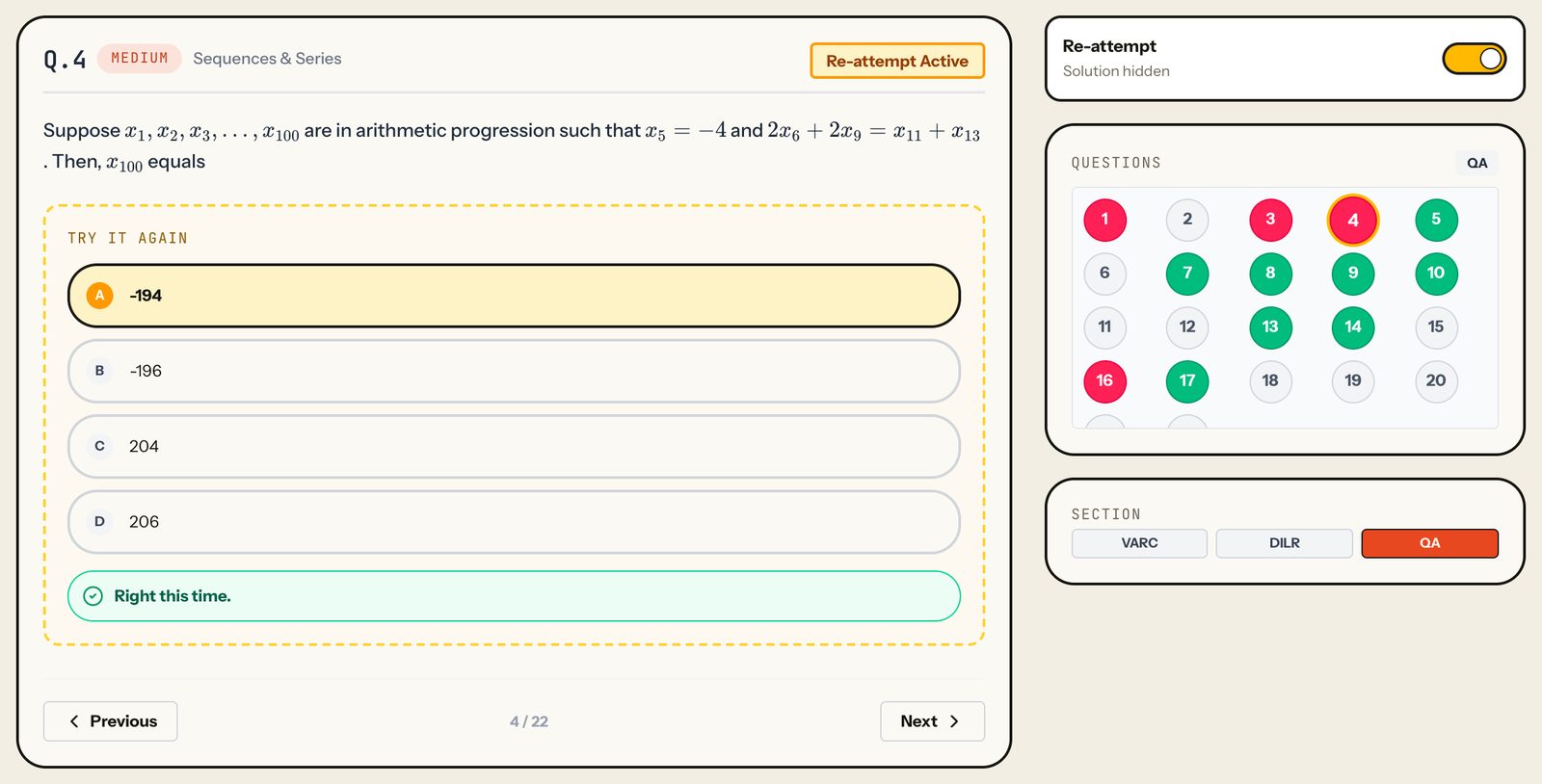
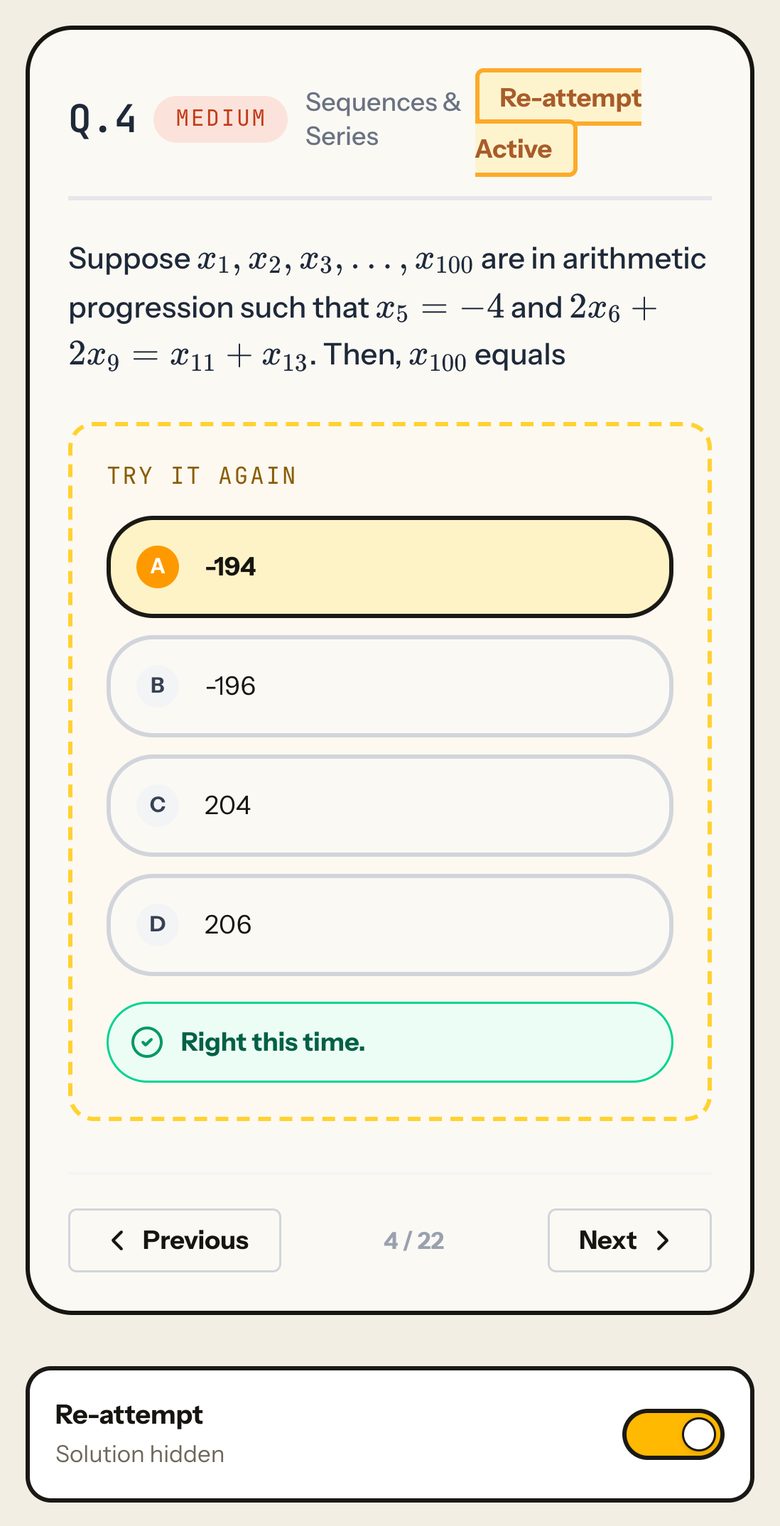
Re-attempt
What it shows
A switch on wrong and skipped questions that hides the solution and lets you try the question again. Your earlier result and the solution panel are hidden while it is on.
A re-attempt is a practice check on this screen; it does not change your score.
How to use it
- Turn the switch on before reading the solution.
- Pick an option (or type a TITA answer and press Submit).
- Read the result, then turn it off to see the solution.
Taps and where they lead
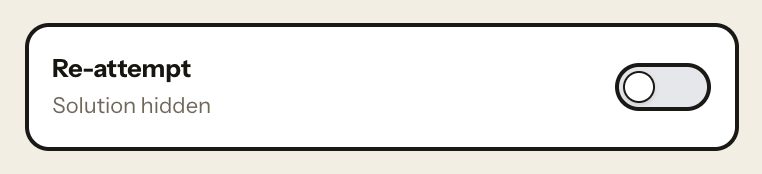
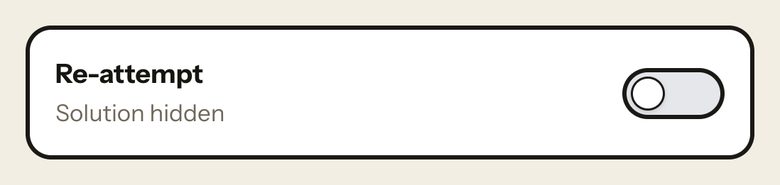
- Re-attempt switchOn: the question shows "Try it again" and the badge reads "Re-attempt Active"; the Solution / Your record panel is hidden. Off: back to the review.
- An option (re-attempt on)Checks it at once: "Right this time." or "Not right yet. Check your working." Pick again to retry.
FreeThe same for every student, free or Pro.
Other states
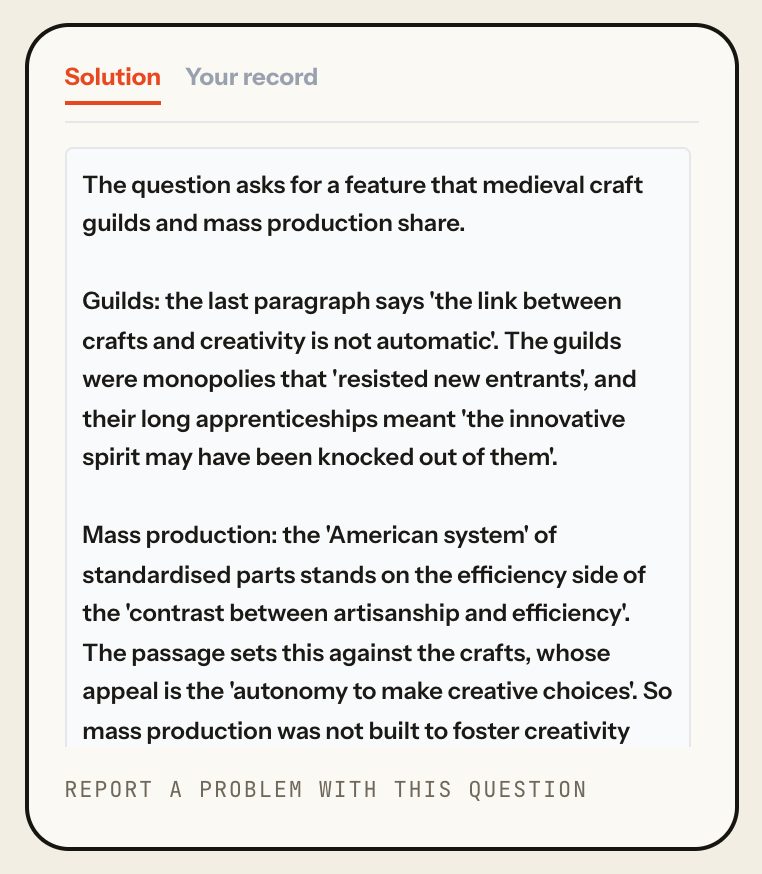
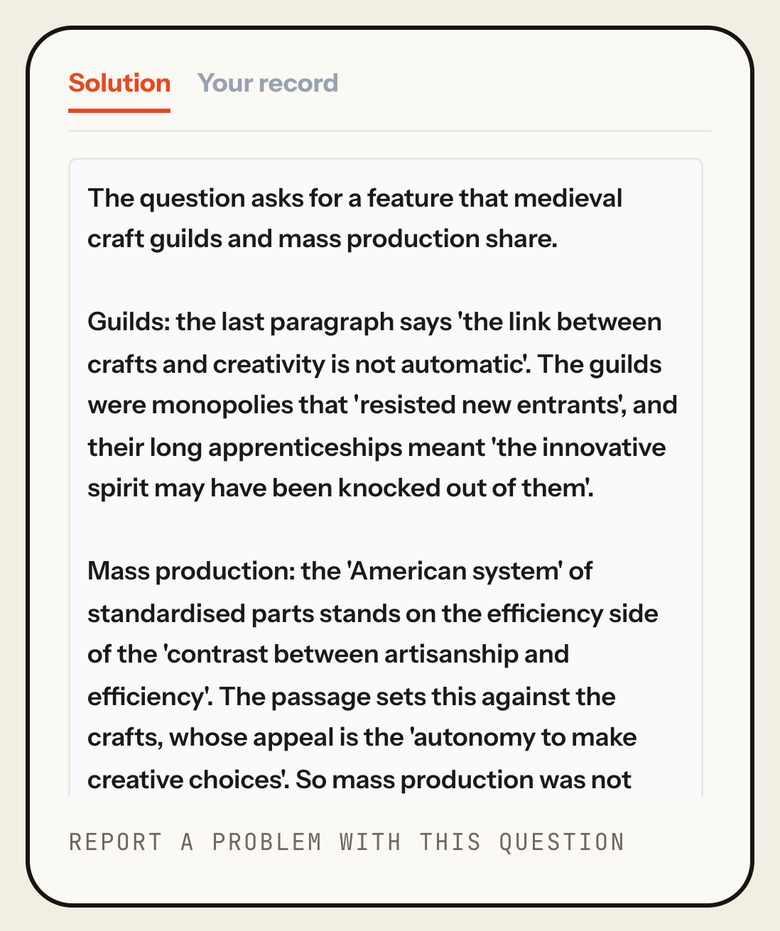
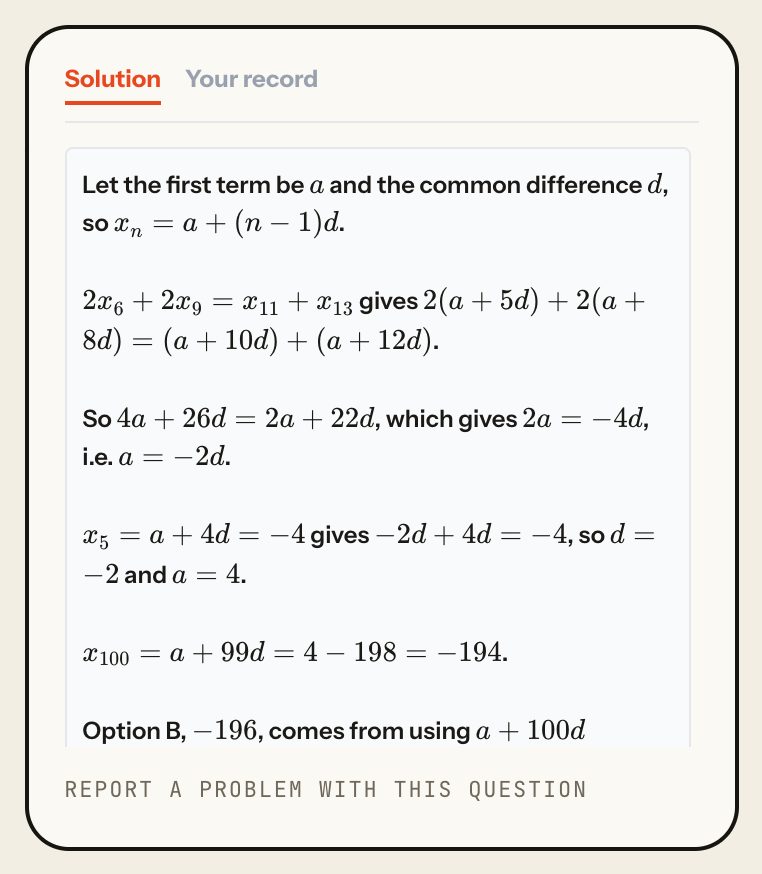
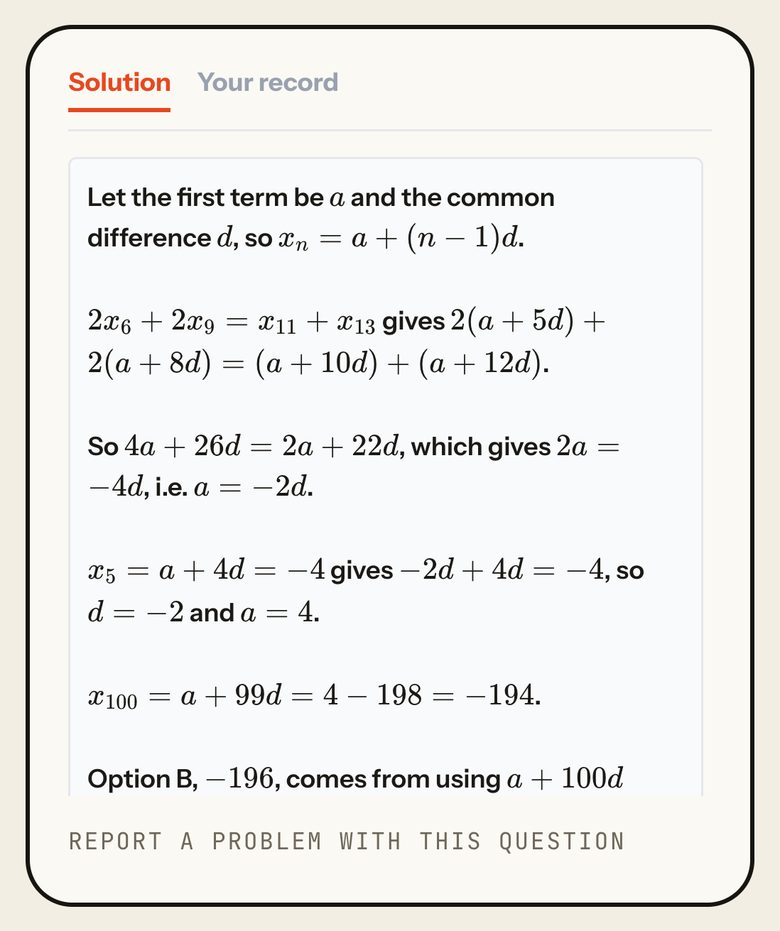
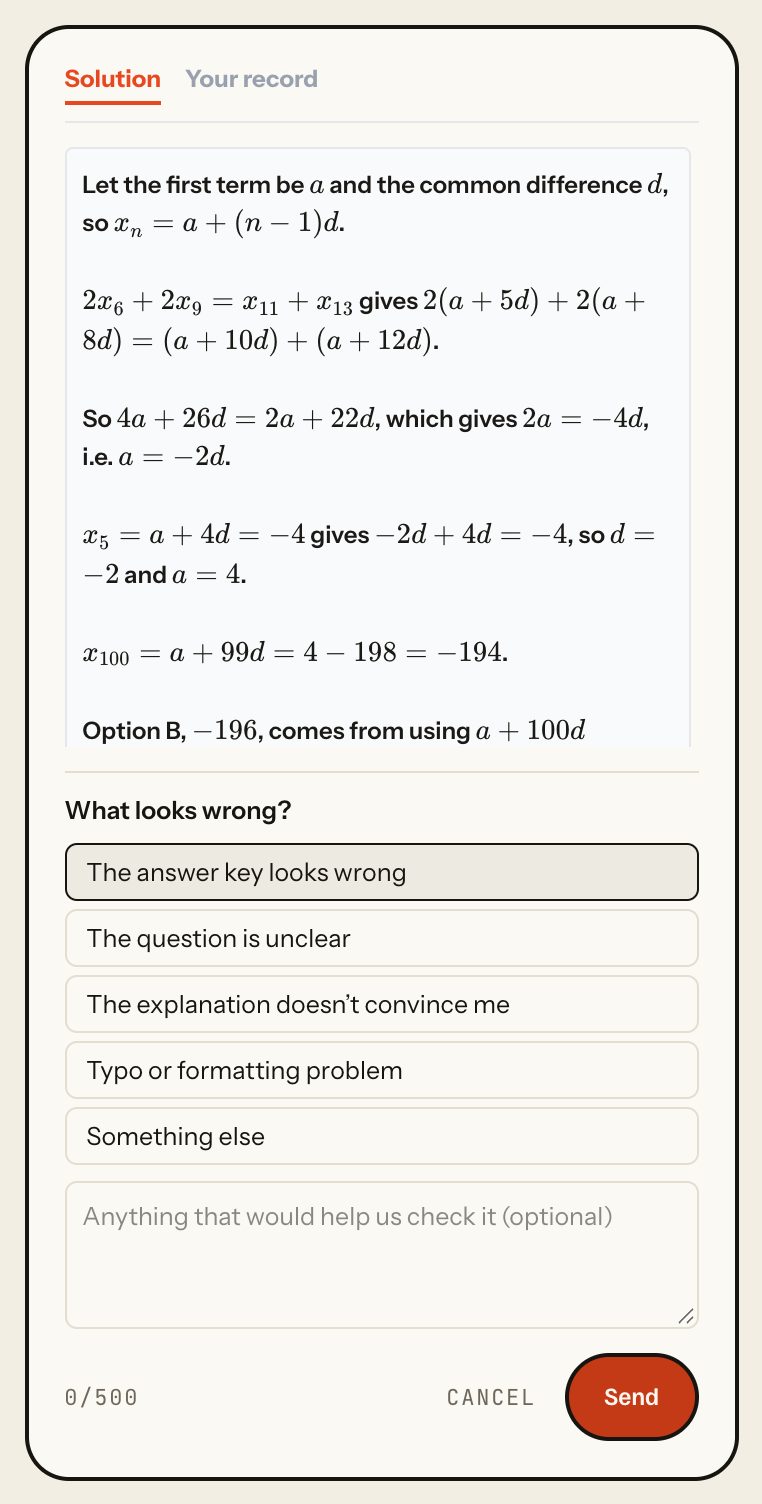
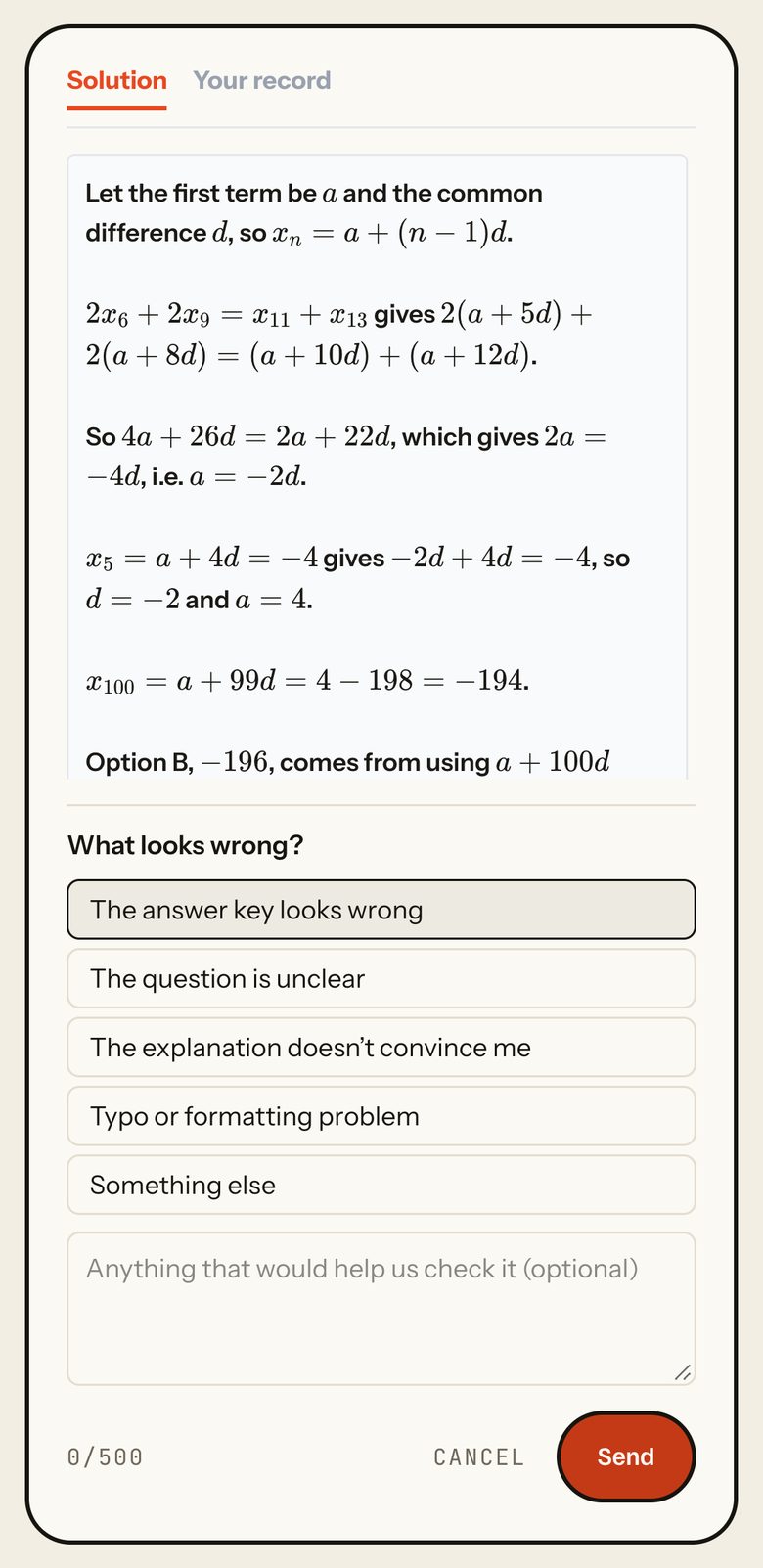
Solution
What it shows
The worked solution for the question shown (approach, solution, shortcut and common mistakes where the question has them), and a quiet link to report a problem with the question.
The report link shows for signed-in students only.
How to use it
- Read the solution.
- If something looks wrong, press "Report a problem with this question", pick a reason, add a note if you like, and press Send.
Taps and where they lead
- Solution / Your recordSwitches between the solution and your record for this question.
- Report a problem with this questionOpens "What looks wrong?" inline: The answer key looks wrong, The question is unclear, The explanation doesn't convince me, Typo or formatting problem, Something else; an optional note (500 characters); Cancel and Send. Send is enabled once a reason is picked and shows "Thanks, we'll check it."
FreeThe same for every student, free or Pro.
Other states
Your record
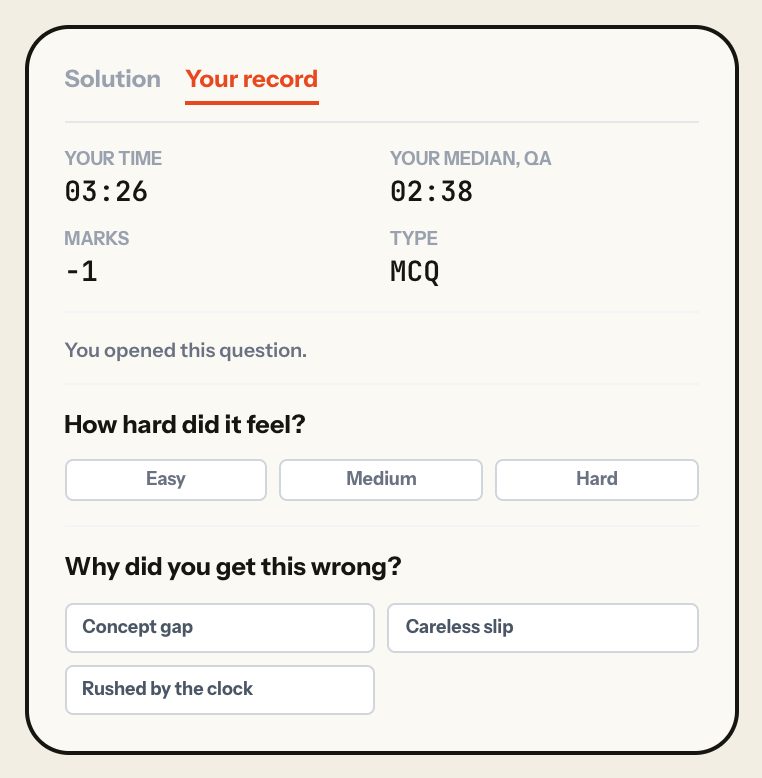
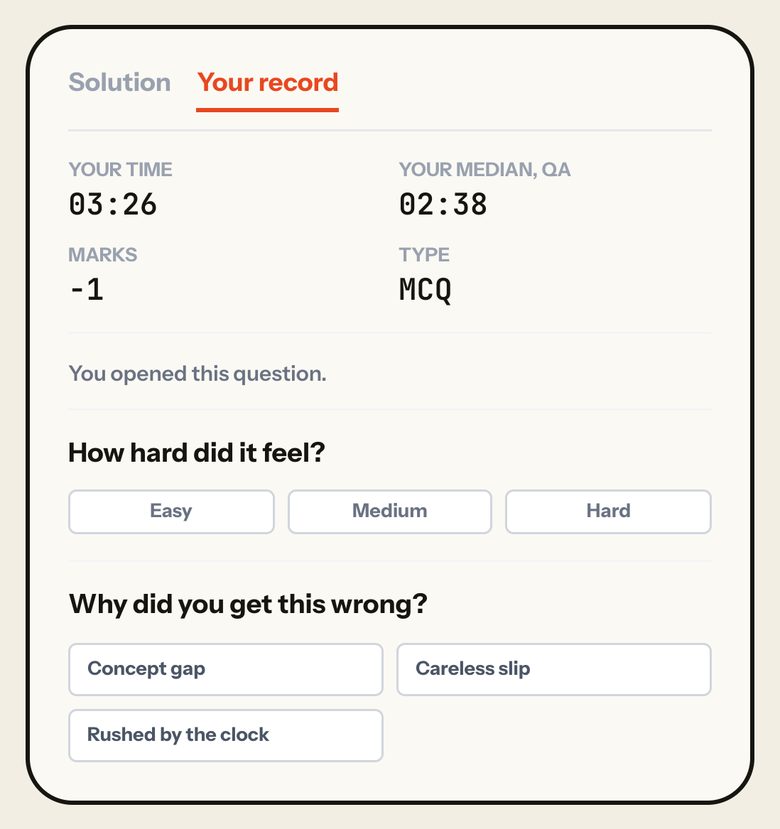
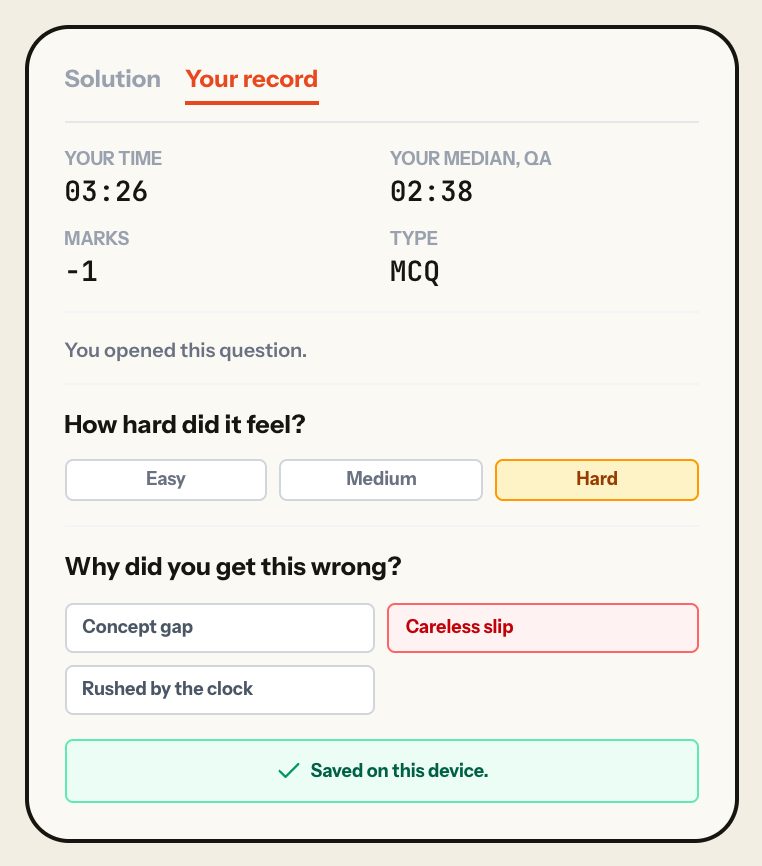
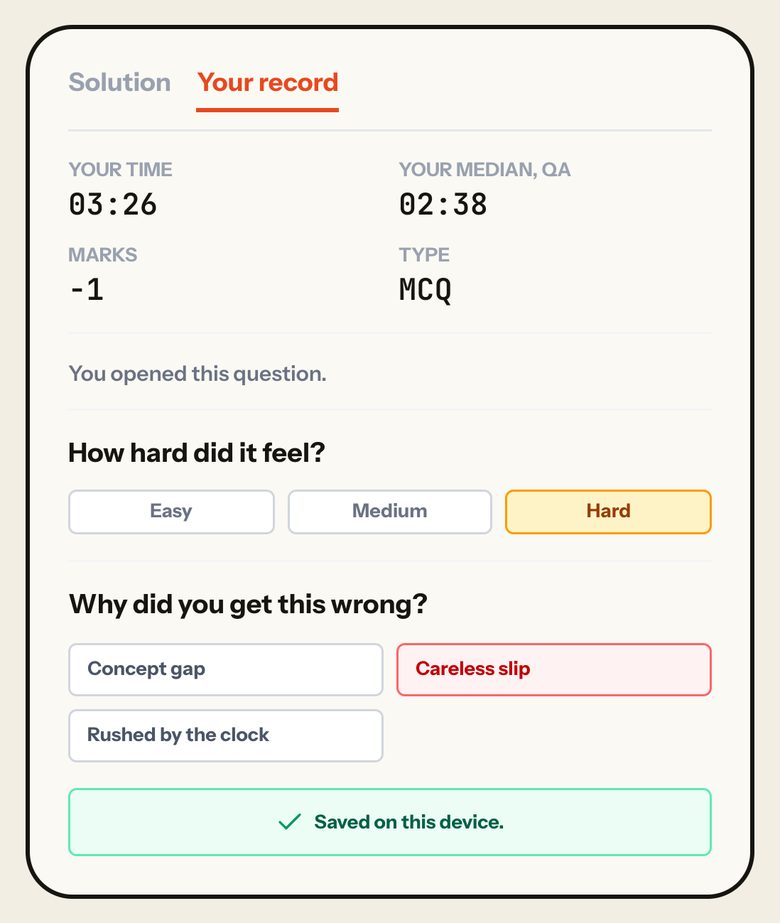
What it shows
This question as the sitting recorded it: your time, your median for the section, marks and type; whether you opened it and left it marked; "How hard did it feel?"; and, for a wrong or skipped question, why.
How to use it
- Pick how hard it felt (Easy, Medium, Hard).
- Pick the reason: Concept gap, Careless slip or Rushed by the clock for a wrong answer; Didn't know how, Too long, moved on or Never reached it for a skip.
- A line confirms the save ("Saved to this attempt." in the account, "Saved on this device." otherwise).
Taps and where they lead
- Easy / Medium / HardSaves how hard it felt for this question.
- A reasonSaves the tag on the attempt; the Wrong answers row then reads "You: reason", and the tag fix in "Your next fixes" counts down.
FreeThe same for every student, free or Pro.
Other states
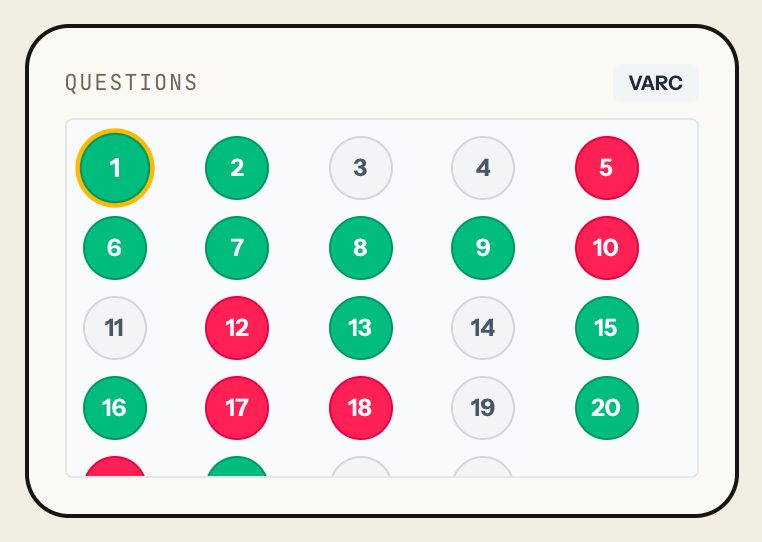
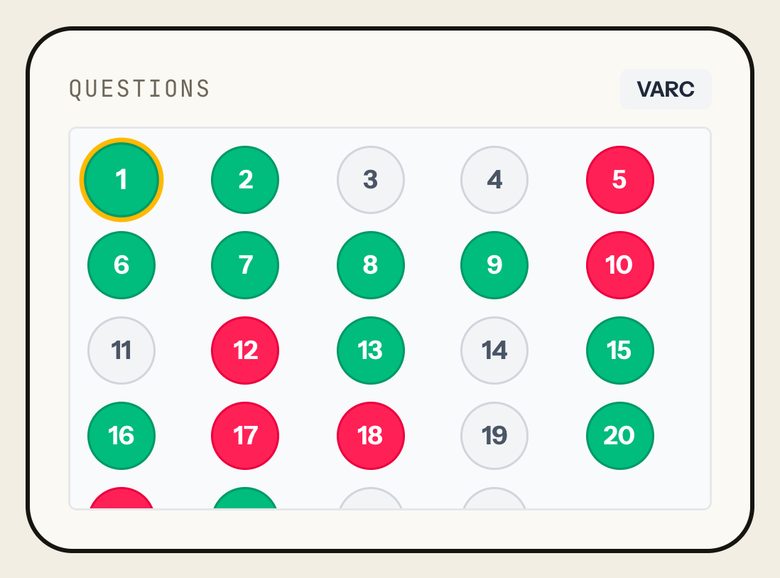
Questions
What it shows
Every question in the section as a numbered square: green right, red wrong, grey skipped; the current one is ringed.
The grid scrolls inside the panel after four rows.
How to use it
- Tap a number to jump to it.
Taps and where they lead
- A numberOpens that question in the same section.
FreeThe same for every student, free or Pro.
Section
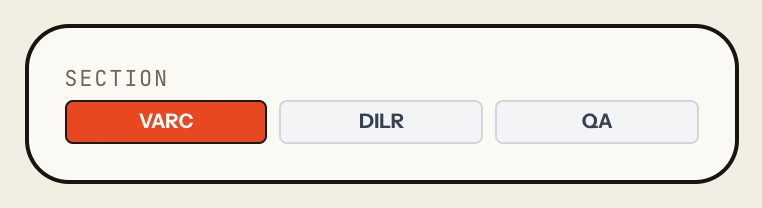
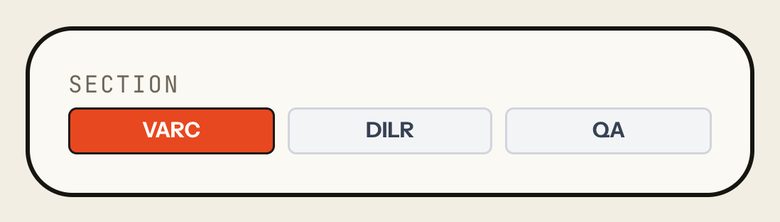
What it shows
Switches the Solutions view between VARC, DILR and QA.
How to use it
- Tap a section; it opens at its first question.
Taps and where they lead
- VARC / DILR / QAOpens that section at question 1 and turns re-attempt off.
FreeThe same for every student, free or Pro.
Below the tabs
At the foot of every view.
All your mocks / Retake this paper / Choose the next mock
What it shows
Three ways on at the foot of every view.
How to use it
- Retake the paper when you want a second sitting, or choose the next mock.
Taps and where they lead
- All your mocksOpens your performance page, with every mock you have sat.
- Retake this paperOpens the exam for this paper. A retake becomes a new attempt; the report then compares it with the previous one.
- Choose the next mockOpens the mocks list.
FreeThe same for every student, free or Pro.

Shown only sometimes
A few panels depend on other students, other attempts or the server, so the sample sitting cannot show them.
- OverviewLeaderboard · first attempts, checked on our serverAppears when first attempts at the paper have been scored on our server: your rank of all entrants, your server-checked score, a measured percentile and the top three, with Open the full board. Names show only for students who switched them on. Where a paper's leaderboard needs a plan, a free student sees that it is for CATin Pro.
- AnalysisCollege predictorAppears once the percentile is measured, after 30 students have sat the paper. It is never built on an estimate.
- Overview, and the score cardYour attempts at this paperAppears when you have sat the paper more than once: each attempt's date, score and change, with Open to view it. The score card then adds "Attempt N of M" and a "vs previous" column, and notes that the percentile reads high because you have seen the questions.
- in place of Your next fixesYour next stepAppears when a sitting has no wrong answers: the topic that cost most, a Practise button and Go through your answers.
- What each section saysWritten by the AI for this attemptAppears when our server has written an analysis of the attempt. It is labelled, so you can tell the sentences a model wrote from the numbers that were measured.
- under a solutionAsk CATin about thisAppears once Ask CATin is switched on. It is not live yet.
Questions students ask
How do I analyse a CAT mock?
Go from the outside in. Read the score and percentile, then where the marks went (the topics with negatives) and where the time went (minutes on questions you skipped, slow wrong answers). Tag why each wrong answer went wrong. Then go section by section: which difficulty cost you, which passages or sets paid for their time. Re-attempt what you missed before reading the solutions, and turn the two or three biggest leaks into the next day's practice. CATin works all of this out the moment you submit; the seven steps on this page give the order.
What does the percentile in CATin's analysis mean?
Until 30 students have sat a paper on CATin, it is an estimated band, labelled "Estimated · no cohort yet" (93.7 to 98.1 for 67 of 204 on the sample sitting). The estimate is read from CAT-level score-to-percentile data sets that we have used, reviewed and put up. Once 30 students have sat the paper, the percentile is measured against their first attempts. On a retake it reads high, because you have seen the questions before. How the estimate is built.
What is "Looking back: if you had…"?
A hindsight panel in the Analysis tab. It re-works your score three ways after the fact: skipping your slowest wrong MCQs (up to 4), getting your accuracy on easy questions to 90%, and leaving the hard MCQs you got wrong. Each card shows the re-scored total and the marks it adds (67 to 71 for each on the sample sitting). The cards are computed for you; there is nothing to change on them, and they are not a prediction.
How does tagging a wrong answer change my revision?
Every wrong answer from a mock comes back as a revision question; the tag sets its place in the queue. Concept gaps come first, then answers rushed by the clock, then untagged ones, and careless slips last. Tagging also clears the "Go through and tag" fix, and the Wrong answers list shows your reason on each row. Revision and the daily plan are part of CATin Pro.
Is CATin's mock analysis free?
Yes. The full analysis, every panel on this page, comes with every mock, including the free official CAT papers from 2023, 2024 and 2025. Pro adds the other papers and mocks, puts the fixes you keep into the daily plan as tasks, and opens practice beyond the free papers. See plans.
Does the analysis work on a phone?
Yes: the same report with the same panels. On a phone the panels stack in one column, the Every question table scrolls sideways, and in Solutions the Re-attempt switch, the question grid and the section switch sit under the question instead of beside it. Every section on this page shows both views.
How do I report a wrong answer key?
Under the solution, press "Report a problem with this question", pick what looks wrong (the answer key, an unclear question, an explanation that does not convince you, a typo, or something else), add a note if you like and press Send. You need to be signed in. We check every report and list the corrections publicly. How questions are checked.
What happens when I retake a paper?
Retake this paper starts a new attempt. Its report shows "Attempt N of M", the change against your previous attempt and a "vs previous" column, and Overview lists every attempt at the paper. The percentile reads high on a retake, because you have seen the questions.
Try it on your own mock
The official CAT papers from 2023, 2024 and 2025 are free, with every panel on this page. Pro opens all 80+ CAT mocks and the planner. One payment, no auto-renewal.